Convenient Usage
To Change the Default Settings for Printing
Default settings for printing can be changed from the printer properties.
Here an example of operation with Windows 11 is explained.
Note
These steps may differ depending on the client computer being used.
Setting 4 Pages Up (Printing 4 Pages on a Single Page) as Default
- Click [Start] > [Settings] > [Bluetooth & devices] > [Printers & scanners] in order.
- Select this machine from the printer list.
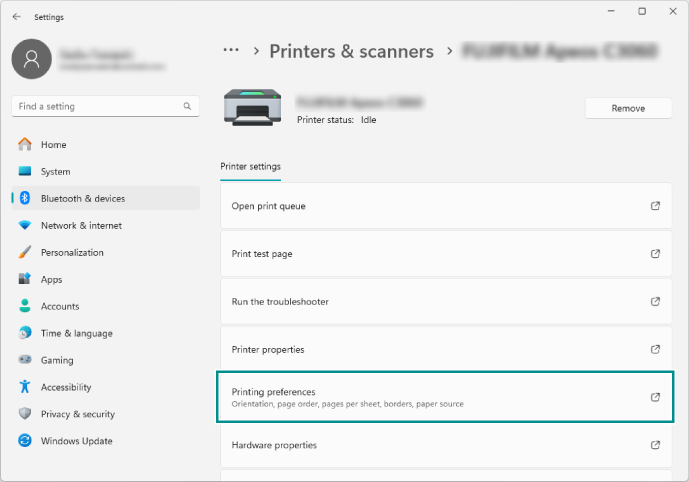
- Click [Printing preferences].
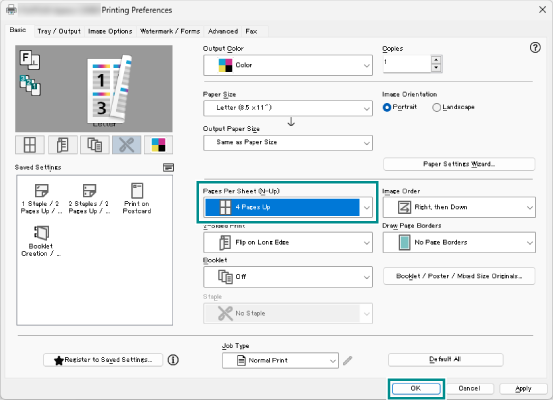
- Select [4 Pages Up] among [Pages Per Sheet (N-Up)] and click [OK].
Setting 1 Sided Printing as Default
Note
The factory default is set to [Flip on Long Edge].
- Click [Start] > [Settings] > [Bluetooth & devices] > [Printers & scanners] in order.
- Select this machine from the printer list.
- Click [Printing preferences].
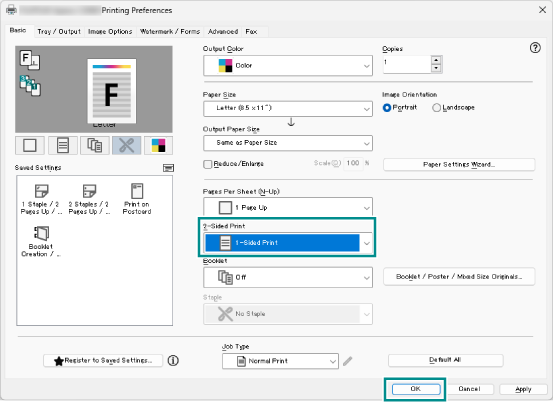
- Select [1-Sided Print] among [2-Sided Print] and click [OK].