
Setting up Scan to Desktop
Scan to Desktop is a feature for remotely scanning documents loaded on the machine from your computer on the network.
You need to configure the following settings in order to use the feature.
Note
The scan feature cannot be used with the default settings on Windows Server.
Setting the IP Address
Set the IP address of the machine by referring to Setting the IP Address.
Setting the [WSD] Port
- Log in to Administrator Mode.
- Tap on
 on the Home screen.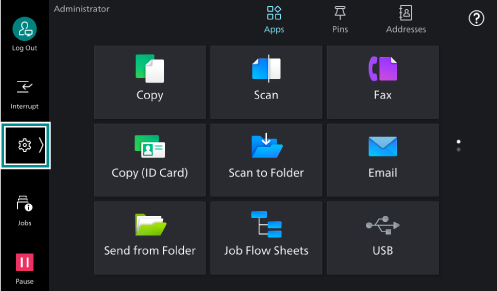
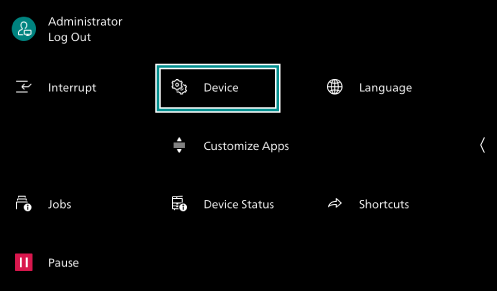
- Tap on [Device].
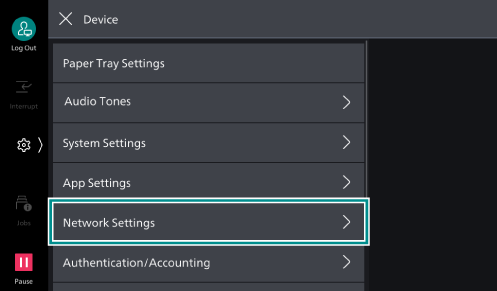
- Tap on [Network Settings].
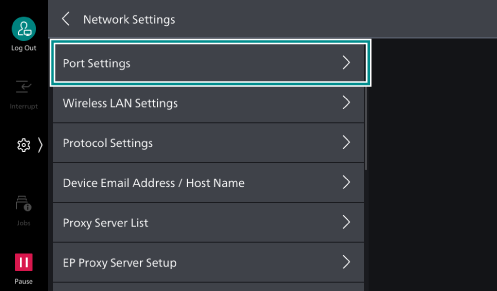
- Tap on [Port Settings].
- Tap on [WSD].
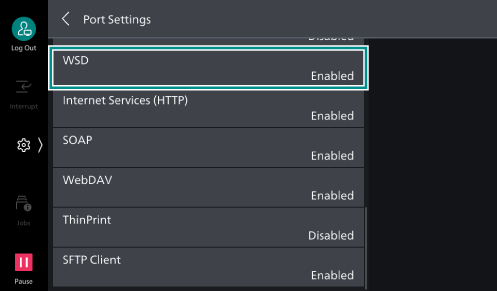
- Tap on [Port (Scan to Desktop)].
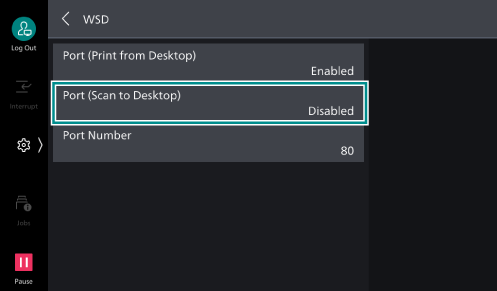
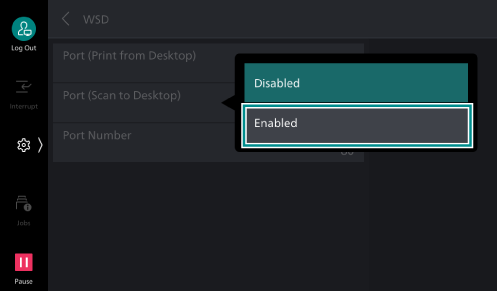
- Tap on [Enabled].
- Press <Home>.
- Tap on [Restart Now].
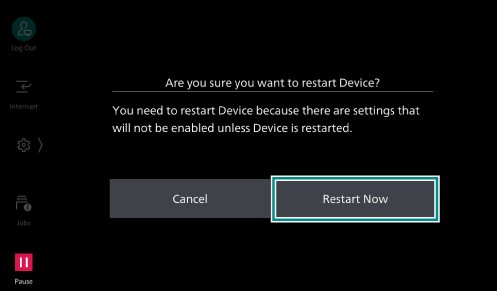
The machine restarts and then the settings are enabled.