
How to Use Print, Copy, Fax and Scan
Printing Using the Printer Driver
Refer
For how to install the printer driver of the machine, refer to Installing the Printer Driver.
Submitting a Print Job from a Client Computer
Note
The steps may differ depending application software.
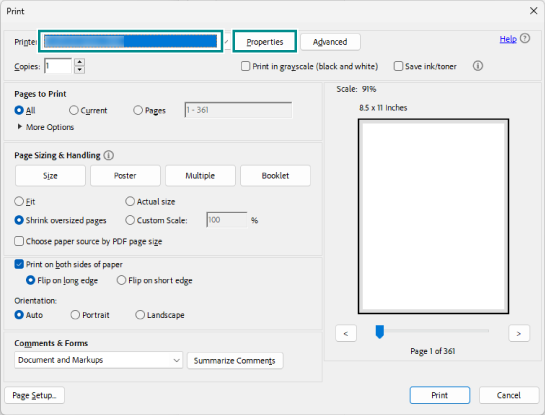
- On your application software, open the file to print and select [Print] from [File].
- Select the machine in [Printer], and click [Properties].
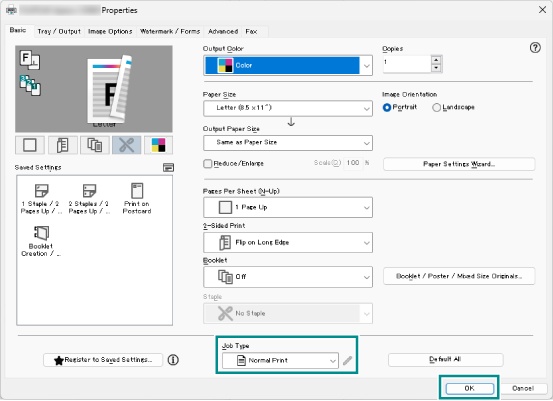
- Select [Normal Print] among [Job Type] and click [OK].
Note
To specify the output destination, select the output tray from [Output Method] on the [Tray /
Output ] tab.
- Click [Print].
Printing Stored Files
Temporarily store the print data sent from the printer driver and print them by operations on the touch panel display.
This section explains the steps for printing private charge print files as an example.
Refer
For information on the settings for using the private charge print feature, refer to Configuring Initial Settings for Private Charge Print.
- Log in to Authentication Mode.
- Tap on
 ([Jobs]) on the Home screen.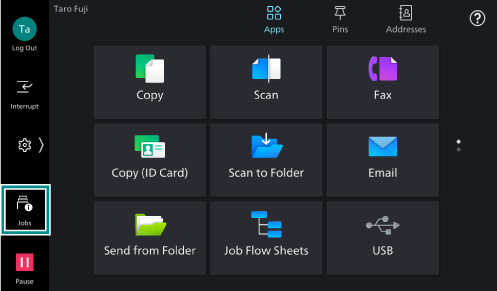
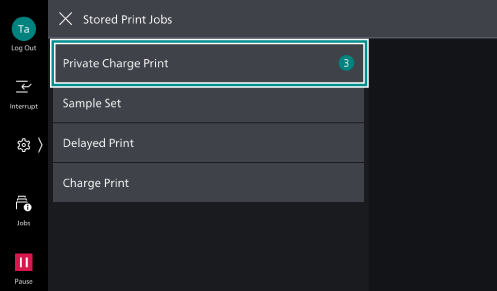
- Tap on [Stored Print Jobs].
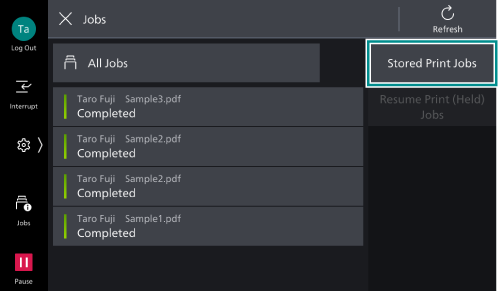
- Tap on [Private Charge Print].
Note
Up to 100 files can be printed at a time.
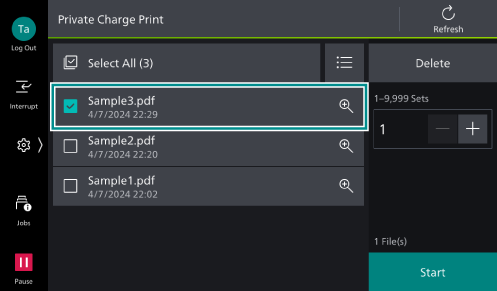
- Tap on the file to be printed, to apply a check mark.
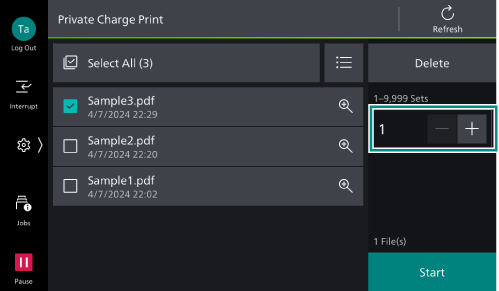
- Change the print quantity as needed.
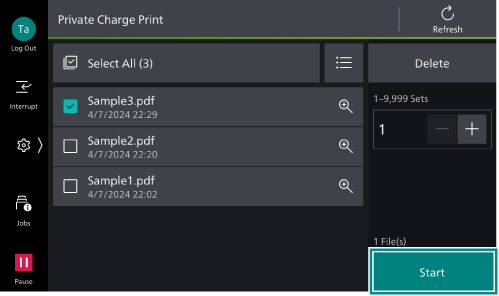
- Tap on [Start].
Note
When printing with the finisher function specified while in a status where it cannot be used, this specification is deleted and the printing is performed.
This cannot be used when any device except an IC Card reader is connected.
Printing with AirPrint
This section shows you an example of printing from Safari on iPad.
Refer
For information on the settings for using AirPrint, refer to Setting up AirPrint.
- Tap on
 (Share icon) in Safari.
 - Tap on [Print].
- Tap on [Select Printer], and select the machine.
- Set items as needed, and tap on [Print].
Note
AirPrint does not support the Charge Print and Private Charge Print options.
If the machine is not detected on the Select Printer screen, perform the following:
Check the network settings of the machine and iOS/macOS.
In Administrator Mode, check the port settings in
 > [Device] > [Network Settings].
Make sure that the machine and the client computer use the same network. When printing across different network, enable Wide-Area Bonjour on both the machine and the client computer.
Pausing Printing
- Tap on
 or [Pause].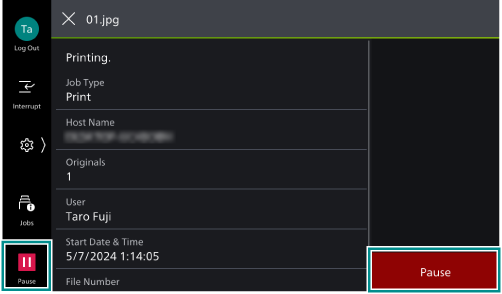
- Tap on [Cancel].
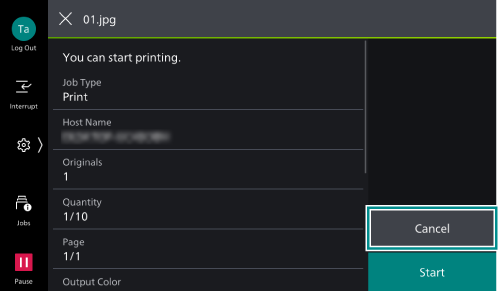
Canceling a Pending Print Job
- Tap on ([Jobs]) on the Home screen.
- Tap on [All Jobs], and then tap on [Active Jobs] or [Print Jobs] of the displayed menu.
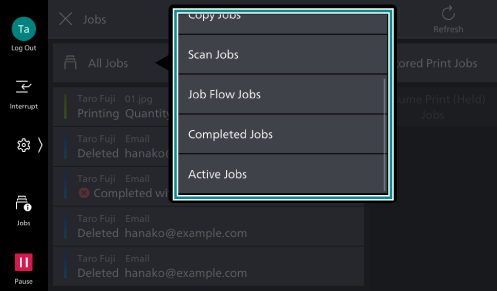
- Tap on the job to cancel.
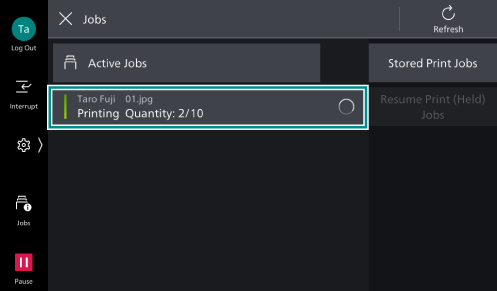
- Tap on or [Pause].
- Tap on [Cancel].