To Delete or Import Documents Stored in a Folder into My Client Computer
When the machine is installed in TCP/ IP environment, Internet Services allows you to import documents saved (stored) in the machine's folder into client computers. You can also use Internet Services to list documents saved in the folders and specify multiple documents to delete at one time.
In addition to the use of Internet Services, DocuWorks or Adobe Acrobat (hereinafter referred to as Acrobat) can be used to import documents saved in the folders into client computers.
Importing Documents (Client Computer)
- Access Internet Services.
Refer
For details, refer to Using Internet Services.
- Click [Apps].
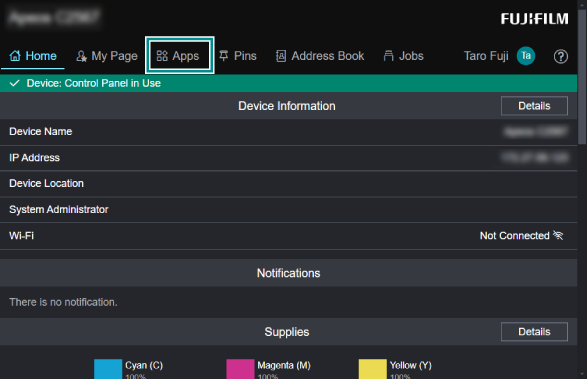
- Click [Send from Folder].
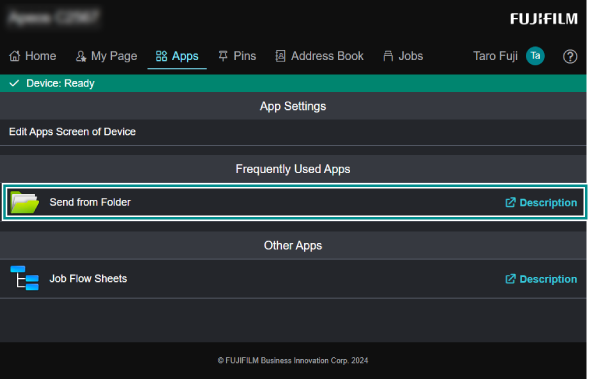
- Select a folder in which documents are stored.
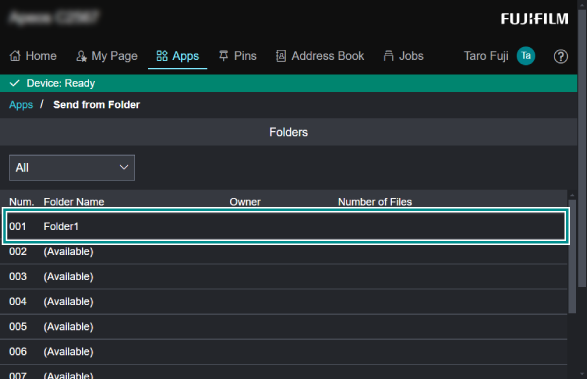
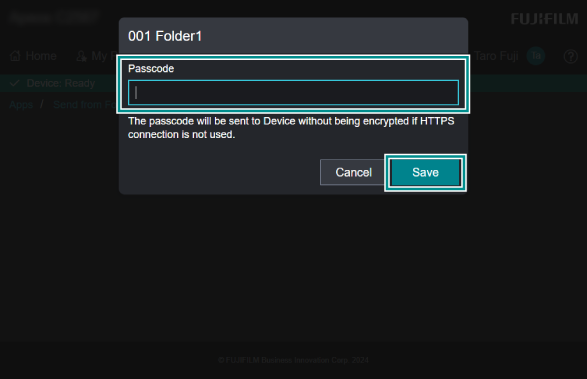
- If a screen appears prompting you to enter a passcode, enter the passcode set for the folder, and click [Save].
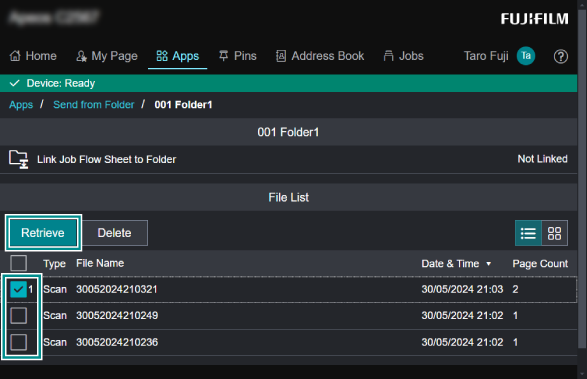
- Apply a check mark to the document you want to download, and click [Retrieve].
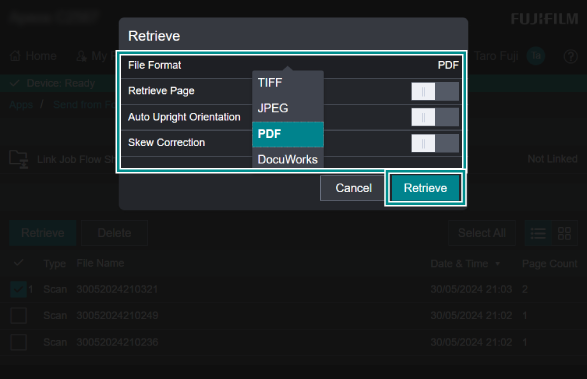
- Select the file format, and click [Retrieve].
Note
Documents imported with Internet Services will not be deleted even if automatic document deletion is set on the machine.
Deleting Documents in a Folder
- Access Internet Services.
Refer
For details, refer to Using Internet Services.
- Click [Apps] > [Send from Folder], and select the box.
If a screen appears prompting you to enter a passcode, enter the passcode set for the folder, and click [Save].
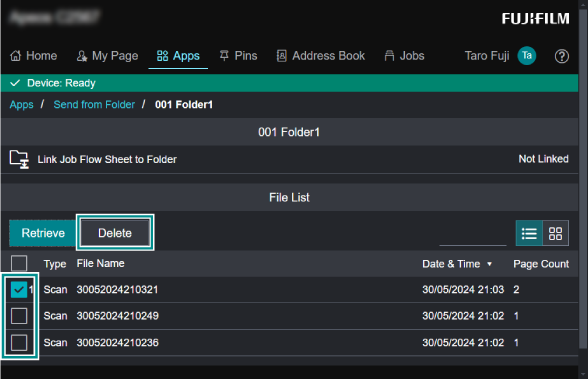
- Apply a check mark to the document you want to delete, and click [Delete].
- Click [Delete].
Importing Documents (DocuWorks)
- Start DocuWorks Desk.
- Click [Device Folder], and double-click [Add Device Folder].
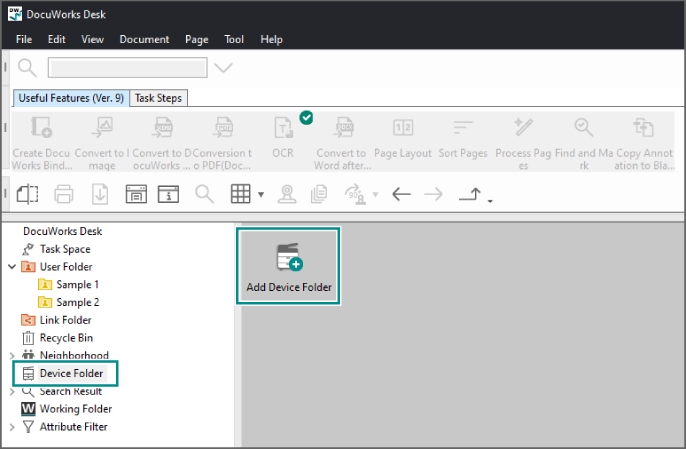
- Click [Next] for [Device Folder Configuration Wizard].
- From the displayed list, click the scanner name of the machine to connect, and click [Next].
Note
If the machine does not appear in the search results, enter the IP address in [Specify the IP address or FQDN directly].
- Select a device folder from the list being displayed, set items as needed, and click [Next].
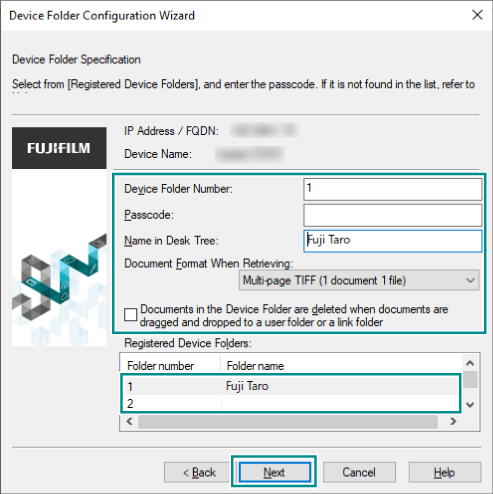
Note
If your registered device folders do not appear, enter [Device Folder Number].
- Click [Completed].
- Drag-and-drop a file stored in the Device Folder into [User Folder] or a folder.
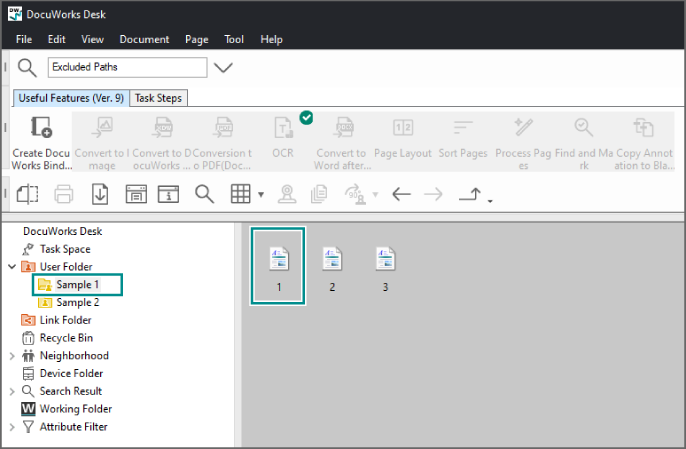
- Click [Yes] in the displayed confirmation screen.
Note
The document is imported in DocuWorks format.
If there is a file you want to import in a file format other than XDW, such as a TIFF file, apply a check mark to [Import the file without converting to DocuWorks document]; the document will be imported in the file format you selected in [Document Format When Retrieving] in step 5.
- Modify the import settings as needed, and click [OK].
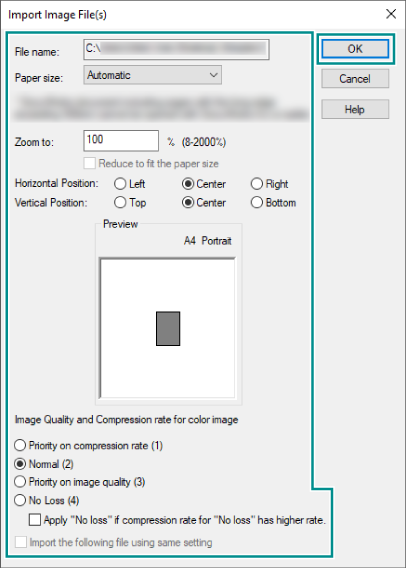
The document is imported into the specified folder.
Importing Documents (Adobe Acrobat)
Note
In order to use this feature, the client computer must have Network Scanner Utility 3 installed.
- Start Acrobat.
- Click [Menu] > [Create] > [PDF from scanner] in order.
Note
The steps may differ depending on the application version you use.
You can select the predefined scan setting such as [Autodetect Color Mode], [Black and White Document], [Color Document], [Grayscale Document], and [Color Photograph].
Selecting [Autodetect Color Mode] lets Acrobat determine the document type automatically.
- Select “FUJIFILM Network Scanner 3 TWAIN”, and click
 next to [Default Settings].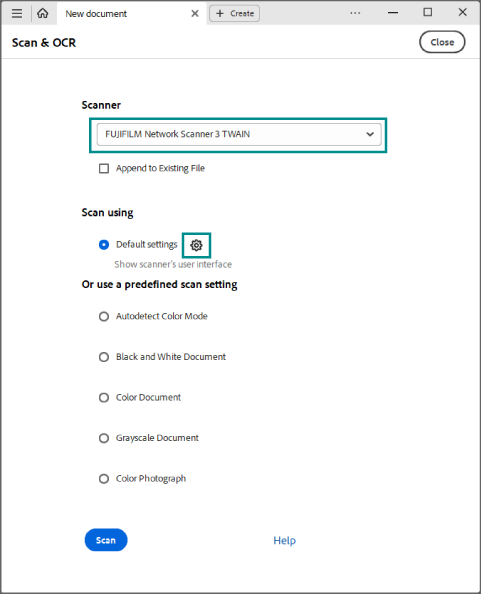
- Apply a check mark to [Show scanner's user interface] on the displayed screen, and click [Scan].
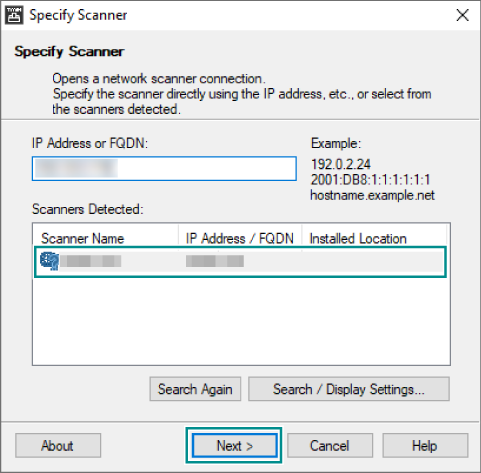
- From the displayed list, click the scanner name of the machine to connect, and click [Next].
Note
If the machine does not appear in the search results, enter the IP address in [IP Address or FQDN:].
- Select a device folder from the list being displayed, set items as needed, and click [Confirm].
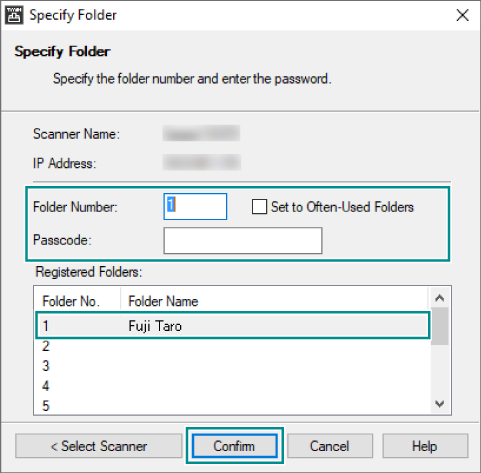
- The device folder opens, displaying a list of documents stored in the device folder.
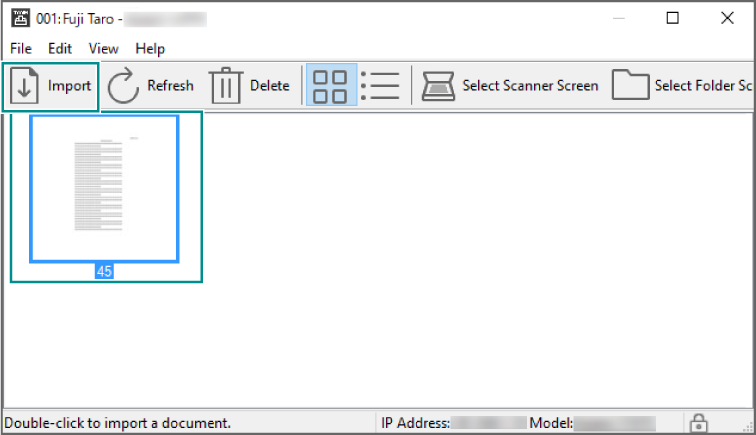
- Select a document to import, and click [Import].