
To Print on Special Media Such as Envelopes, Postcards or Labels
When you want to print on special media such as envelope, postcard or labels, use [Simple Paper Settings] for helpful guidance to simplify print settings.
The navigation feature of [Simple Paper Settings] provides a preview capability that allows you to view the output reflecting the selected paper type. This capability helps you load paper onto the machine while checking the paper orientation or the side of paper to be printed on by following the displayed illustrations and descriptions.
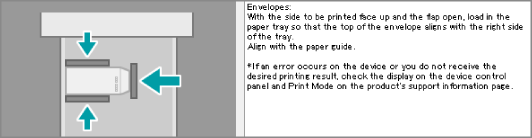
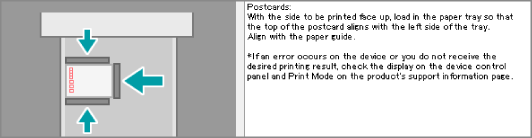
Important
Failing to set on the printer driver correctly the type or size of paper you want to print on can cause failure of printing or malfunction of the machine.
Refer
For how to install the printer driver of the machine, refer to Installing the Printer Driver.
The following describes the label paper printing procedure using the Tray 5 (Bypass) for example.
Operation on the Machine
The following describes the procedure to change the paper type setting for paper tray to Labels.
- Tap on
 on the Home screen.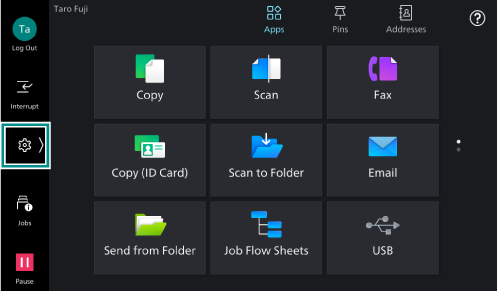
- Tap on [Device].
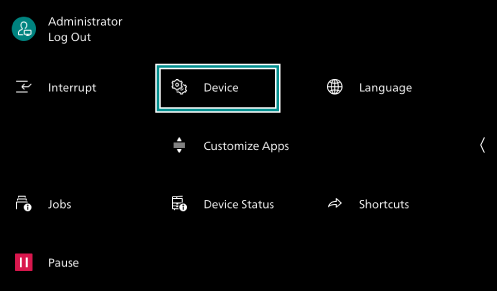
- Tap on [Paper Tray Settings].
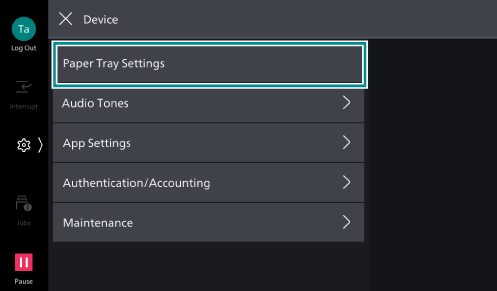
- Select the paper tray whose paper type you want to change.
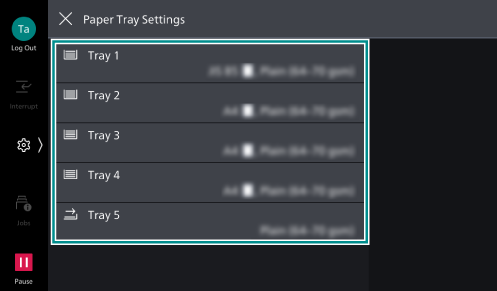
- Tap on [Paper Type].
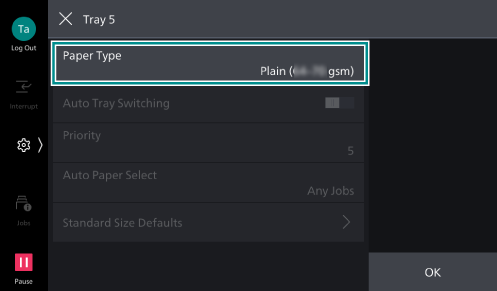
- Select an item considering the paper weight of the label paper you use, and tap on [OK].
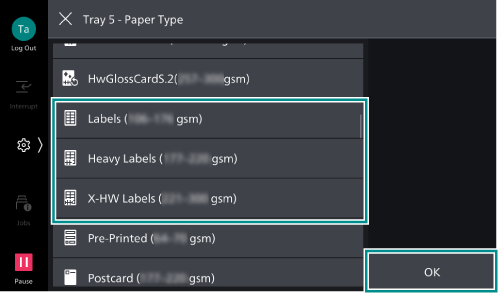
- As required, set the other items then tap on [OK].
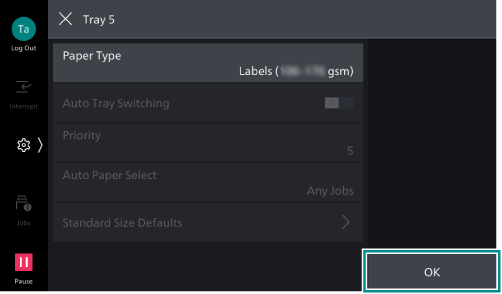
- Tap on [X].
Operation on the Printer Driver
The following describes the procedure to change the paper type setting to [Labels] for the paper tray and start the job using the printer driver.
- On your application software, open the file to print and select [Print] from [File].
- Select the machine in [Printer], and click [Properties].
Note
The steps may differ depending application software.
- Click [Simple Paper Settings].
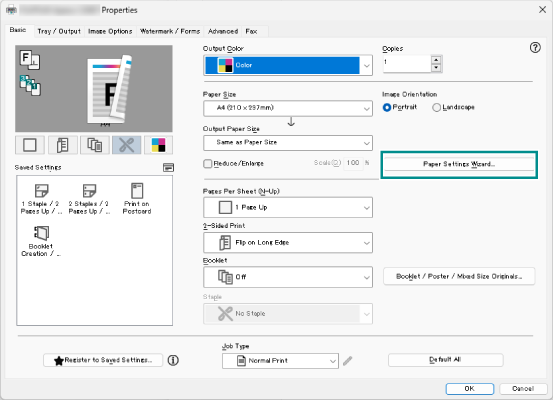
Note
If [Simple Paper Settings] is not displayed, confirm that the correct machine is selected for [Printer] of Step 2.
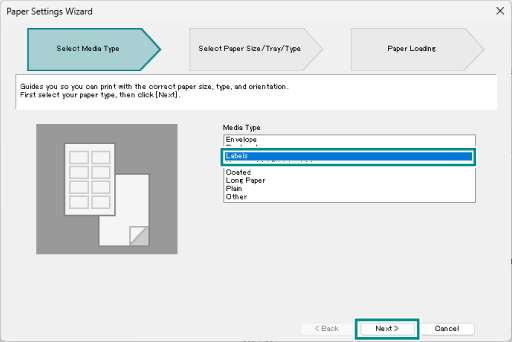
- Click [Labels] for [Media Type], and click [Next].
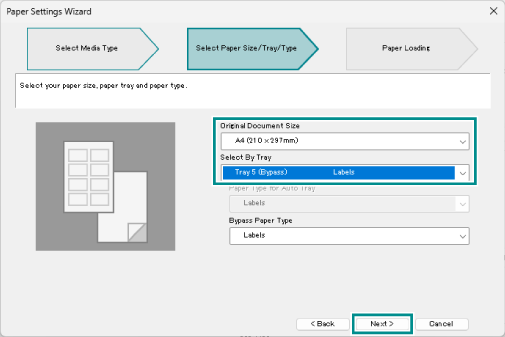
- Select the paper size to use for [Original Document Size] and Tray 5 (Bypass) for [Select By Tray], and click [Next].
- Load the labels in Tray 5 by following the screen guidance, and click [Finish].
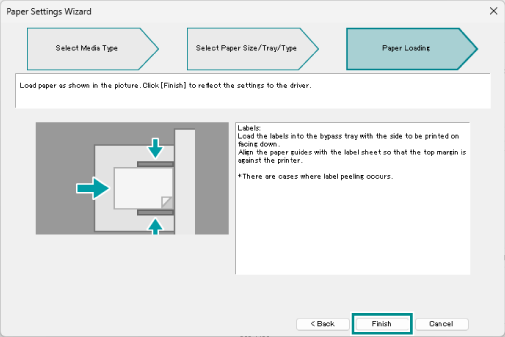
The settings are reflected to the printer driver.
- Click [OK] on the Printer Properties screen.
- Click [Print] or [OK] on the Print screen.