
Setting up Wireless LAN
To connect to the network using wireless LAN, the machine must have the Wireless LAN Kit (optional) installed.
Also, you need to log in to Administrator Mode and configure the settings according to the connection method.
Installing Wireless LAN Kit
- Press <Power/
Power Saver > on the control panel.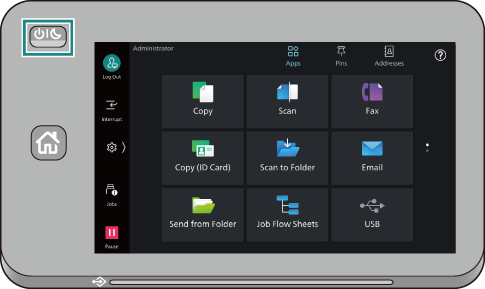
- Tap on [Power Off Device].
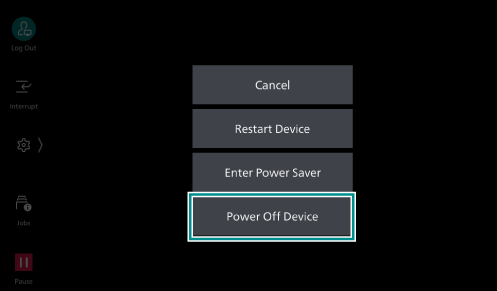
- Make sure that the touch panel display and all the lights are turned off, then disconnect the power cord from the power outlet and the machine.
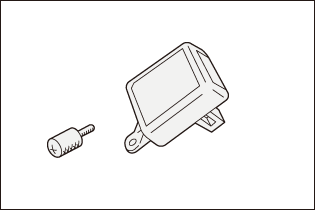
- Take out the Wireless LAN Kit unit and mounting screw from the Wireless LAN Kit box.
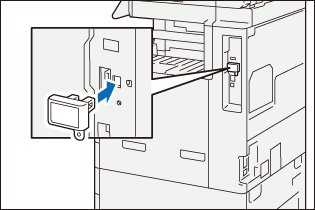
- Remove the cover from the Wireless LAN Kit socket located on the right side of the machine near the back.
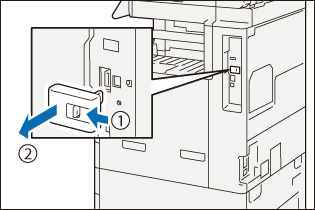
- Insert the Wireless LAN Kit connector into the socket for Wireless LAN Kit.
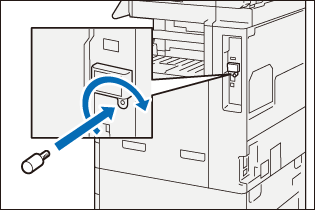
- Insert the screw and tighten it to secure the kit.
- Connect the power cord to the power outlet and the machine, and press <Power/
Power Saver > to switch on the machine.
Using Wi-Fi
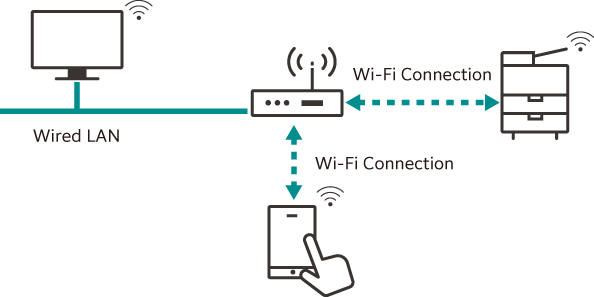
Connect the machine to mobile devices via the wireless LAN access point.
Note
Before using the feature, make sure that
 > [Device] > [System Settings] > [Other Settings] > [Country/
Region ] is set correctly.
Enabling Wireless LAN
- Log in to Administrator Mode.
- Tap on on the Home screen.
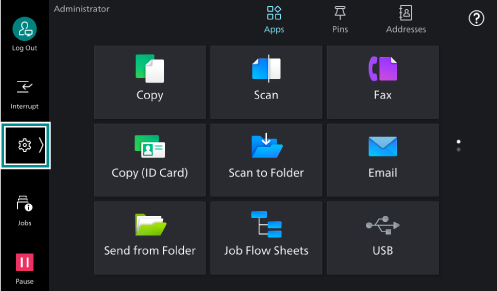
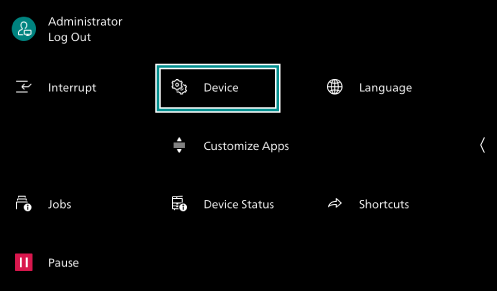
- Tap on [Device].
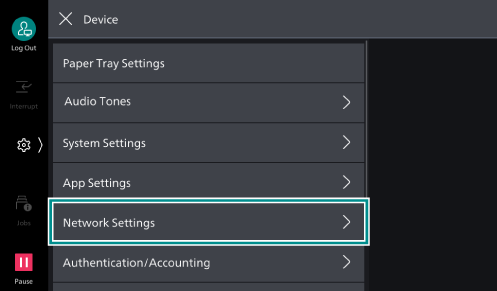
- Tap on [Network Settings].
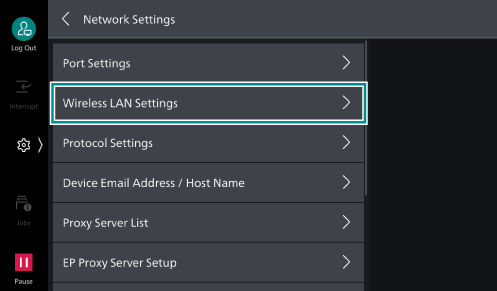
- Tap on [Wireless LAN Settings].
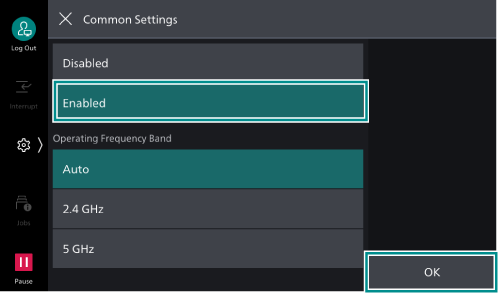
- Tap on [Common Settings].
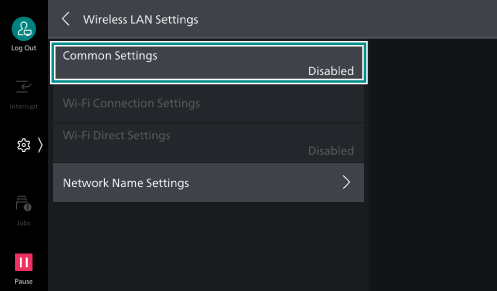
- Select [Enabled] and then tap on [OK].
Note
When connecting to a wireless LAN access point that uses RADIUS server authentication (IEEE802.1X authentication), it is necessary to set the certificate in Internet Services.
- Tap on [OK].
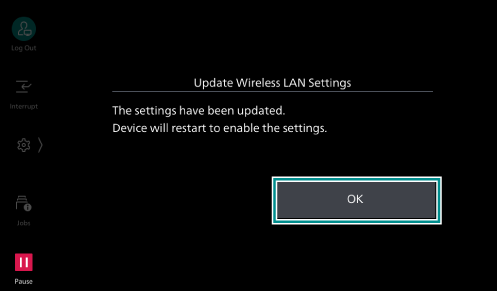
The machine restarts.
Wi-Fi Connection Settings
- Log in to Administrator Mode.
- Tap on on the Home screen.
- Tap on [Device].
- Tap on [Network Settings].
- Tap on [Wireless LAN Settings].
- Tap on [Wi-Fi Connection Settings].
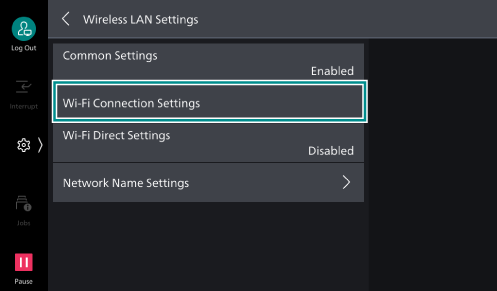
- Connect to the wireless network using one of the following methods.
Note
The wireless LAN access point SSID and authentication information (WEP key, Passphrase, etc.) are required.
Selecting from the list
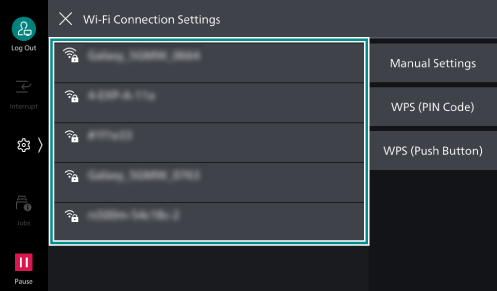
- Tap on the access point to connect.
If the access point has no security settings, setup is complete.
If the access point has security settings, proceed to step 2.
Note
A maximum of five wireless LAN access points are displayed in the list in the order of the strongest signal first.
When connecting to another access point, a screen to confirm the disconnection appears.
- Enter the required information and then tap on [OK].
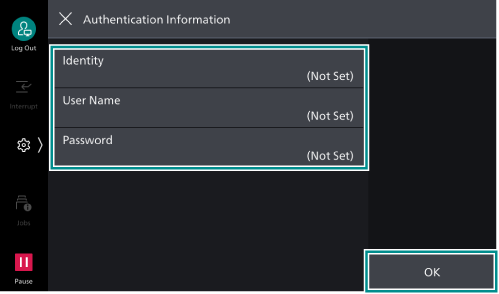
- Confirm that the settings updated and then tap on [OK].
The machine restarts and then the settings are enabled.
Manual Settings
- Tap on [Manual Settings].
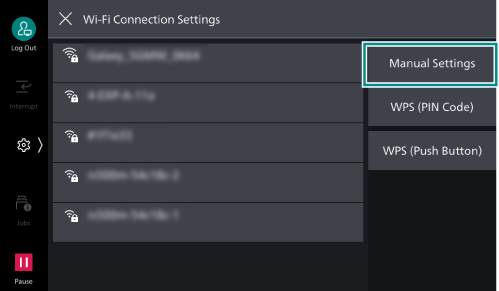
- Set each item and tap on [OK].
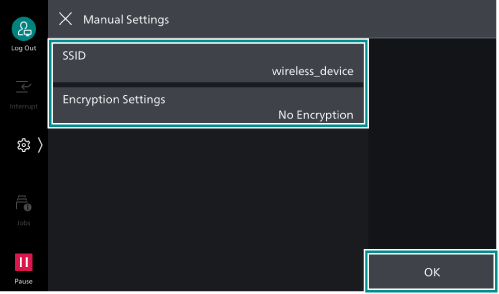
Setting Item
Detail
[SSID]
Set the name that identifies the wireless network. Alphanumerics up to 32 characters can be entered.
[Encryption Settings]
Set the encryption method.
Note
[WEP], [WPA/
WPA2 Personal ], and [WPA/WPA2 Enterprise ] are not displayed when > [Device] > [Network Settings] > [Security Settings] > [Security Level] is set to [High (Recommended)] in Administrator Mode.
[No Encryption]
No encryption is set.
[WEP]
Up to 4 WEP keys can be registered. Select the WEP key to be used from among them with the [Transmit Key] screen.
[WPA3 Personal]
Set the passphrase.
[WPA2/
WPA3 Personal ][WPA2 Personal]
[WPA/
WPA2 Personal ][WPA2/
WPA3 Enterprise ]Set the authentication method.
If PEAP is selected, also set [Identity], [User Name] and [Password].
When using EAP, it is necessary to set the certificate in Internet Services and details for the authentication method.
[WPA3 Enterprise]
[WPA2 Enterprise]
[WPA/
WPA2 Enterprise ] - Confirm that the settings updated and then tap on [OK].
The machine restarts and then the settings are enabled.
WPS (Push Button)
- Tap on [WPS (Push Button)].
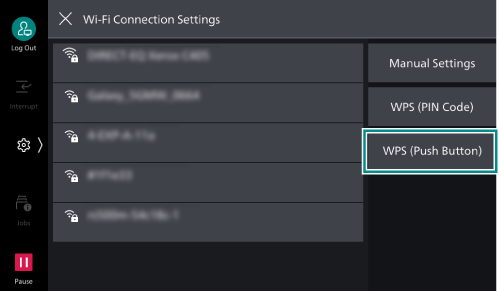
- Tap on [Start] and then press the WPS button on the wireless LAN access point within 2 minutes.
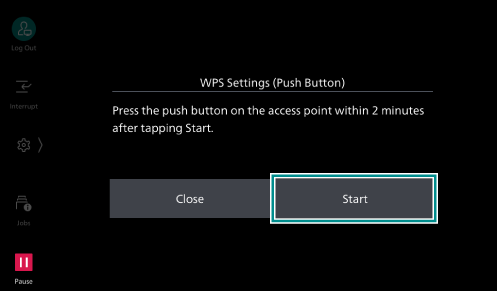
- Confirm that the settings updated at the screen on the machine and then tap on [OK].
The machine restarts and then the settings are enabled.
WPS (PIN Code)
- Tap on [WPS (PIN Code)].
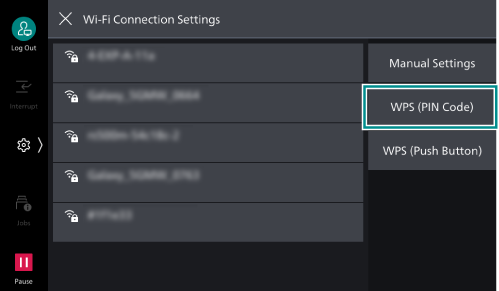
- Tap on [Start] and then enter the displayed PIN code at the wireless LAN access point within 2 minutes.
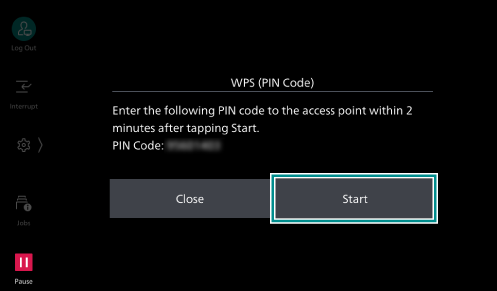
- Confirm that the settings updated at the screen on the machine and then tap on [OK].
The machine restarts and then the settings are enabled.
Connecting using Internet Services
IEEE802.1X authentication can be used for the machine’s Wi-Fi connection. When using the IEEE802.1X authentication method, request the certification authority to issue a certificate and then import the issued certificate to the machine using Internet Services.
Certificate |
EAP-TLS |
EAP-TTLS |
PEAP |
|---|---|---|---|
CA Certificate |
Required |
Required |
Optional*1 |
Client Certificate |
Required |
- |
- |
- Required when verifying a server certificate.
Note
HTTP communication must be encrypted to import certificates using Internet Services.
Certificate standards
X.509 Certificate (DER/PEM) (Root CA Certificate)
PKCS#7 (DER) (Root CA Certificate)
PKCS#12 (DER) (Device Certificate (is the Client Certificate)/Root CA Certificate)
Refer
Refer to Internet Services help for the types of certificates.
Connecting Mobile Devices
Refer
The operation method varies depending on the model of the mobile device. For details, refer to the manual supplied with your mobile device.
You may find the encryption key that is required for connection on the unit of the wireless LAN access point. For details, refer to the manual supplied with the wireless LAN access point.
- Enable the Wi-Fi feature on the mobile device
- Select the SSID.
- Follow the on-screen instructions to complete connection.
Using Wi-Fi Direct
Connect the machine and mobile device directly without using the wireless LAN access point.
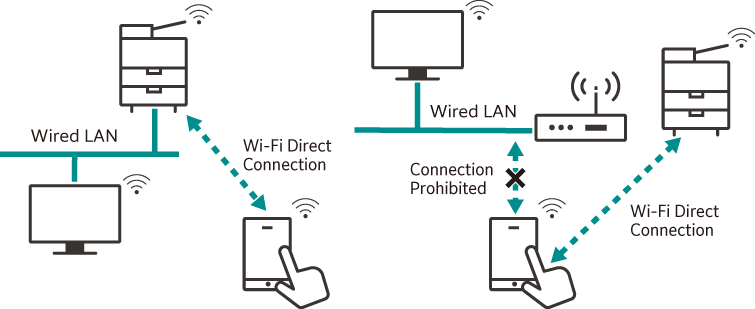
Note
Before using the feature, make sure that
> [Device] > [System Settings] > [Other Settings] > [Country/Region ] is set correctly.Wi-Fi Direct cannot be used in an IPv6 environment.
Up to five units can be connected simultaneously with Wi-Fi Direct.
Wi-Fi Direct Connection Settings
Note
You can also set these settings from Internet Services.
For information on how to use Internet Services, refer to Using Internet Services.
- Enable wireless LAN settings.
Refer
Refer to Enabling Wireless LAN.
- Log in to Administrator Mode.
- Tap on on the Home screen.
- Tap on [Device].
- Tap on [Network Settings].
- Tap on [Wireless LAN Settings].
- Tap on [Wi-Fi Direct Settings].
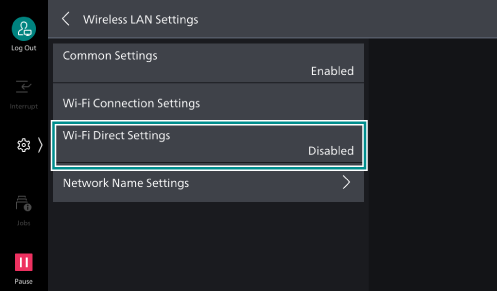
- Tap on [Enabled].
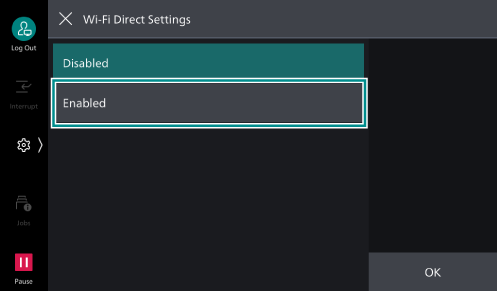
- Set each item and tap on [OK].
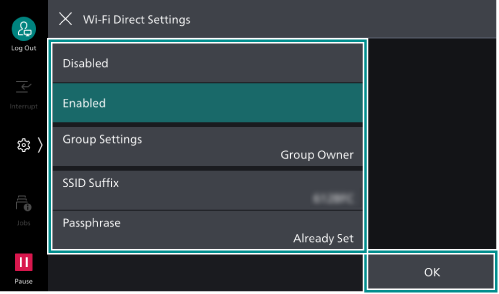
Group Settings
Setting Item
Detail
[Auto]
Select this when not fixing the machine to a Group Owner.
[Device Name]
Enter the name of the machine identified by the Wi-Fi Direct network using alphanumerics up to 32 characters. The name set here will be displayed when selecting the machine to connect to from a mobile device.
[Group Owner]
Set the machine as the Group Owner of the Wi-Fi network. Setting it as the Group Owner will enable the machine to be detected from a mobile device at the same time as the wireless LAN access point.
[SSID Suffix]
Displays the name of the network identified by Wi-Fi Direct. Alphanumerics up to 23 characters can be entered for the section that follows “DIRECT-”. The name set here will be displayed when selecting the network to connect to from a mobile device.
[Passphrase]
Enter at least 8 and up to 63 alphanumeric characters as the passphrase. When connecting to the Wi-Fi Direct network from a mobile device, enter the passphrase displayed here.
Note
When connecting a device that does not support Wi-Fi Direct such as an iOS terminal, set it to [Group Owner].
- Press the <Home> button.
- Tap on [Restart Now].
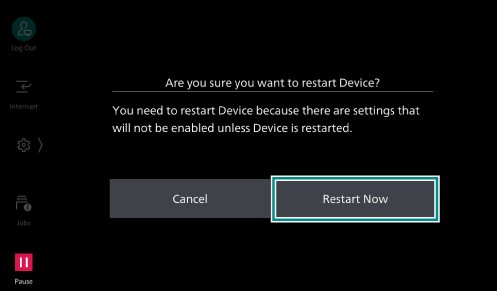
The machine restarts and then the settings are enabled.
Connecting Mobile Devices
Auto connection (Android OS)
- Open the Wi-Fi settings screen on the mobile device and enable Wi-Fi.
- Tap on [Wi-Fi Direct].
- Select the machine from the list.
- Confirm the name of the mobile device to connect at the screen displayed on the machine and then tap on [Accept].
Manual connection (Android OS/iOS)
Note
It is necessary to set [Group Settings] to [Group Owner] in [Wi-Fi Direct Settings].
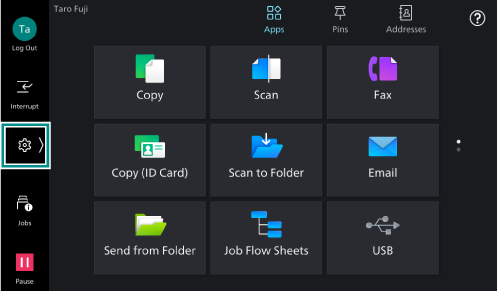
- Tap on on the Home screen.
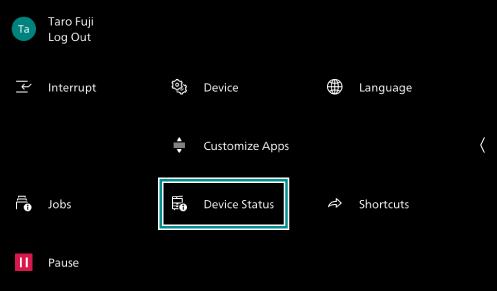
- Tap on [Device Status].
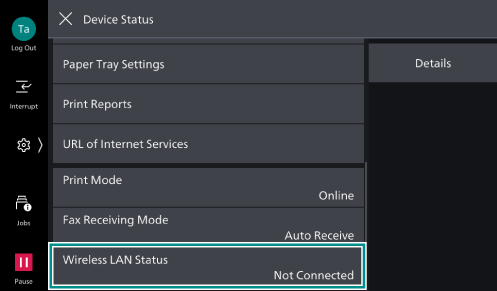
- Tap on [Wireless LAN Status].
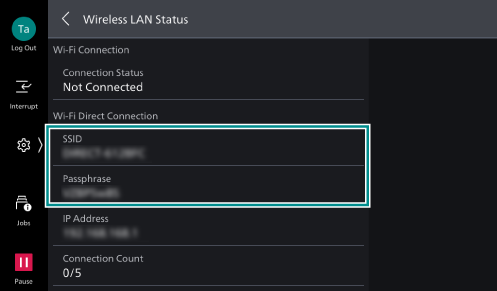
- Confirm [SSID] and [Passphrase] of [Wi-Fi Direct Connection].
- Open the Wi-Fi settings screen on the mobile device and enable Wi-Fi.
- Select the SSID for the machine checked on step 5 from the list and then enter the passphrase.
Disconnecting from Wi-Fi Direct
Machine screen
Disconnecting
- Tap on on the Home screen.
- Tap on [Device Status].
- Tap on [Wireless LAN Status].
- Tap on [Disconnect Wi-Fi Direct].
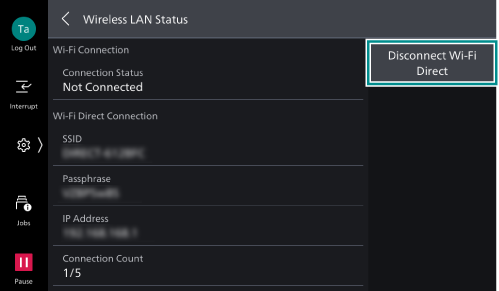
All currently connected mobile devices are disconnected.
Note
Disconnected mobile devices cannot re-connect to Wi-Fi Direct for 30 seconds.
Canceling settings
- Log in to Administrator Mode.
- Tap on on the Home screen.
- Tap on [Device].
- Tap on [Network Settings].
- Tap on [Wireless LAN Settings].
- Tap on [Wi-Fi Direct Settings].
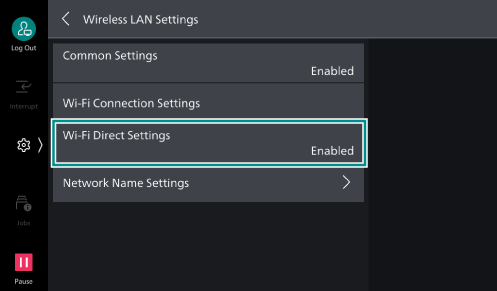
- Modify [SSID Suffix] or [Passphrase], and tap on [OK].
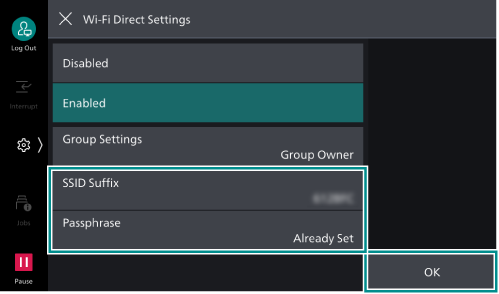
The Wi-Fi Direct group is rebuilt using the new SSID and passphrase.
Mobile device screen
Disconnecting
- Open the Wi-Fi settings screen and cancel the Wi-Fi connection.
Deleting connection information
- Open the Wi-Fi settings screen and select the SSID of the machine in connection.
- Delete Wi-Fi connection settings information.