Setting up Scan to My Folder
Scan to My Folder is a feature for transferring scanned documents to different destinations for different authenticated users, when the machine's authentication mode is set to remote authentication.
This feature can be used when  > [Device] > [Authentication/
Note
If using our products (sold separately) as the remote authentication system, select [Authentication Agent] for [Authentication System] under
> [Device] > [Network Settings] > [Remote Authentication /Directory Service ] > [Authentication System Setup] in Administrator mode.
You need to configure the following settings in order to use the feature.
Setting the IP Address
Set the IP address of the machine by referring to Setting the IP Address.
Setting the [SMB Client] Port
- Log in to Administrator Mode.
- Tap on on the Home screen.
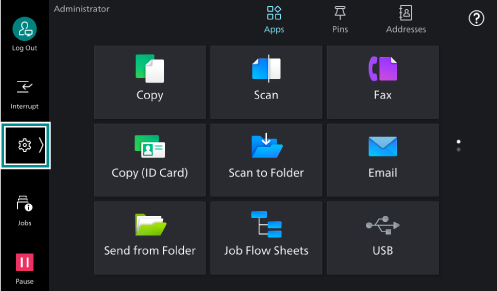
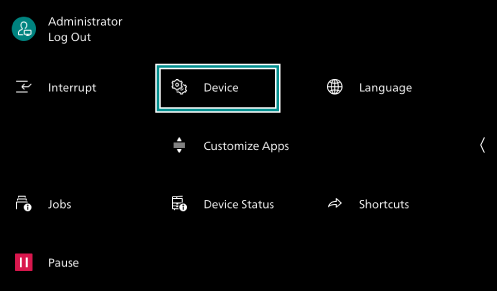
- Tap on [Device].
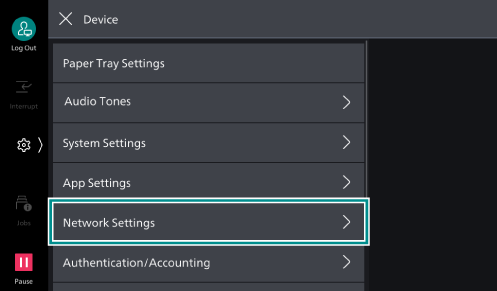
- Tap on [Network Settings].
- Tap on [Port Settings].
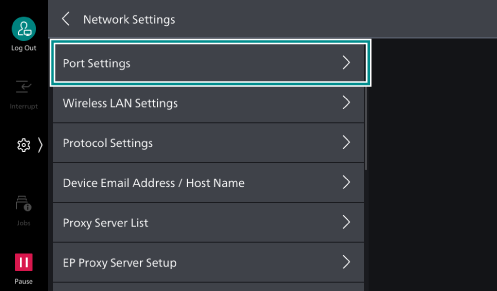
- Tap on [SMB Client].
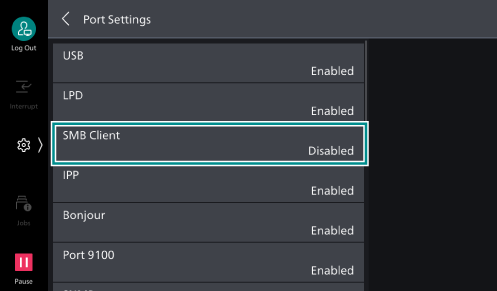
- Tap on [Port Status].
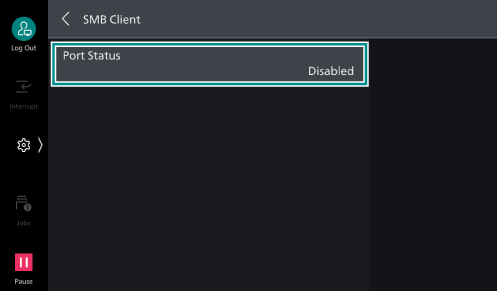
- Tap on [Enabled].
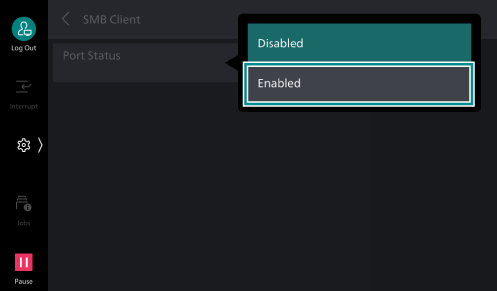
- Press <Home>.
- Tap on [Restart Now].
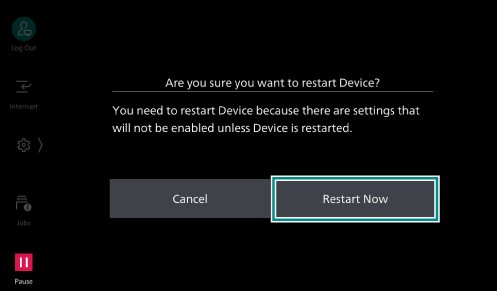
The machine restarts and then the settings are enabled.
Starting the Service and Setting the Transfer Method
- Access Internet Services.
Refer
For details, refer to Using Internet Services.
- Log in as the system administrator.
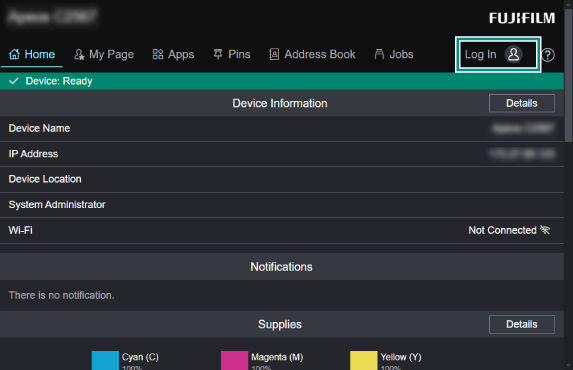
- Click [Apps].
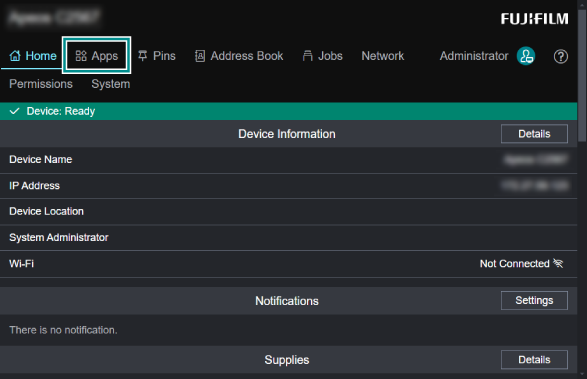
- Click [Scan].
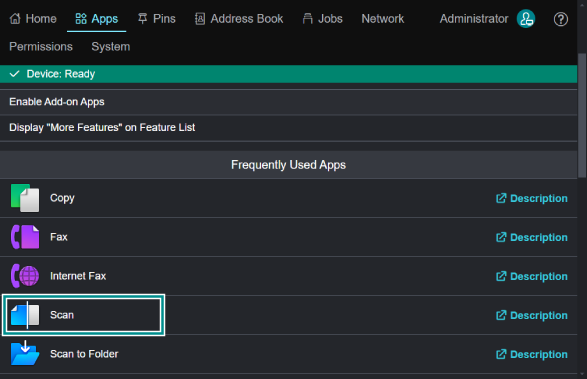
- Click [Common Settings].
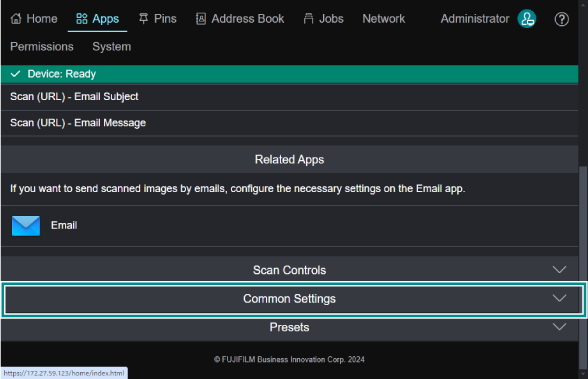
- Click [Scan to My Folder].
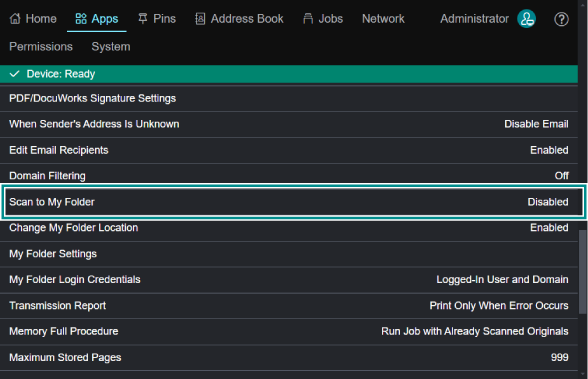
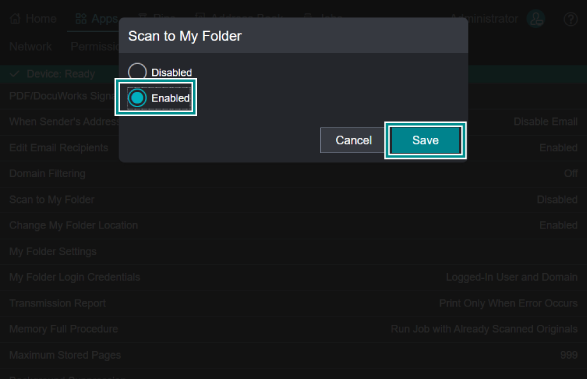
- Select [Enabled], and click [Save].
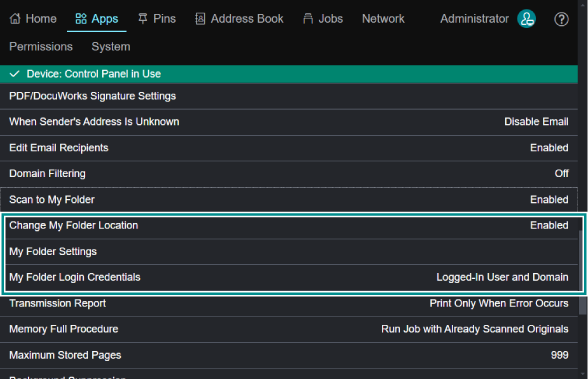
- Set items related to Scan to My Folder as needed.