
Cleaning the Main Unit
Do not use benzene, paint thinner, or other organic solvents. Doing so might damage paint or coating on plastic parts.
Important
When wiping the main unit with a wet cloth, use a soft, damp, and tightly-squeezed cloth. The main unit may break down if the moisture remains on it.
Exterior
- Wipe the exterior with a soft, damp, and tightly-squeezed cloth.
Note
For stubborn stains, apply a small amount of mild detergent to the cloth and gently wipe the stain off.
- Wipe the moisture off with a dry soft cloth.
Touch Panel Display
Wipe lightly with a dry soft cloth.
When using a wet cloth, gently wipe the surface with a soft, damp, and tightly-squeezed cloth.
Important
Wiping the panel strongly may damage the panel. Wipe lightly.
LED Printhead
When you have replaced the Waste Toner Container or Drum Cartridge, clean the LED printheads in order to prevent density and color irregularities from occurring.
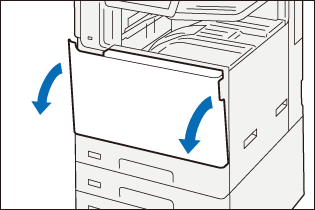
- Confirm that the machine is not operating, and open the front door.
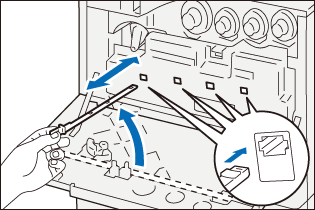
- Slide out the cleaning bar from the back side to the front door to clean each LED printhead.
Insert the cleaning bar while facing the arrow mark (↑) up into the four slots of Waste Toner Container. For each slot, insert the bar until it stops, and then slowly slide it back out. Clean each LED printhead by repeating the back and forth action two to three times.
- Return the cleaning bar to the original position.
- Close the front door.
Document Cover, Document Glass, Film, Scanner Glass
Wipe off any dirt with a damp, soft cloth about once a month.
When stains cannot be removed easily, wipe lightly with the soft cloth slightly moistened with a thin neutral detergent solution.
Document Feeder B1-C
- Open the document cover.
- Wipe off any dirt adhering to the document cover.
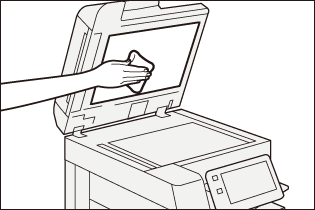
- Wipe off any dirt adhering to the document glass.
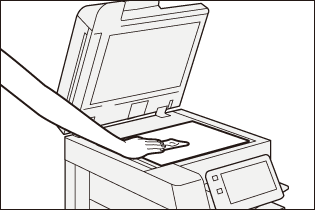
- Wipe off any dirt adhering to the film.
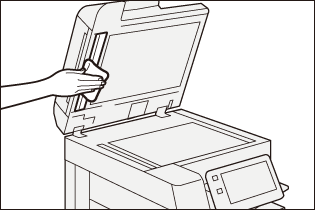
- Wipe off any dirt adhering to the constant velocity transport glass.
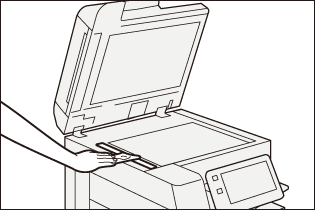
- Close the document cover.
Document Feeder B5-PC/B4-PC
- Open the document cover and take the supplied cloth out.
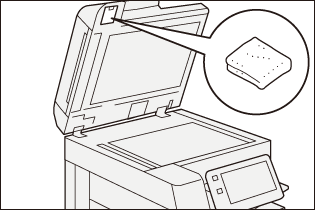
- Wipe the Side 1 constant velocity transport glass and the Side 2 constant velocity transport glass.
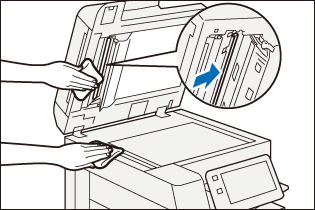
- Wipe off any dirt adhering to the film.
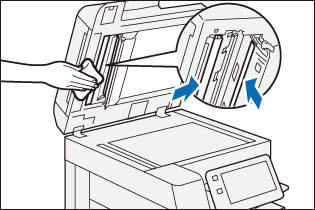
- Return the cloth to the original position.
Document Feeder Rollers
Clean the document feeder rollers about once a month.
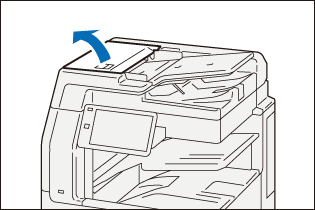
- Pull up the front handle of the left cover of the document feeder, and open the cover until it stops.
- While turning the rollers, wipe them with a soft cloth slightly moistened with water.
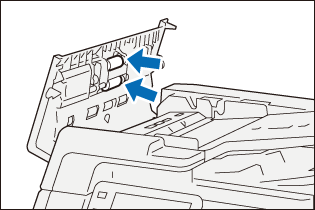
- Close the left cover of the document feeder and make sure that there is no gap on the front or rear of the cover.