
How to Use the Touch Panel
Note
Except for the Preview screen, the pinch-in (zoom in operation by pinching the screen with two fingers) and pinch-out (zoom out operation by spreading two fingers on the screen) are not available.
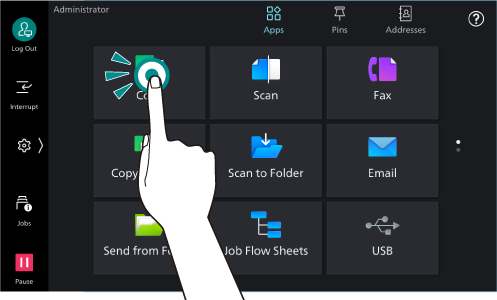
Tap
Lightly touch the touch panel display and then immediately lift up your finger.
Drag
While lightly touching the touch panel display, move your finger up and down to scroll the screen up and down.
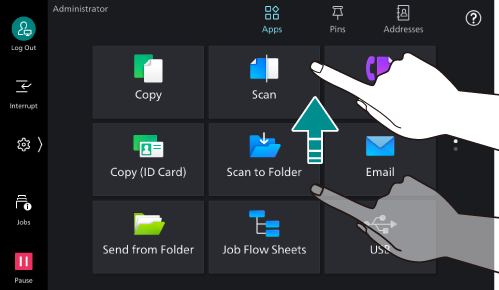
A flick action (lightly sweeping the screen to a desired direction with your finger) is also available.
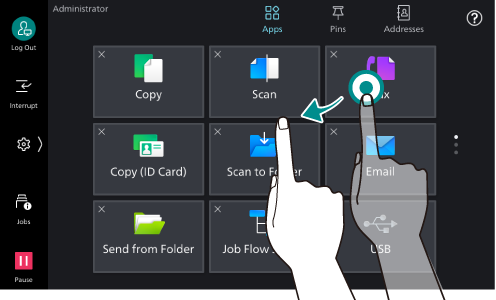
Long-tap
Touch and keep your finger on an app icon or Menu item. While maintaining the long-tap, dragging your finger to your desired position can change the position of the icon.
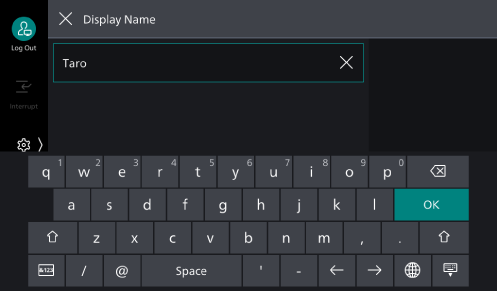
Keyboard
Tap on  to change the input method and input language.
Note
Displayed buttons differ depending on the input screen and input language.