To Specify the Size of Paper Used for Printing Received Faxes
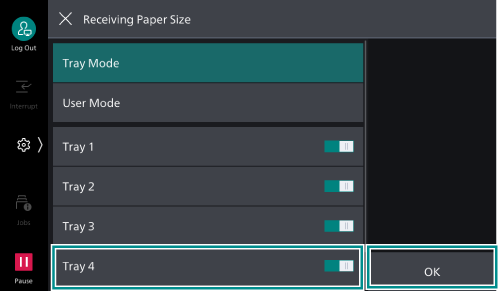
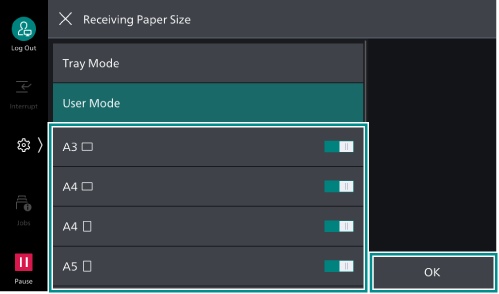
Setting [Receiving Paper Size] allows you to specify the paper type and paper size for printing the received fax ([User Mode]).
Also, you can specify the tray for printing received faxes to separate the copy and print output trays. ([Tray Mode]).
Specifying Paper Size
- Log in to Administrator Mode.
- Tap on
 on the Home screen.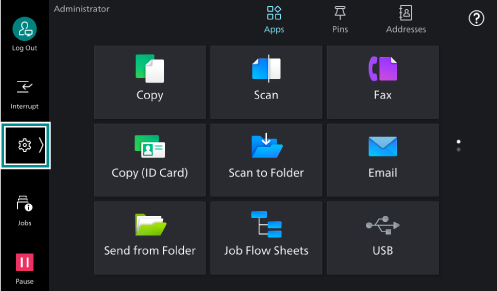
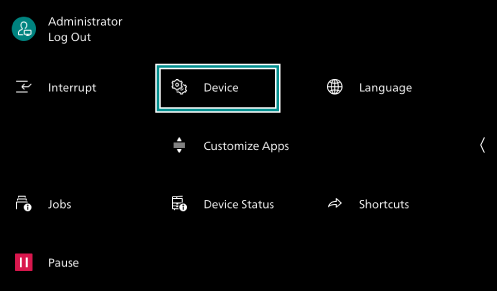
- Tap on [Device].
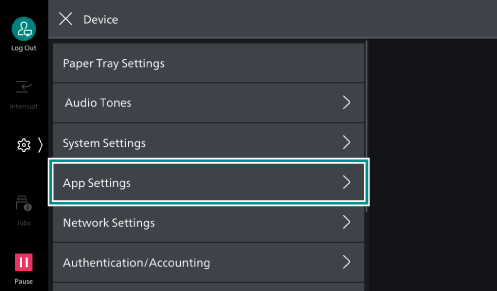
- Tap on [App Settings].
- Tap on [Fax Settings].
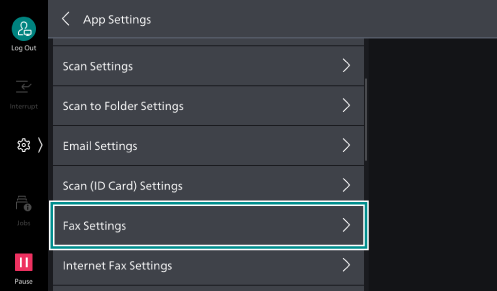
- Tap on [Fax Controls].
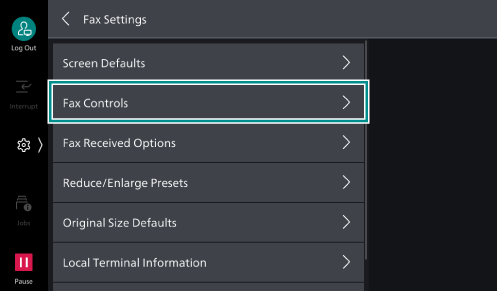
- Tap on [Receiving Paper Size].
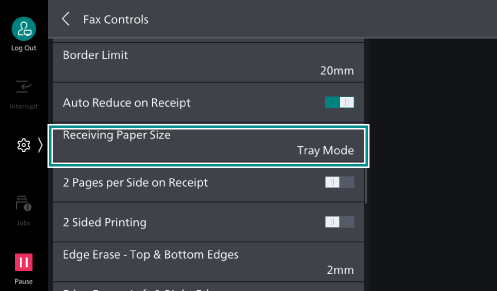
- Tap on [User Mode].
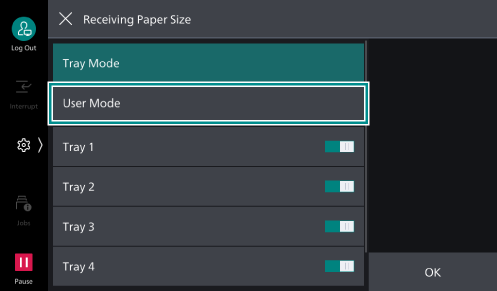
- Select the desired paper size, and tap on [OK].
Note
If paper of the specified size is not loaded in the paper tray, printing does not start until the paper is loaded.
More than one paper size can be selected.
To select or deselect all the paper sizes at one time, tap [Select All].
Specifying Paper Tray
This section shows you an example of how to set Trays 1 and 2 so that they are used dedicatedly for copy/print documents, thus plain paper are loaded, and Tray 4 so that it is used dedicatedly for received faxes, thus blank side of used paper is used.
Before proceeding, you should make the following settings:
Set [Copy] > [Paper Supply] to [Auto Select].
Set [Advanced Tray Settings] > [Paper Type for Auto Tray] to [Plain] on the [Tray /
Output ] tab of the [Printing preferences] screen of the printer driver.
- Log in to Administrator Mode.
- Tap on on the Home screen.
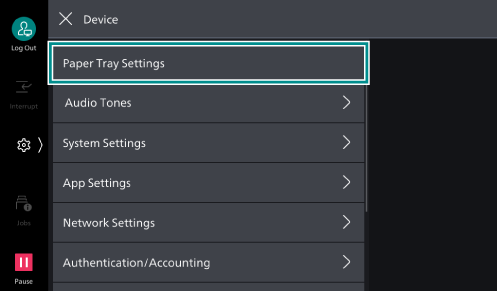
- Tap on [Device].
- Tap on [Paper Tray Settings].
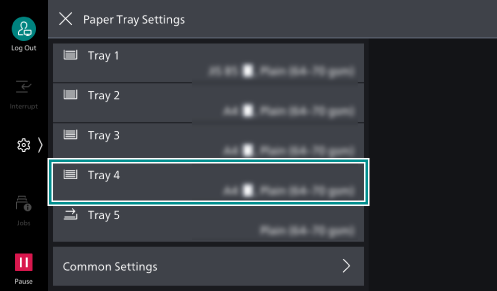
- Tap on [Tray 4].
- Tap on [Paper Type].
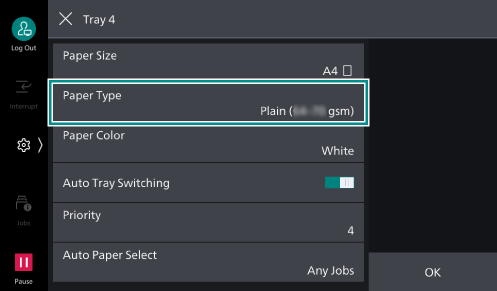
- Select [Blank Side] and then tap on [OK].
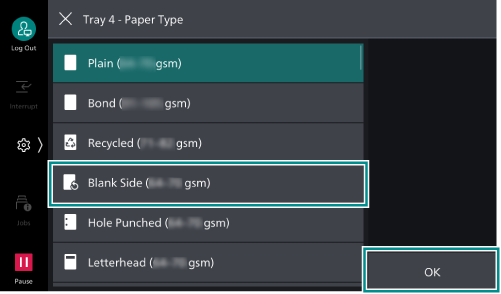
- Tap on [OK].
- Tap on [Common Settings].
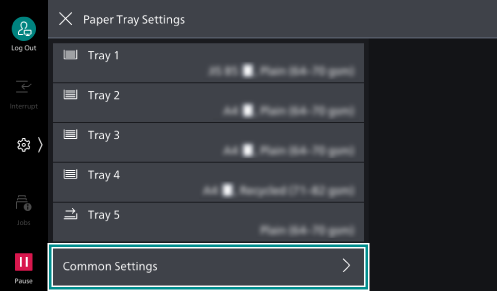
- Tap on [Paper Type Priority].
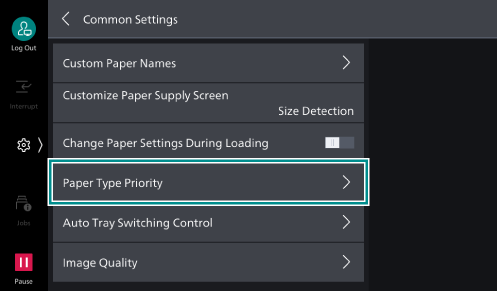
- Tap on [Blank Side].
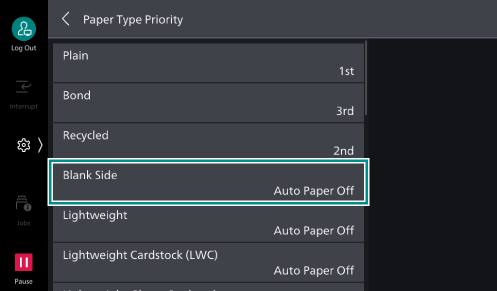
- Select the priority order of the paper tray, and tap [OK].
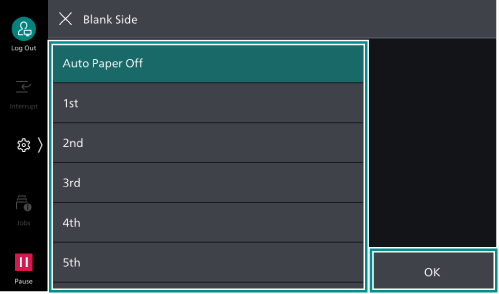
- Tap on [<] to return to the [Common Settings] screen, and tap [Auto Tray Switching Control].
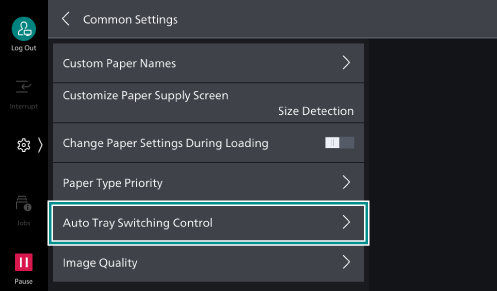
- Tap on [Targeted Paper Type (Copy Jobs)].
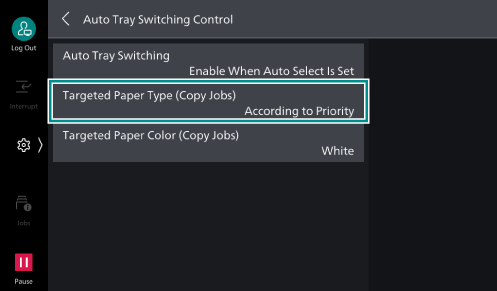
- Tap on [Selected Paper Type Only] to select [Plain] and tap on [OK].
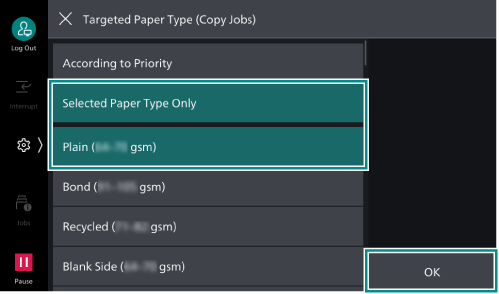
- Tap on [<] to return to the [Paper Tray Settings] screen.
- Tap on [×] to return to the [Device] screen.
- Tap on [App Settings].
- Tap on [Fax Settings].
- Tap on [Fax Controls].
- Tap on [Receiving Paper Size].
- Select [Tray Mode] to enable [Tray 4], and tap on [OK].