
Paper Jams (Optional Units)
When a paper jam occurred, the machine stops and an alarm beeps. Follow the instructions displayed on the screen to remove the jammed paper.
Gently remove the paper to avoid it to be torn. If the paper is torn, remove all the torn pieces, making sure that none remain inside the machine.
When the paper jam is cleared, printing is resumed from the point when the paper jam occurred. If you were during copying, tap [Start] to resume the copying from the point when the paper jam occurred.
Note
When clearing a paper jam, keep the machine power switched on.
High Capacity Feeder B1
Exit
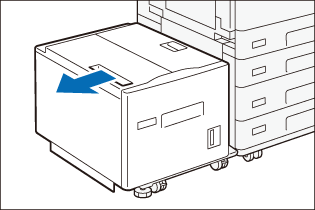
- Hold the handle and move the unit all the way to the left.
- Remove any jammed paper.
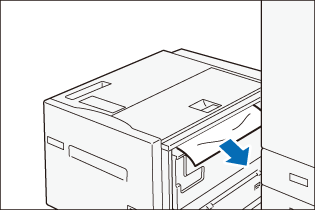
- Move the unit to the right and connect it with the main unit.
Inside of the Top Cover
- Hold the handle and move the unit all the way to the left.
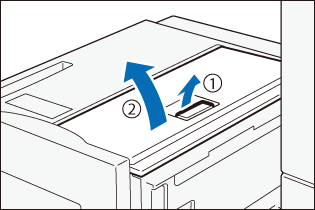
- Pull the handle (
 ) and open the cover (
 ).
).
- Remove any jammed paper.
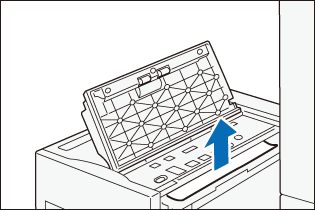
- Close the cover.
- Move the unit to the right and connect it with the main unit.
Paper Trays
- Pull out the paper tray until it stops.
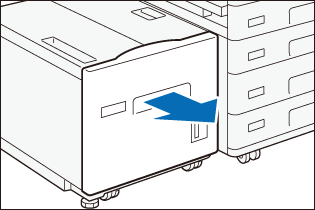
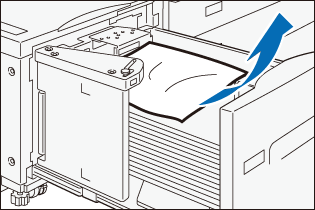
- Remove any jammed paper.
- Push in the paper tray.
Finisher A3
Finisher Transport Unit
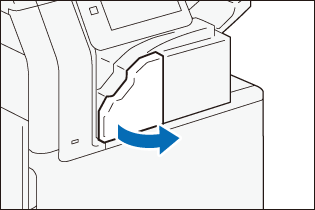
- Open the finisher front door.
- Turn knob in the right direction () and send the jammed paper to the Center Tray side ().
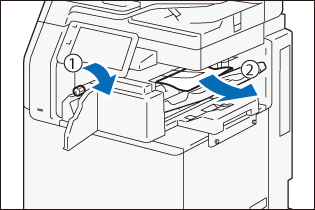
- Remove the paper.
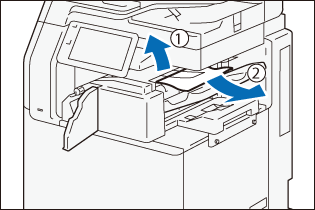
- Close the front door.
Finisher B
Note
In this guide, “Finisher B4”, “Finisher B5”, “Finisher B with Booklet Maker Unit”, “Finisher B with 2/4 Hole Punch Module”, and “Finisher B with US 2/3 Hole Punch Module” are generally referred to as “Finisher B”.
Top Cover
- Open the top cover () and remove the jammed paper ().
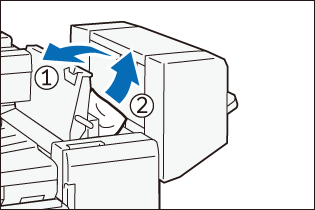
- Close the cover.
Finisher Transport Unit
- Open the finisher transport cover () and remove the jammed paper ().
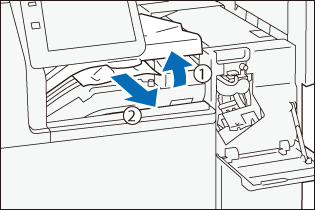
- Close the finisher transport cover.
Finisher C
Note
In this guide, “Finisher C4”, “Finisher C4 with Booklet Maker Unit”, “Finisher C5”, and “Finisher C5 with Booklet Maker Unit” are generally referred to as “Finisher C”.
Center Output Tray
- Remove the paper that is jammed in the exit of the Center Output Tray.
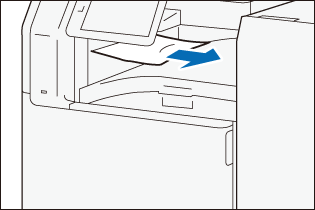
- Hold the handle and open the finisher transport cover.
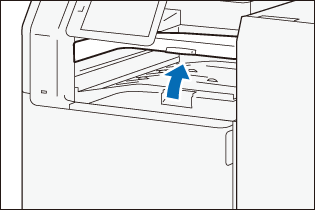
- Remove any jammed paper.
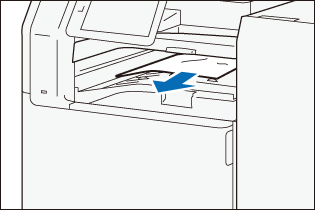
- Close the cover.
Exit
Finisher Tray
- Remove the paper that is jammed in the exit.
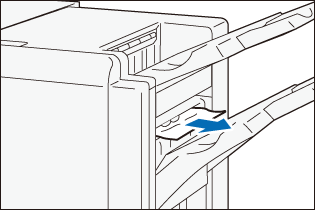
Booklet Tray
- Open the cover.
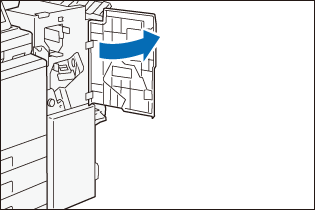
- Turn the knob [4a] to the right () and remove the paper that is jammed in the exit of the Booklet Tray ().
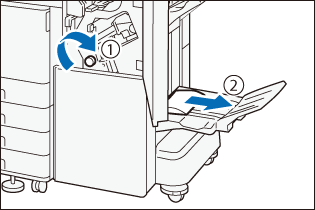
- Close the cover.
Inside of the Cover
Handle [3a]
- Open the cover.
- Open handle [3a] upward () and remove the jammed paper ().
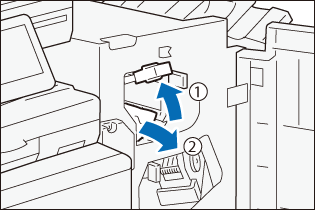
- Return the handle [3d].
- Close the cover.
Handle [3d]
- Open the cover.
- Open the handle [3d] to the right () and remove the jammed paper ().
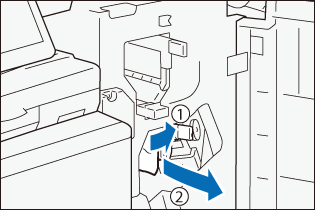
- Return the handle [3d].
- Close the cover.
Booklet Maker
- Open the cover.
- Hold the handle and pull out Booklet Maker [4].
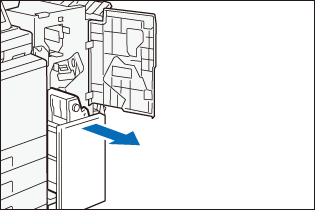
- Turn the knob [4a] to the left () and remove the jammed paper ().
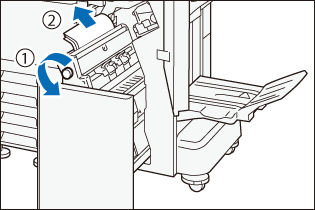
- Slowly insert Booklet Maker [4] all the way.
- Close the cover.