Configuring the Accounting Method
- Log in to FUJIFILM IWpro with the account of an administrator.
- For information on logging in, see Logging In in "Getting Started with FUJIFILM IWpro".
- In the launcher menu, click [Admin Menu] > [Device Management].
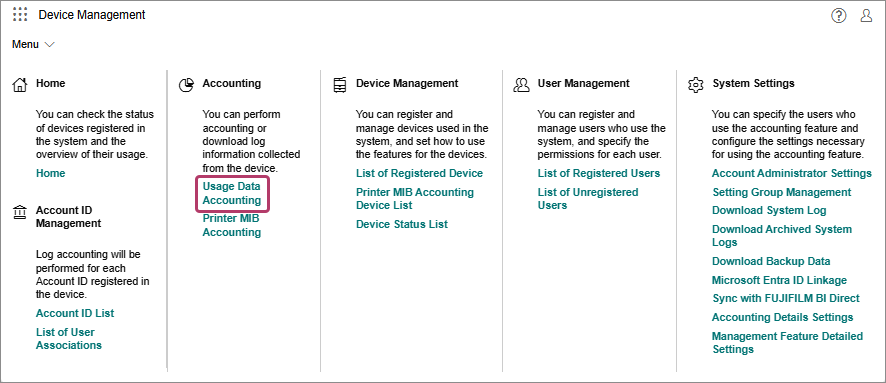
- In the [Device Management] menu, click [Usage Data Accounting] in [Accounting].
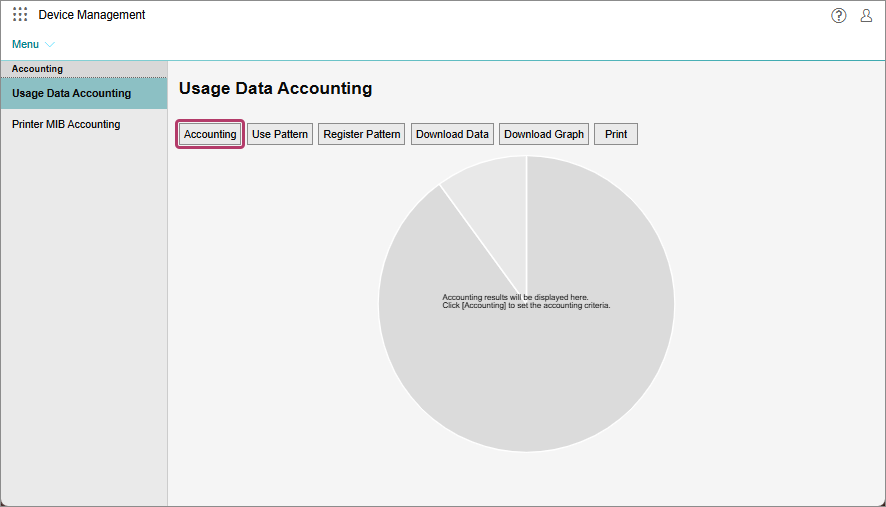
- On the [Usage Data Accounting] screen, click [Accounting].
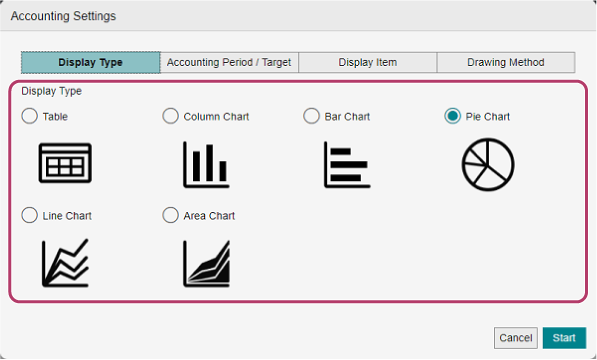
- On the [Display Type] screen, specify the format for displaying the accounting results.
- On the [Accounting Period / Target] screen displayed by clicking [Accounting Period / Target], specify the accounting period and accounting target.
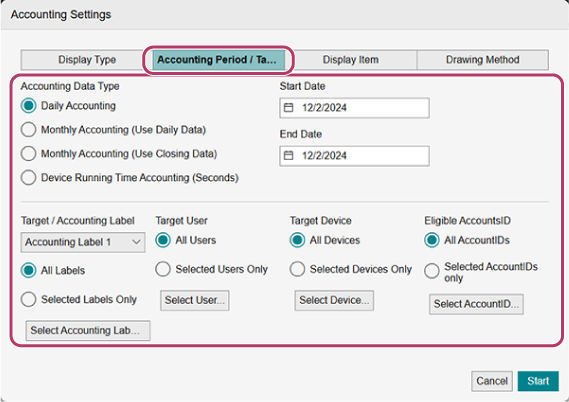 If you clicked [Select Accounting Labels] in [Target / Accounting Label]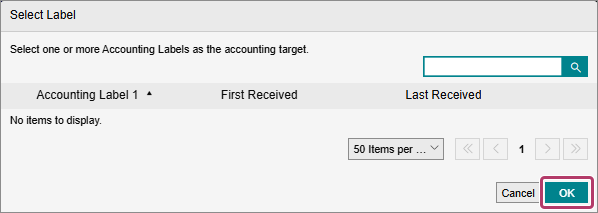
- A list of the accounting labels set for the users registered in the tenant is displayed.
- Select the target accounting labels, and click [OK].
If you clicked [Select User] in [Target User]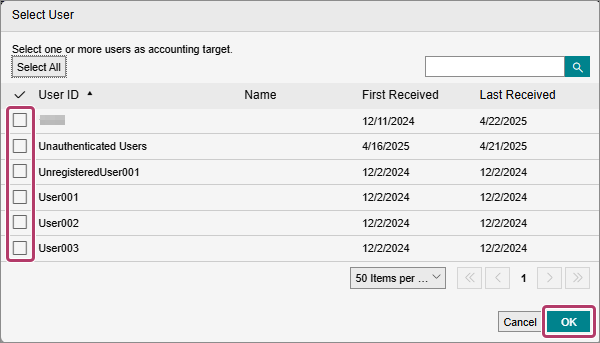
- A list of the users registered in the tenant and the usage data sent from the devices for management is displayed.
- Select the check boxes of the target users for accounting, and click [OK].
- When several thousand unregistered users exist, some of the unregistered users may not be displayed in the list of users in the [Select User] dialog box. If the target users are not displayed, perform accounting with [All Users] set in [Target User].
If you clicked [Select Device] in [Target Device]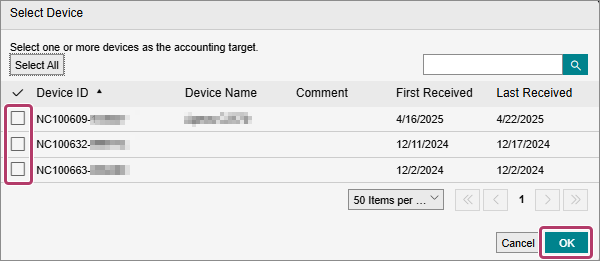
- A list of the devices for management in the tenant is displayed.
- Select the check boxes of the target devices for accounting, and click [OK].
- You can register up to 300 targets (users, accounting labels, and devices) for accounting. If you specify 301 or more accounting targets when specifying the targets individually, a warning message prompting you to select [All] is displayed.
If you clicked [Select Account ID] in [Eligible AccountsID]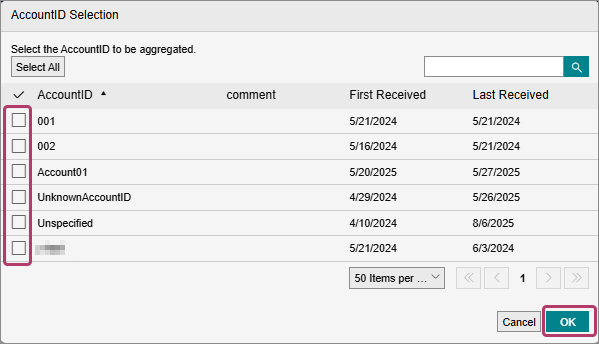
- Displays a list of the registered account IDs.
- Select the target account ID for accounting, then click [OK].
- On the [Display Item] screen displayed by clicking [Display Item], specify the information to display in tables and charts.
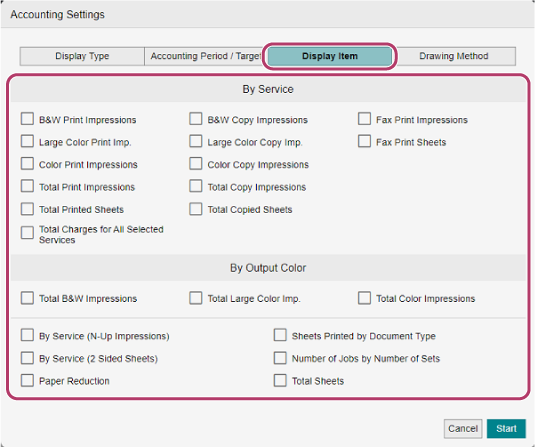 The items to specify differ according to the type selected in [Display Type] in step 6.
 - On the [Drawing Method] screen displayed by clicking [Drawing Method], specify the key and layout method for accounting.
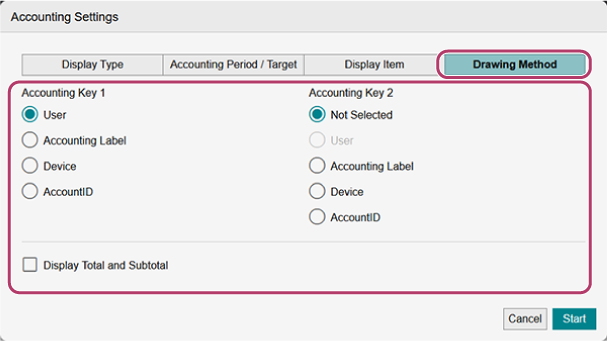 The items to specify differ according to the type selected in [Display Type] in step 6.
 - When the settings are complete, click [Start].
- If a calculated value is "0", it is not displayed in tables or charts.
- If the string to display on the horizontal or vertical axis is too long, it is abbreviated with "..." at the end of the string.
- You can register the set accounting method as an "accounting pattern" to recall later.
- If you disable and re-enable the device management function or unregister and re-register a device, some job log accounting results may be duplicated.
- For information on registering accounting patterns, see Registering Accounting Patterns.