[Operation] Screen
This screen is displayed by clicking [Operation] on the initial setup screen.
It enables you to configure automatic uploading and the operation to perform when the upload process is complete.
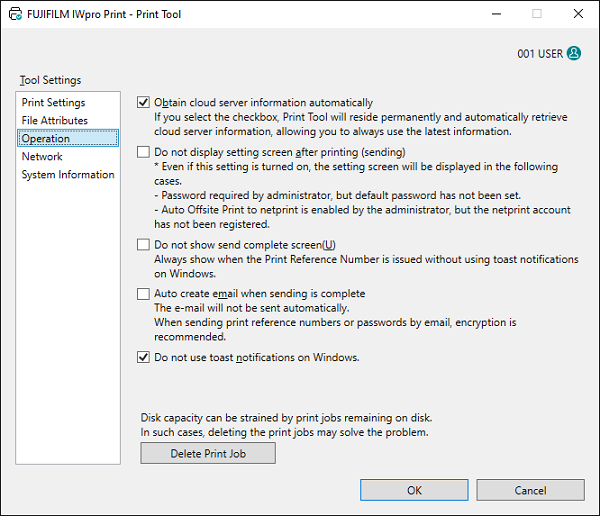
[Obtain cloud server information automatically]
Automatically retrieves information from a cloud server to ensure it is always updated.
[Do not display setting screen after printing (sending)]
Skips the file upload screen.
- The file upload screen is displayed in the following cases.
- When [Password required when issuing print reference number] is enabled on the [Basic Settings] screen by the administrator but the default password has not been configured.
- When [netprint Auto Send] is enabled by the administrator but a netprint account has not been registered.
[Do not show send complete screen]
Skips the screen indicating that sending is complete.
- This is always displayed when the print reference number was issued without using the notification function of Windows.
[Auto create email when sending is complete]
When this is enabled, a screen for editing the e-mail with the sending results entered is displayed when sending of the file is complete.
- The e-mail is not sent automatically.
- When sending print reference numbers or passwords by e-mail, encryption is recommended.
- The address set in [Notification Email Address When Sending is Complete] on the [File Attributes] screen is entered as the destination.
[Do not use toast notifications on Windows.]
Configure this to use the notification function of Windows.
[OK]
Saves the configured settings and closes the Print Tool.