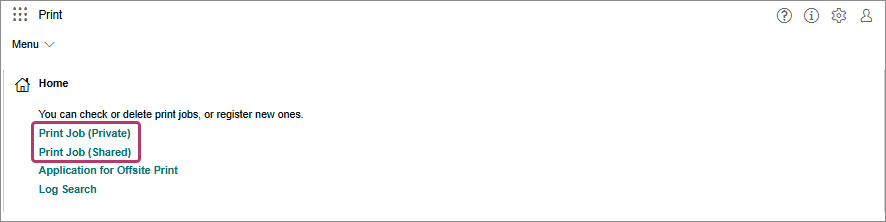
Perform the following operations.When Checking the Details of a File
- On the [Print Job (Private)] screen or [Print Job (Shared)] screen, click [
 ] for the file to check the details of.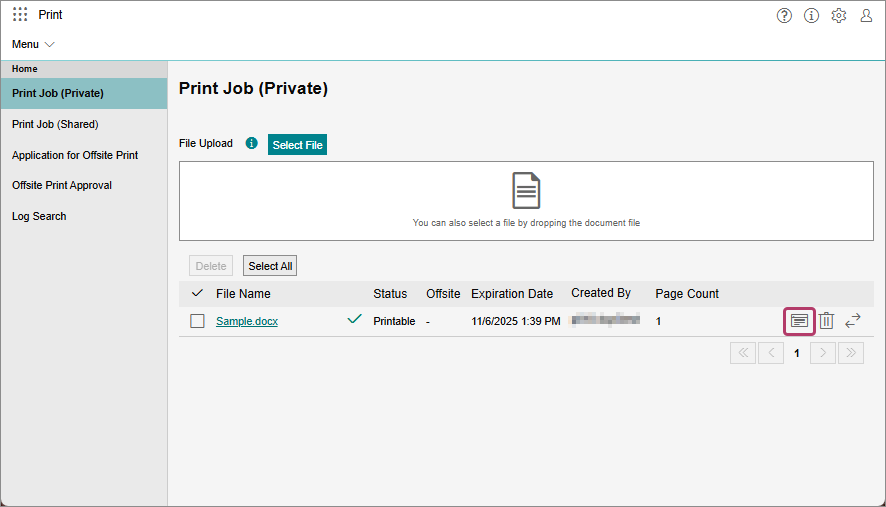
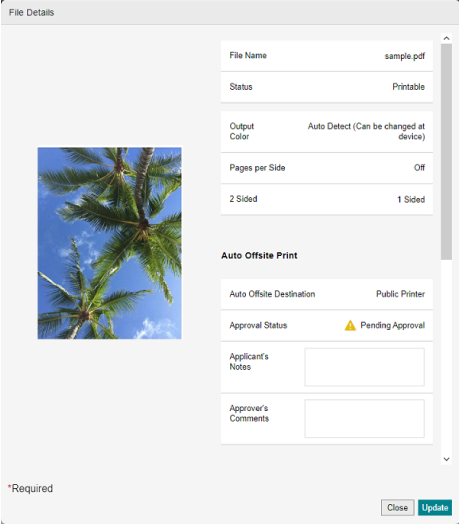
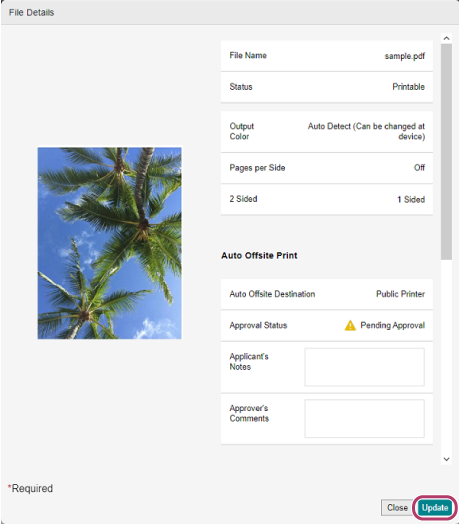
- On the [File Details] screen, check the details of the file.
When Changing the Details of a File
- On the [Print Job (Private)] screen or [Print Job (Shared)] screen, click [] for the file to change the details of.
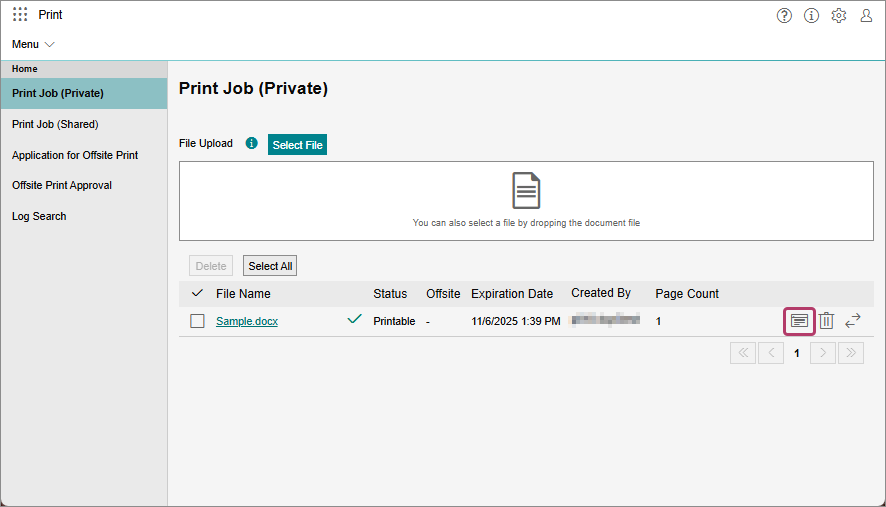
- On the [File Details] screen, change the details of the file, then click [Update].
When Deleting Files
- On the [Print Job (Private)] screen or [Print Job (Shared)] screen, select the file to delete and click [Delete] or click [
 ] for the file to delete.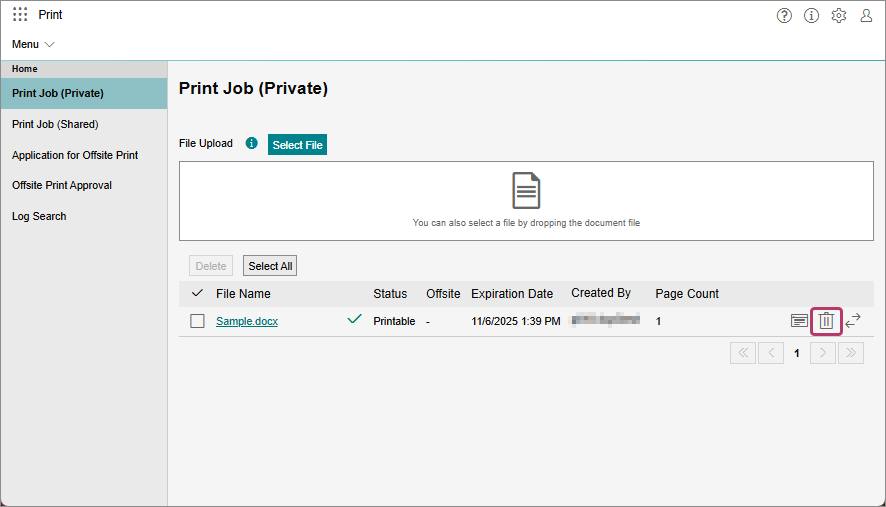
- On the displayed confirmation screen, click [OK].
- You can also select the check boxes of multiple files to delete multiple files at the same time.