[List of Registered Users] Screen
This screen is displayed by clicking [List of Registered Users] in [User Management] in the [Device Management] menu.
It displays a list of basic information and service user information.
You can display a list of user information for the users registered in Device Management. You can also check/change properties and add/delete the users to register to devices.
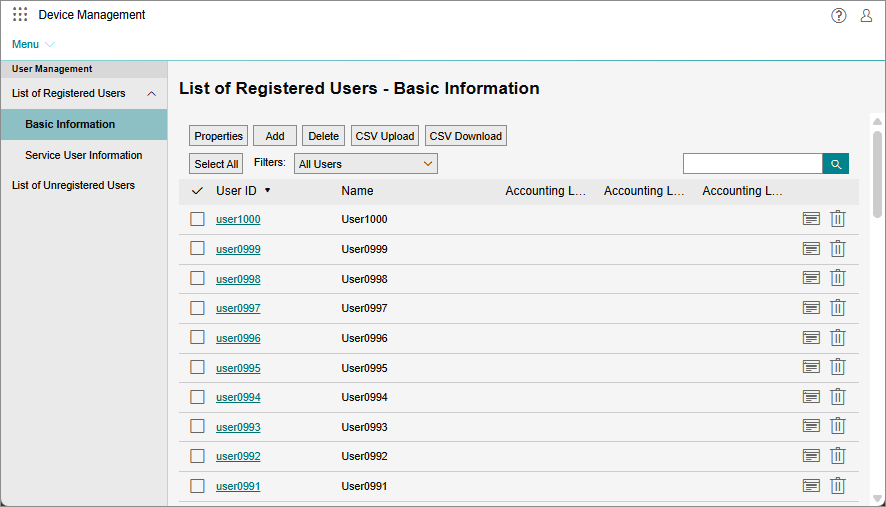
[Properties]
Displays the properties of the selected user.
If one user is selected, the [Properties] screen for a user is displayed.
If multiple users are selected, the [Batch Change of Properties] screen is displayed.
[Add]
Adds a user. The [Add User] screen is displayed.
[Delete]
Deletes the selected user. You can also delete multiple users.
[CSV Upload]
Displays the [CSV Upload] screen. This enables you to use a file in the CSV format (a user information file) to register user information for multiple users at a time.
[CSV Download]
Downloads a list of the registered users in the CSV format.
[Select All]
Selects all the users in the user list.
[Filter]
Filters the users displayed in the list.
Select [Basic Settings] to only display users set to the [Basic Settings] setting group, or [Accounting Only] to only display users set to [Accounting Settings].
- [(Setting Group Name) and [Basic Settings]] is only displayed when setting groups are registered.
[ ]
]
Enables you to enter arbitrary text in the search box to search for users to display in the list.
User List
Displays information such as the user ID and name and the accounting labels used to divide users into groups.
[ ]
]
Displays the [Properties] screen for a user. This enables you to check detailed user information and change the device name.
[ ]
]
Deletes the selected user.