Uploading Files to Microsoft Teams
- Tap [FUJIFILM IWpro Capture] on the home screen of the device.
- Log in.
- For information on logging in, see Logging In in "Getting Started with FUJIFILM IWpro".
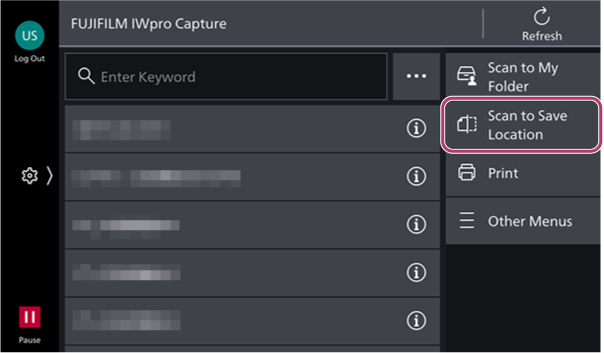
- On the rule selection screen, tap [Scan to Save Location].
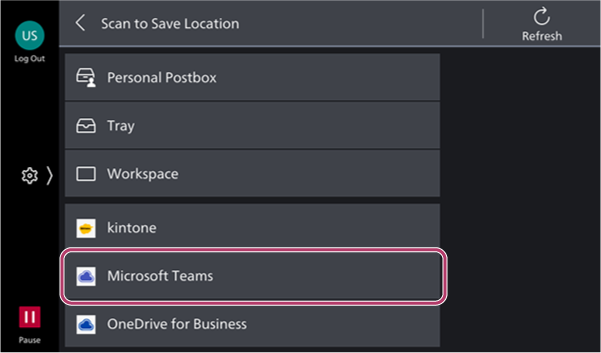
- Tap [Microsoft Teams] on the [Scan to Save Location] screen
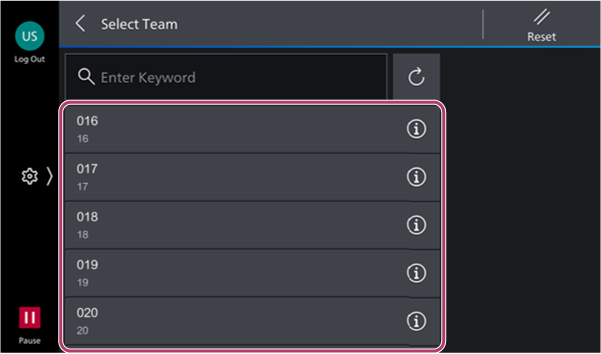
- On the [Select Team] screen, select the team.
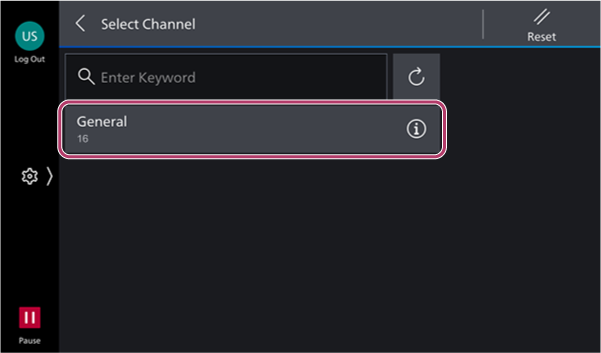
- On the [Select Channel] screen, select the channel.
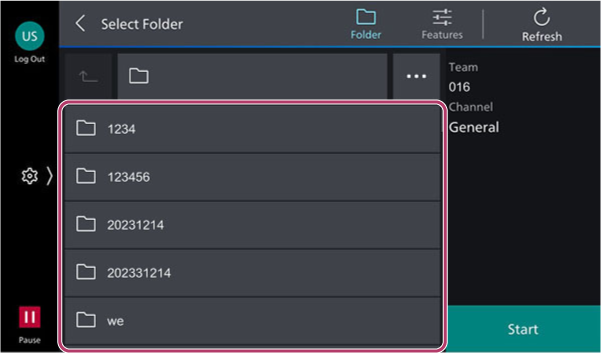
- On the [Select Folder] screen, select the storage destination of the document to scan.
- If required, tap [
 ] and perform the following operations on the scan settings screen.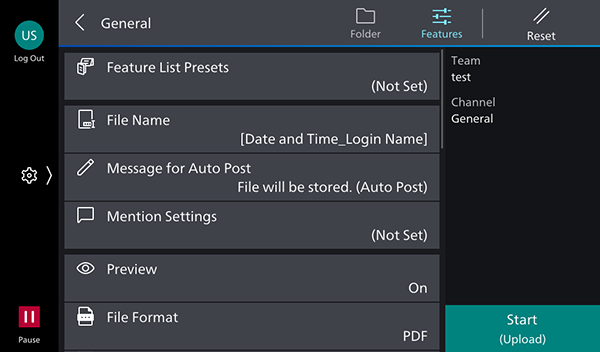
- Tap [Message for Auto Post], then enter the message to automatically post.
- Tap [Mention Settings], then configure the members to mention.
- Configure the various items in the scan settings.
- Tap [Start].