Specifying a Rule to Upload Documents
To specify a rule to upload documents, the rule must be created in advance. For details, see Creating/Editing Rules in "Rule Settings".
- Log in to FUJIFILM IWpro.
- For information on logging in, see Logging In in "Getting Started with FUJIFILM IWpro".
- In the launcher menu, click [Import Document].
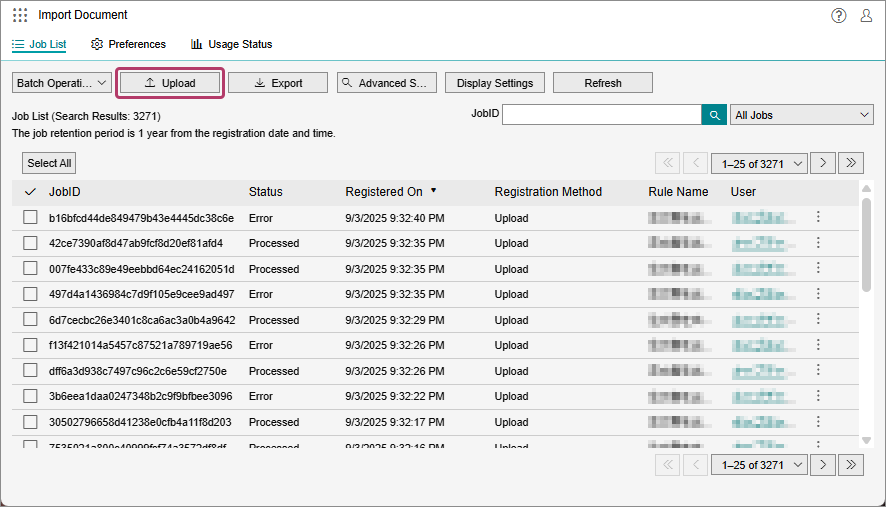
- On the [Import Document] screen, click [Upload].
- Perform the following operations on the [Upload] screen.
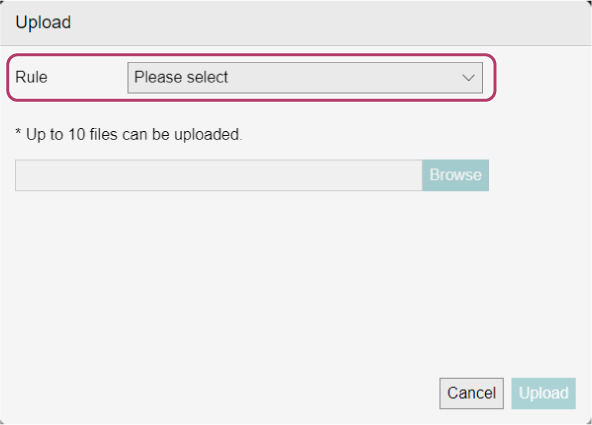
- Select the rule from the [Rule] drop-down list.
- With FUJIFILM IWpro, if the external linking destination is Google Drive, only My Drive of the user that created the rule can be specified. Therefore, if a user other than the rule creator executes a rule with Google Drive set as the external linking destination, an error will occur because the external linking destination cannot be accessed.
- Click an entry area where [File Name] is blank or click [Browse] and select the file to upload.
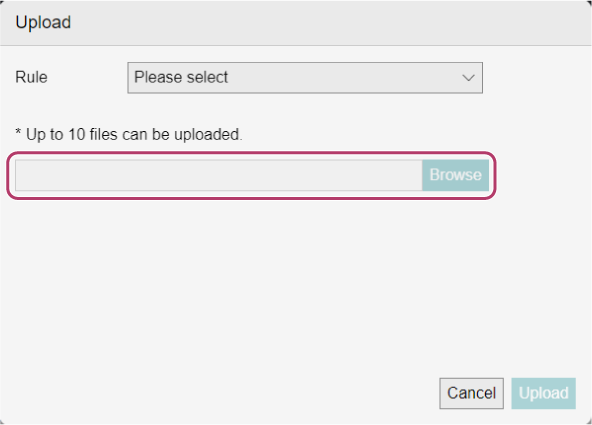
- When uploading from a client PC, you can drop a file to [Drop your file here to upload it.] to upload it.
- To select another file, repeat the procedure.
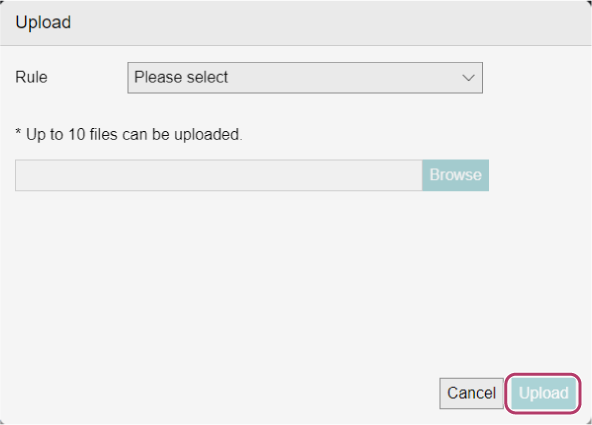
- Click [Upload].
- Select the rule from the [Rule] drop-down list.
- When the upload complete screen is displayed, click [Close].When the upload is complete, the job is added to the [Import Document] screen.