Confirming That a Device Was Registered Successfully (Using a Computer)
This section describes the procedure for checking whether the functions selected in step 8 of "Registering a New Device (Using a Computer)" or step 7 of "Reconfiguring a Device (Using a Computer)" were installed to the device.
The following functions can be checked.
Device Function
On the FUJIFILM IWpro Device Management screen, confirm that a license was assigned to the device and that the apps are operating normally.
- Wait at least 10 minutes after assigning a license.
- Log in to FUJIFILM IWpro with the account of an administrator.
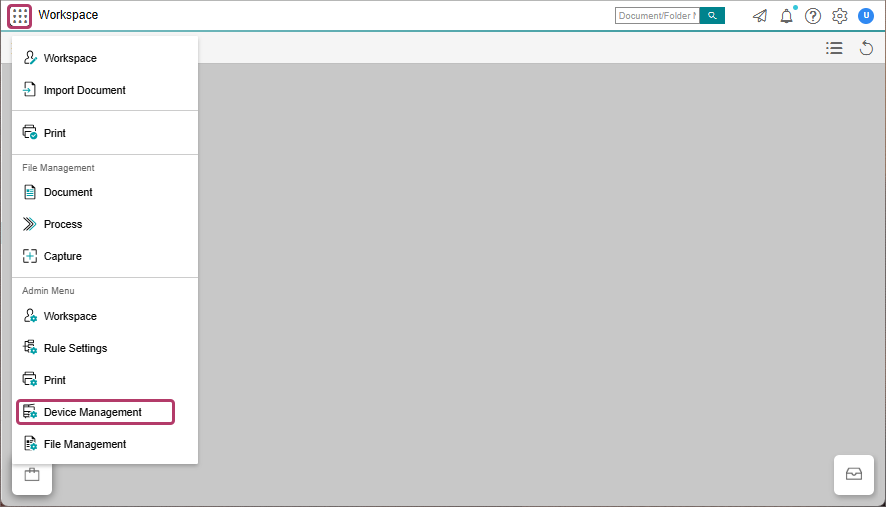
- In the launcher menu, click [Admin Menu] > [Device Management].
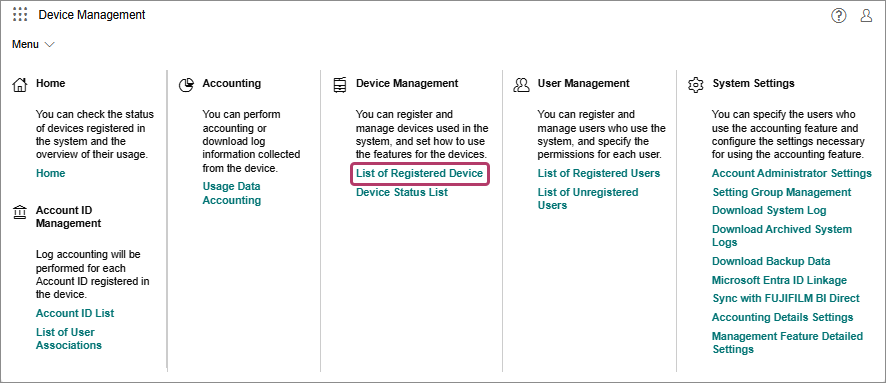
- Place the mouse cursor over [Menu], then click [List of Registered Device].
- Click [Accounting Settings], then confirm that the latest date and time are displayed in [Last Daily Notification].
- If a date and time are not issued in [Last Daily Notification], a Device license may not have been assigned to the device.
Start Internet Services for the device, click [Run Notification Processing Now] on the [Plugin Information] screen, then check [Last Daily Notification] again. - For devices with a hyphen displayed in [Last Daily Notification], the Device function has not been installed.
- If a date and time are not issued in [Last Daily Notification], a Device license may not have been assigned to the device.
If the latest date and time are displayed in [Last Daily Notification], the Device function has been installed successfully.
Print Function
Check whether you can log in to the FUJIFILM IWpro Print function installed in the device.
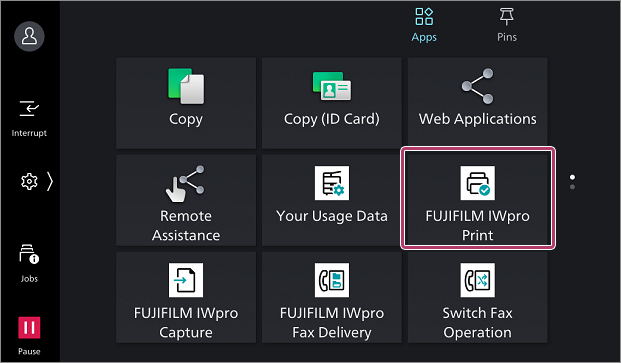
- Tap [FUJIFILM IWpro Print] on the control panel of the device.
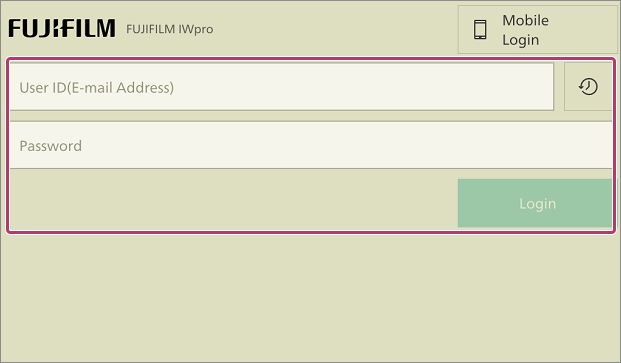
- Enter the user ID and password for FUJIFILM BI Direct and log in.
- Check whether the FUJIFILM IWpro Print screen is displayed.
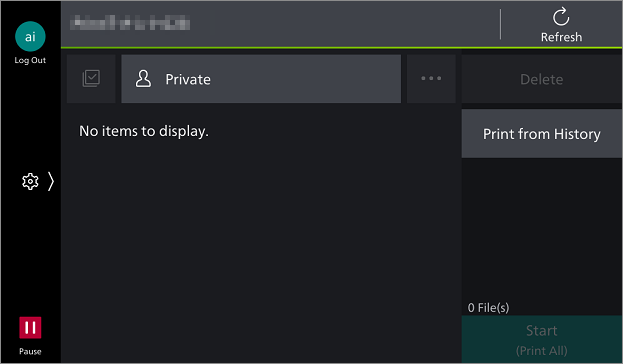
If the screen is displayed, the app has been registered successfully.
Capture Function
Check whether you can log in to the FUJIFILM IWpro Capture function installed in the device.
- Tap [FUJIFILM IWpro Capture] on the control panel of the device.
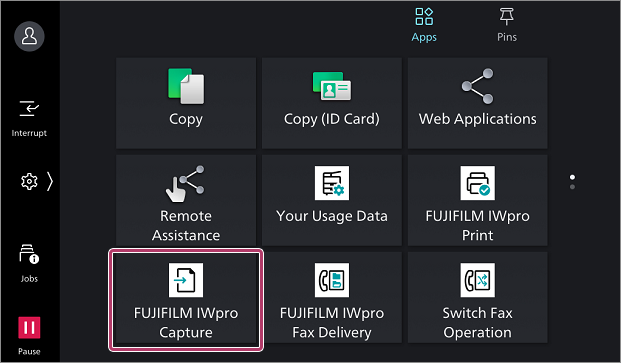
- Enter the user ID and password for FUJIFILM BI Direct and log in.
- Check whether the FUJIFILM IWpro Capture screen is displayed.
- The displayed items differ according to the license you have a contract for.
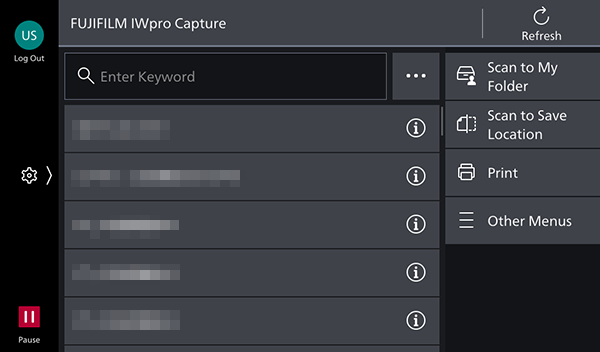
If the screen is displayed, the app has been registered successfully.
Scan Delivery Function
Use Internet Services to check the version of the registered app.
- On a computer, open a web browser.
- Enter the IP address of the device in the address field of the Web browser, then press the <Enter> key.
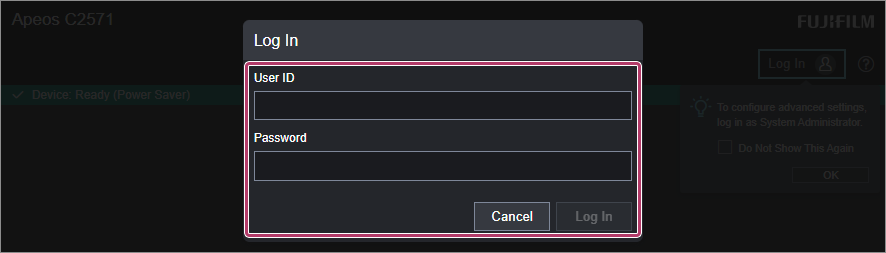
- Click [Log In].
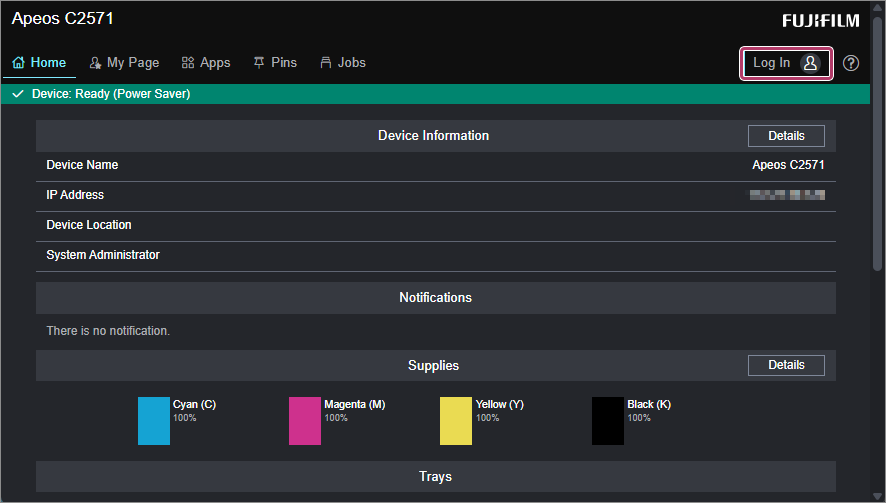
- Enter the system administrator account and password, then click [Log In].
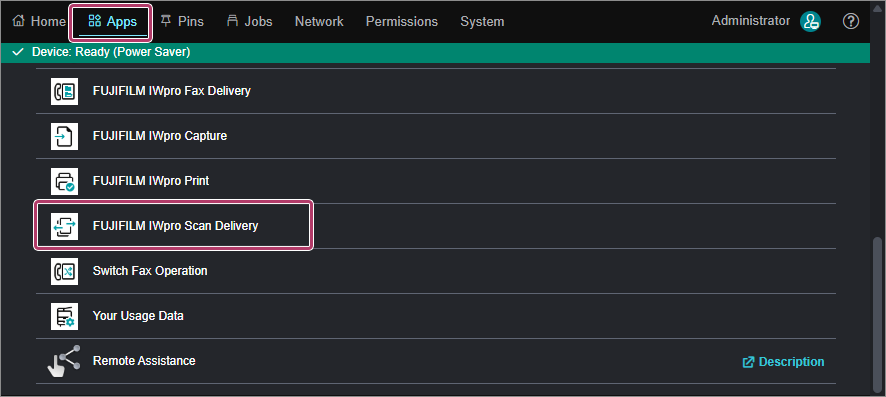
- Click [App], then click [FUJIFILM IWpro Scan Delivery] in the list of apps.
- Check the version information (in the XX.YY format) in three locations.
- Application (displayed in the XX.YY format)
- Version of FUJIFILM IWpro Scan Delivery Setting Tool (displayed in the XX.YY.ZZ format)
- Version of FUJIFILM IWpro Scan Delivery Transfer (displayed in the XX.YY.ZZ format)
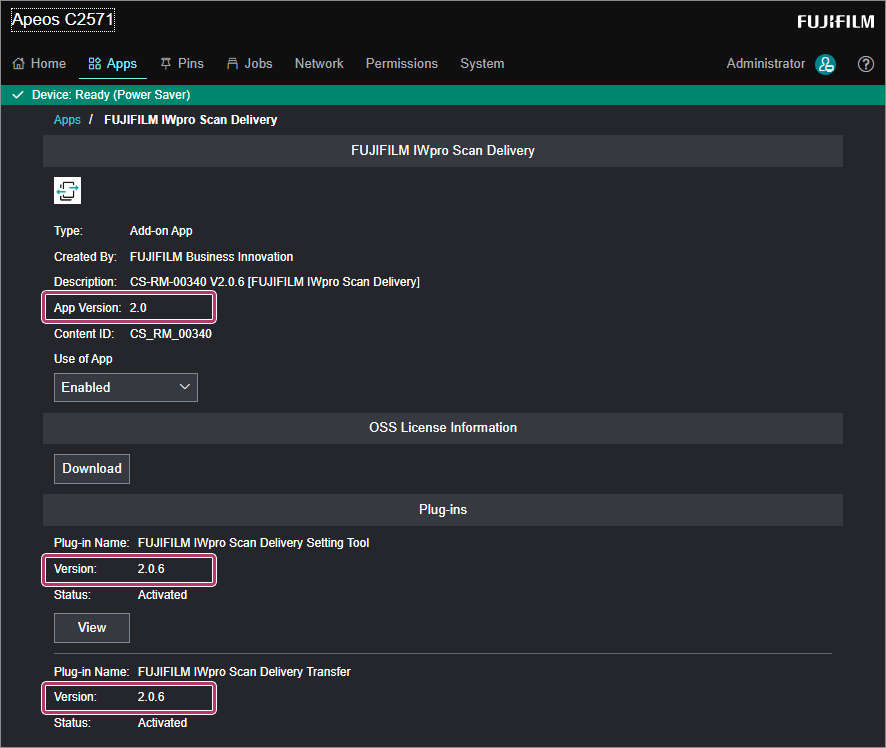
If the version information matches, the scan delivery function has been registered successfully.
Fax Delivery Function
Use Internet Services to check the version of the registered app.
- On a computer, open a web browser.
- Enter the IP address of the device in the address field of the Web browser, then press the <Enter> key.
- Click [Log In].
- Enter the system administrator account and password, then click [Log In].
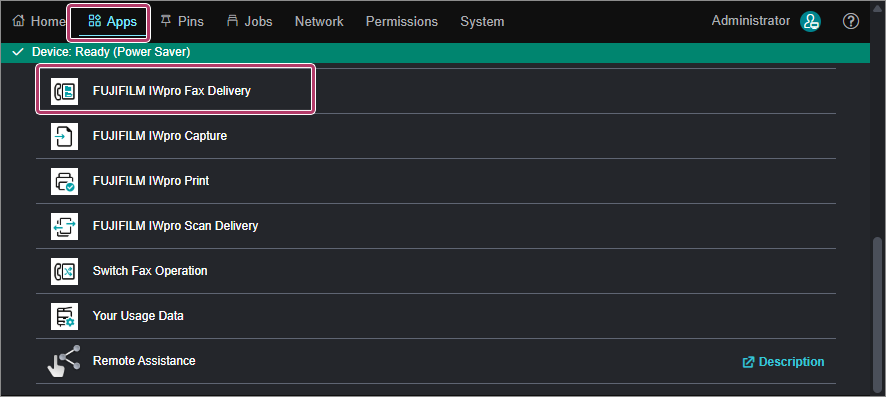
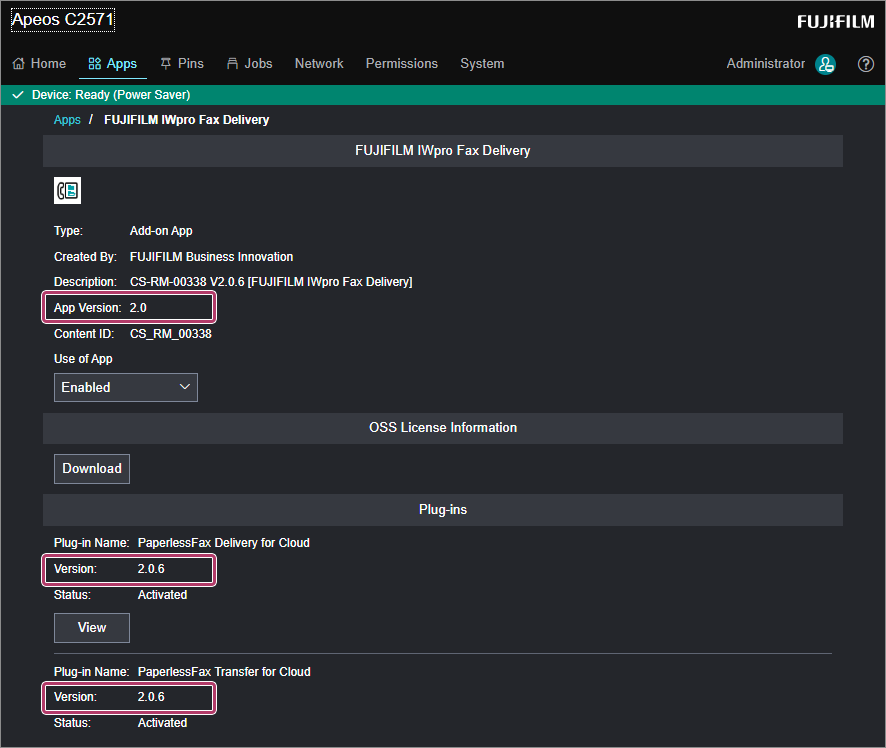
- Click [App], then click [FUJIFILM IWpro Fax Delivery] in the list of apps.
- Check the version information (in the XX.YY format) in three locations.
- Application (displayed in the XX.YY format)
- Version of FUJIFILM IWpro Scan Delivery Setting Tool (displayed in the XX.YY.ZZ format)
- Version of FUJIFILM IWpro Scan Delivery Transfer (displayed in the XX.YY.ZZ format)
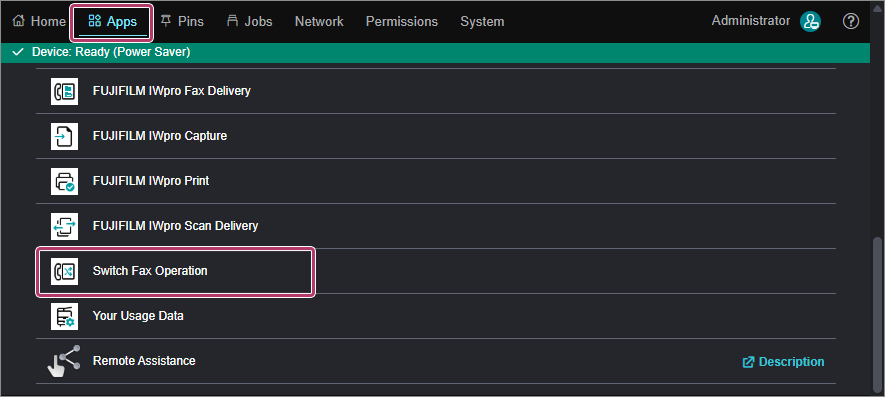
- Click [App], then click [Switch Fax Operation] in the list of apps.
- Check the version information (in the XX.YY format) in three locations.
- Application (displayed in the XX.YY format)
- Version of FUJIFILM IWpro Scan Delivery Setting Tool (displayed in the XX.YY.ZZ format)
- Version of FUJIFILM IWpro Scan Delivery Transfer (displayed in the XX.YY.ZZ format)
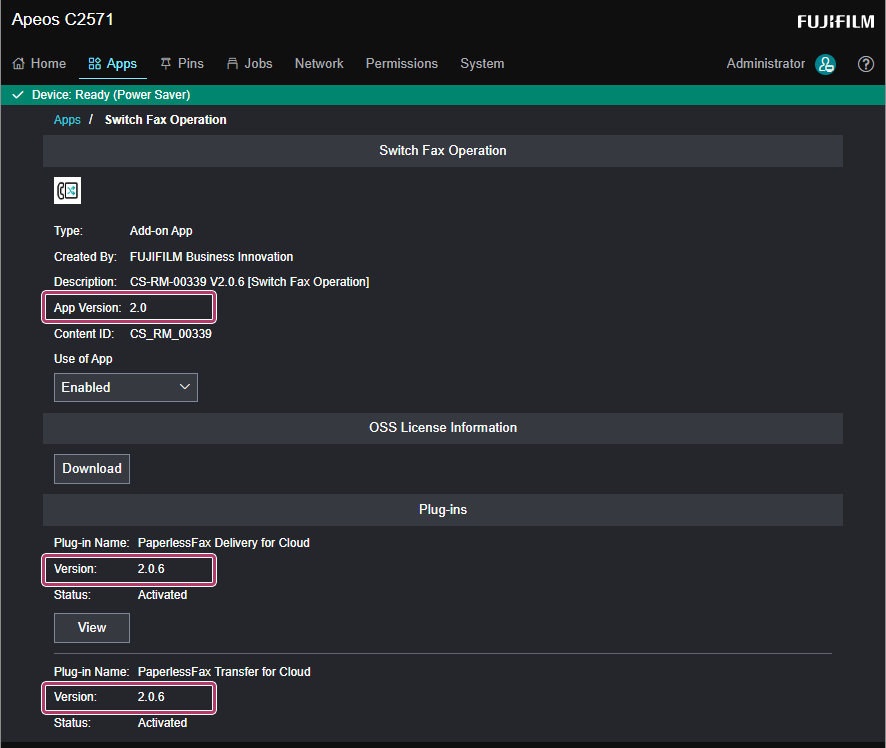
If the version information matches, the fax delivery function has been registered successfully.