Exporting Pages
Export the specified pages from a document, and create a new document.
Note
- For information on files allowed for this operation, see "Files Allowed for Document Operation/Edition."
- You can select one file at a time.
- You can export up to 100 pages at a time.
- You cannot export pages from documents larger than 1 GB.
- Up to 300 pages will be displayed on the screen. The pages that are not displayed cannot be exported.
Exporting Pages
The document being exported is in the locked state, and will be unlocked after the export completed.
The new document created from the export will not be locked.
The new document created from the export will not be locked.
Procedure
1.
Select a document to export pages from, and select [Extract Page] from the quick menu.
The [Extract Page] screen will be displayed.
2.
Select the pages to export.
Note
- The <Ctrl> or <Shift> key can be used to select multiple pages. You cannot use the rectangle-drawing method to select pages.
Example:
Selecting non-continuous pages: Click each page while pressing the <Ctrl> key.
Selecting continuous pages: Click the starting and ending pages while pressing the <Shift> key. - To deselect the selected pages, release your finger from the <Ctrl> or <Shift> key, and click a page.
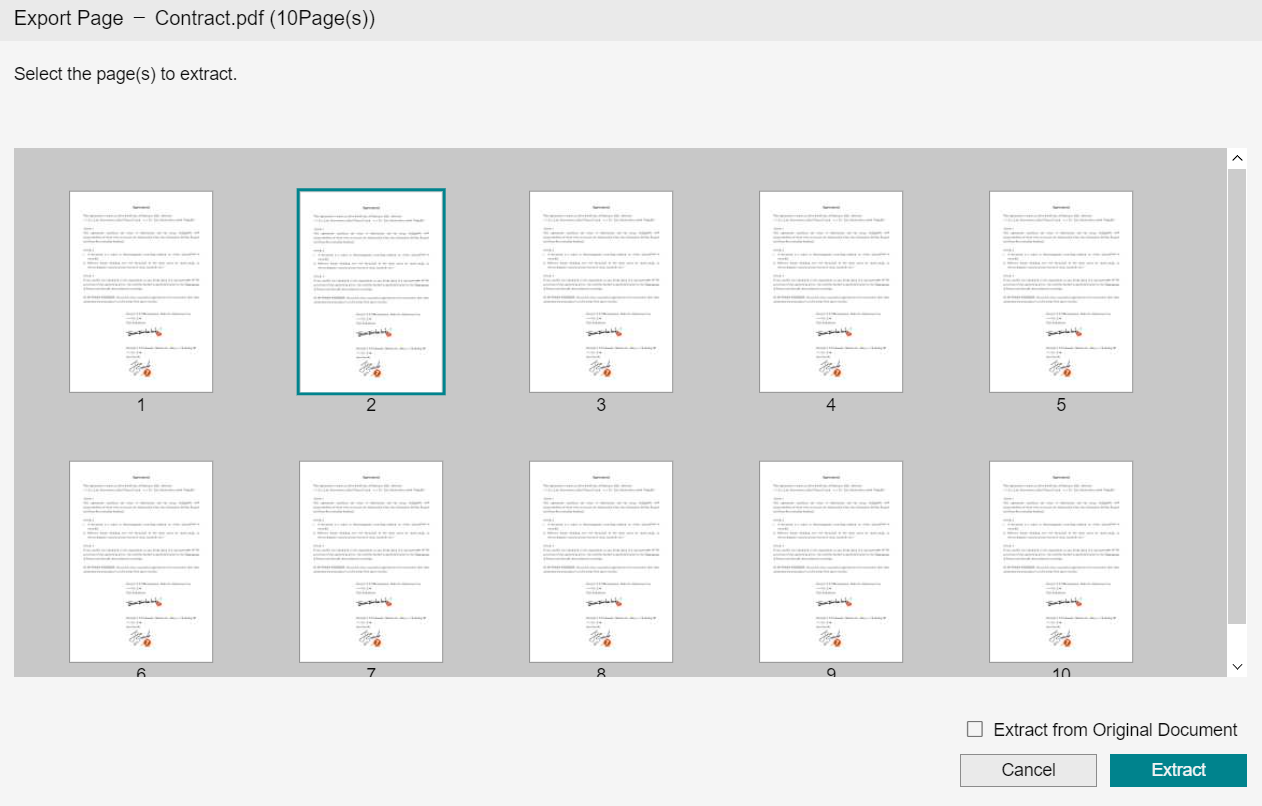
Deleting Exported Pages From the Original Document
Export pages from the document, and create a new documents. The exported pages will be deleted from the original document.
The exported pages will be deleted from the original document only when the document you have export pages from is a PDF or XDW document.
The new document is named as the name of the source document suffixed with a hyphen followed by a 5-digit number.
Example: SourceDocument-00001.pdf
The exported pages will be deleted from the original document only when the document you have export pages from is a PDF or XDW document.
The new document is named as the name of the source document suffixed with a hyphen followed by a 5-digit number.
Example: SourceDocument-00001.pdf
1.
Check the [Extract from Original Document] check box, and click [Extract].
2.
If the default value of [Attribute Value Inheritance] in  [Personal Settings] is set to [Select at run time], the [Extract Page] dialog will be displayed. Select an action and click [OK].
[Personal Settings] is set to [Select at run time], the [Extract Page] dialog will be displayed. Select an action and click [OK].
Duplicating the Exported Pages and Keeping the Source Document Intact
The source document remains intact, and the exported pages will be created as a new document.
The new document is named as the name of the source document suffixed with a hyphen followed by a 5-digit number.
Example: SourceDocument-00001.pdf
If the document you have exported pages from is an XDW document, the new document will be created as an XDW document.
If it is not an XDW document, the new documents will be created as a PDF document.
The new document is named as the name of the source document suffixed with a hyphen followed by a 5-digit number.
Example: SourceDocument-00001.pdf
If the document you have exported pages from is an XDW document, the new document will be created as an XDW document.
If it is not an XDW document, the new documents will be created as a PDF document.
1.
Click [Extract].
2.
If the source document is not a PDF or XDW document, click [OK] on the confirmation screen.
3.
If the default value of [Attribute Value Inheritance] in [Personal Settings] is set to [Select at run time], the [Extract Page] dialog will be displayed. Select an action and click [OK].
[Personal Settings] is set to [Select at run time], the [Extract Page] dialog will be displayed. Select an action and click [OK].
When the source document has attachments
Attachments that are associated with the whole document cannot be exported.
Attachments that are attached to pages are still attachments for those pages.
Attachments that are attached to pages are still attachments for those pages.
Changing the Default Action When Extracting Pages
Procedure
1.
Click the icon in the navigation header.
icon in the navigation header.2.
In [Attribute Value Inheritance], select one of the following.
- Select at run time
A dialog will be displayed for you to select whether to inherit the attribute values of the original document when extracting pages. - Follow the settings below
You can set whether to inherit the attribute values of the original document.
3.
Click [Save].
Note
In the case of [Select at run time], you select the action when extracting pages, but you can save the setting by selecting the [Save this setting in your user settings and don't show it again] checkbox.