Step 4: Registering General Users
Registration of users to FUJIFILM IWpro is necessary so that users can use FUJIFILM IWpro Scan Delivery and FUJIFILM IWpro Fax Delivery. If authentication is not configured in the multifunction device, it is recommended that you do so.
| 4-1 | Registering FUJIFILM IWpro Users |
 |
|
| 4-2 | Checking the Authentication Settings of the Multifunction Device |
|
|
| 4-3 | Configuring the Authentication of the Multifunction Device (Optional) This step is not required if authentication is already configured in the multifunction device. This completes the initial setup.
|
|
|
| 4-4 | Registering Users (Optional) This step is only required if step 4-3 is performed. This completes the initial setup.
|
4-1 Registering FUJIFILM IWpro Users
The Service Administrator registers users in FUJIFILM IWpro. Methods to register users are to individually register users, and batch registration using a CSV file. This section explains how to use a CSV file to register a batch of users.
Follow the steps below to perform batch registration using a CSV file.
- Preparing a CSV File
- Creating a CSV File
- Executing Batch Processes
Preparing a CSV File
- On a PC, open a web browser.
- Enter the Service Administrator user ID and password in FUJIFILM BI Direct, and log in.
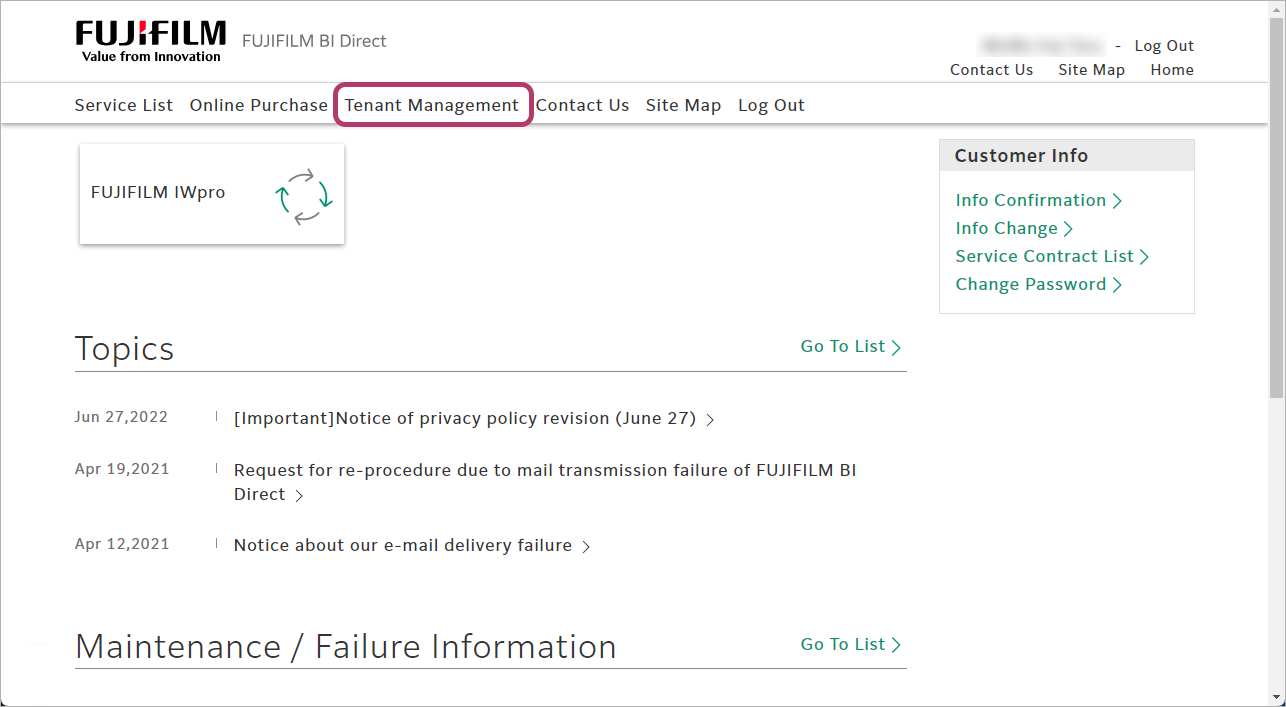
- Click [Tenant Management].
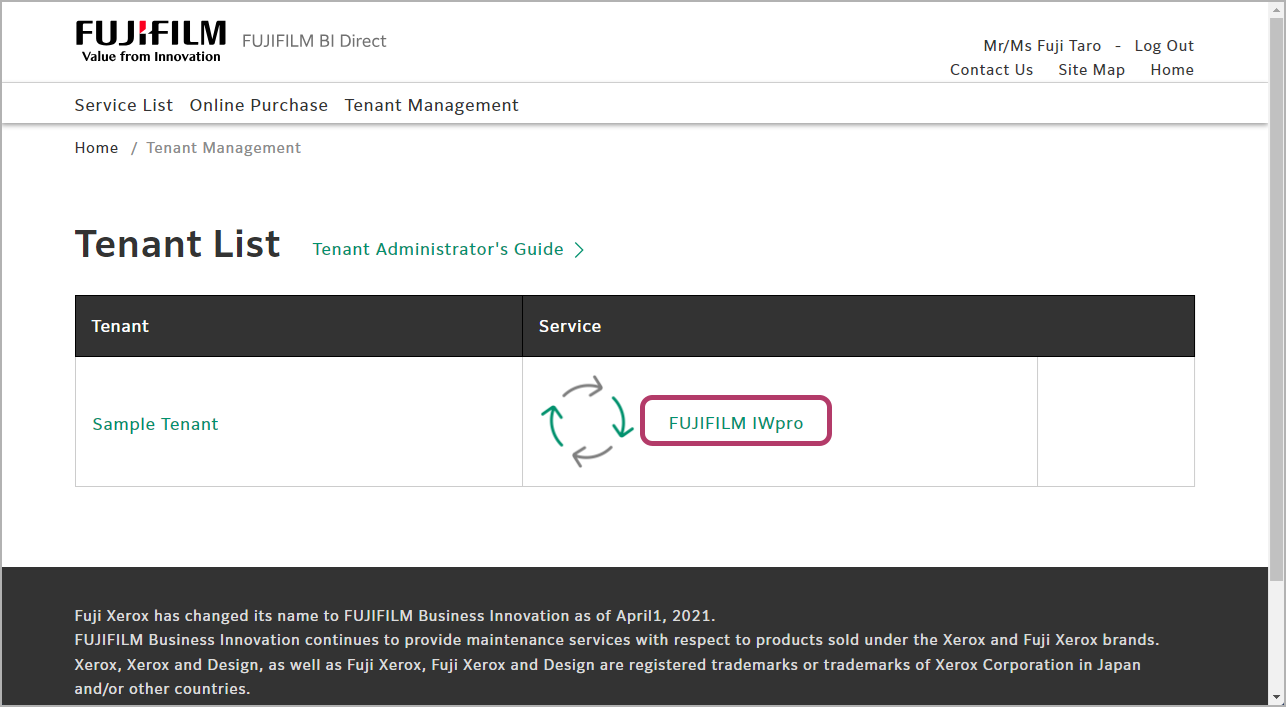
- In the [Service] column, click [FUJIFILM IWpro].
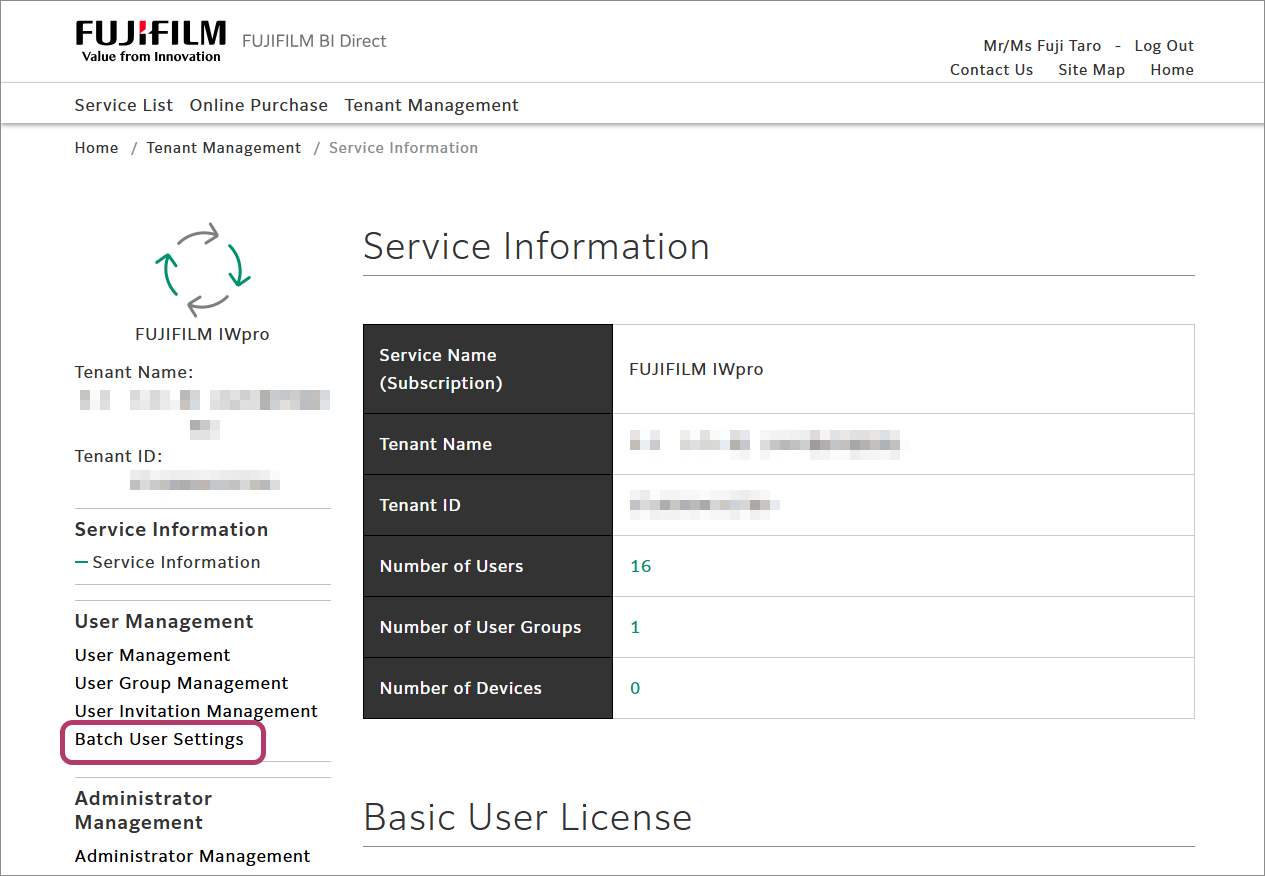
- Click [Batch User Settings].
- [Download Template File]
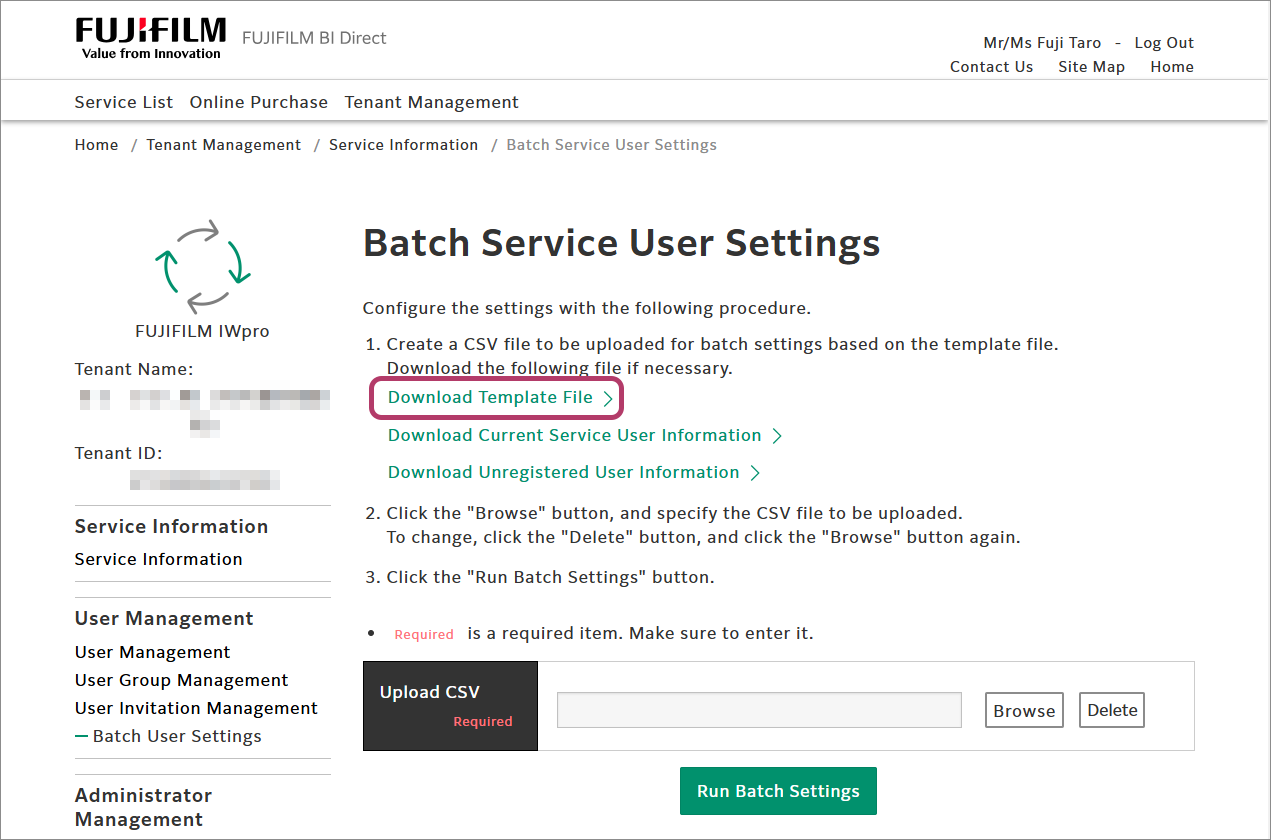 The template file is downloaded as a ZIP file.
Creating a CSV File
You can use a template file for adding users to create a CSV file for a batch process.
- Extract the template file in the ZIP format that was downloaded in "Preparing a CSV File" to a location of your choice.
- Open the extracted "add-users_template.csv" file in a program such as a text editor.
- Use a text editor that can save files with the UTF-8 character encoding.
- Enter the values required for registering users in line 2 and beyond.

Item Description mail_address Enter the e-mail address (user ID) of the user. family_name Enter the family name of the user. given_name Enter the given name of the user. language Specify the language used for the e-mail. The following languages are available. - ja: Japanese
- en: English
group This item does not need to be entered. option Enter the code for the optional license.
The codes of optional licenses are as follows.- FUJIFILM IWpro Standard: NCS001
- FUJIFILM IWpro Light: NCS002
- FUJIFILM IWpro Print: NCS003
company_name This item does not need to be entered. department_name This item does not need to be entered. job_title_name This item does not need to be entered. device_user_id This item does not need to be entered. iccard_number This item does not need to be entered. - Save the edited CSV file with the following character encoding and file name.
File Name Character Encoding add-users_{arbitrary string}.csv UTF-8 (with BOM)
or
UTF-8 (without BOM)
Executing Batch Processes
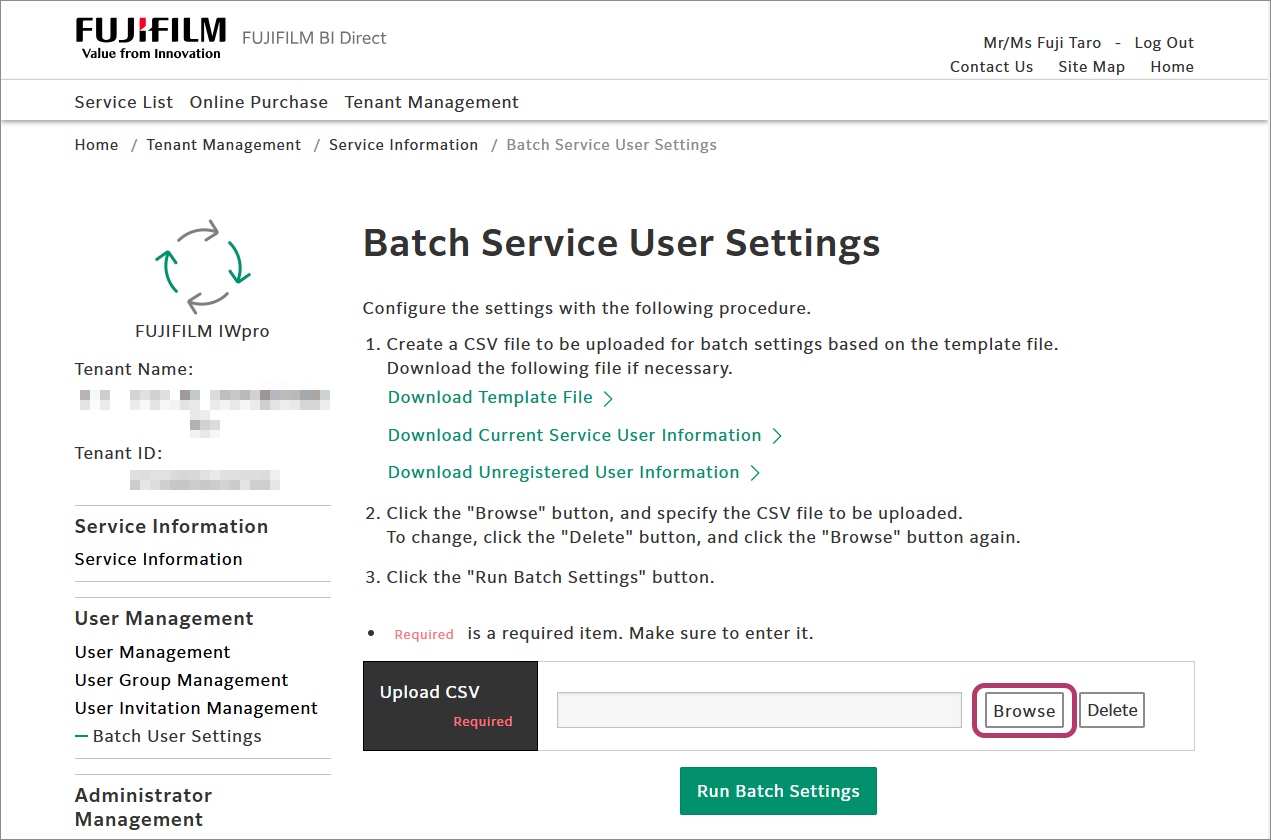
- Click [Browse] for [Upload CSV], then select the CSV file created in the procedure described in "Creating a CSV File".
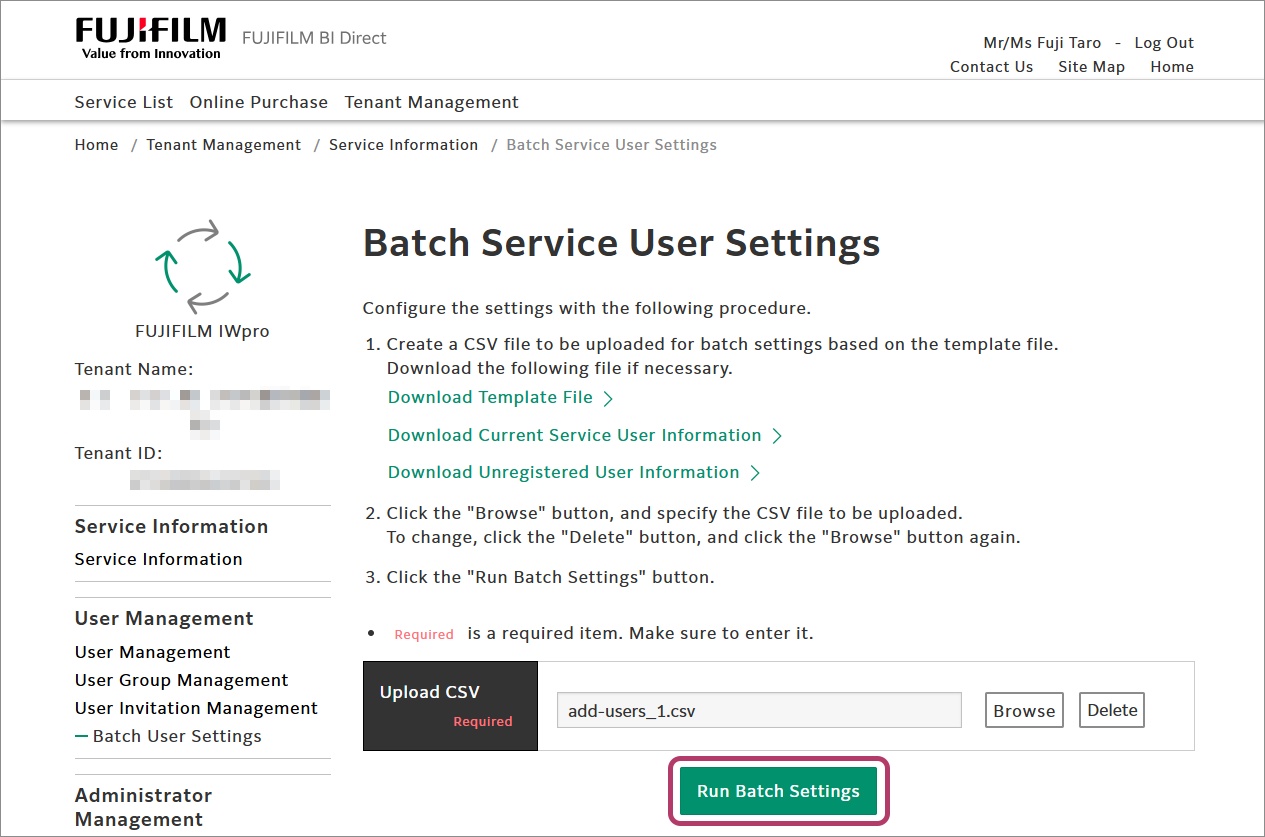
- Click [Run Batch Settings].
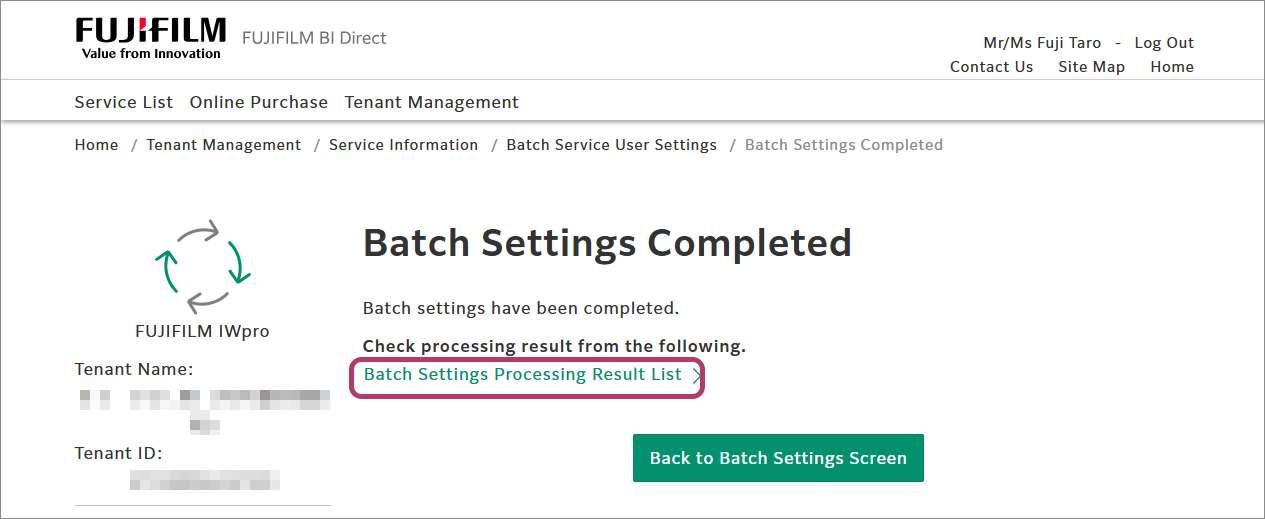
- Click [Batch Settings Processing Result List].
- If values are displayed in [Number of Successes], [Number of Failures], and [Download Processing Result], this completes the registration procedure.Click [Refresh] to update the displayed information.
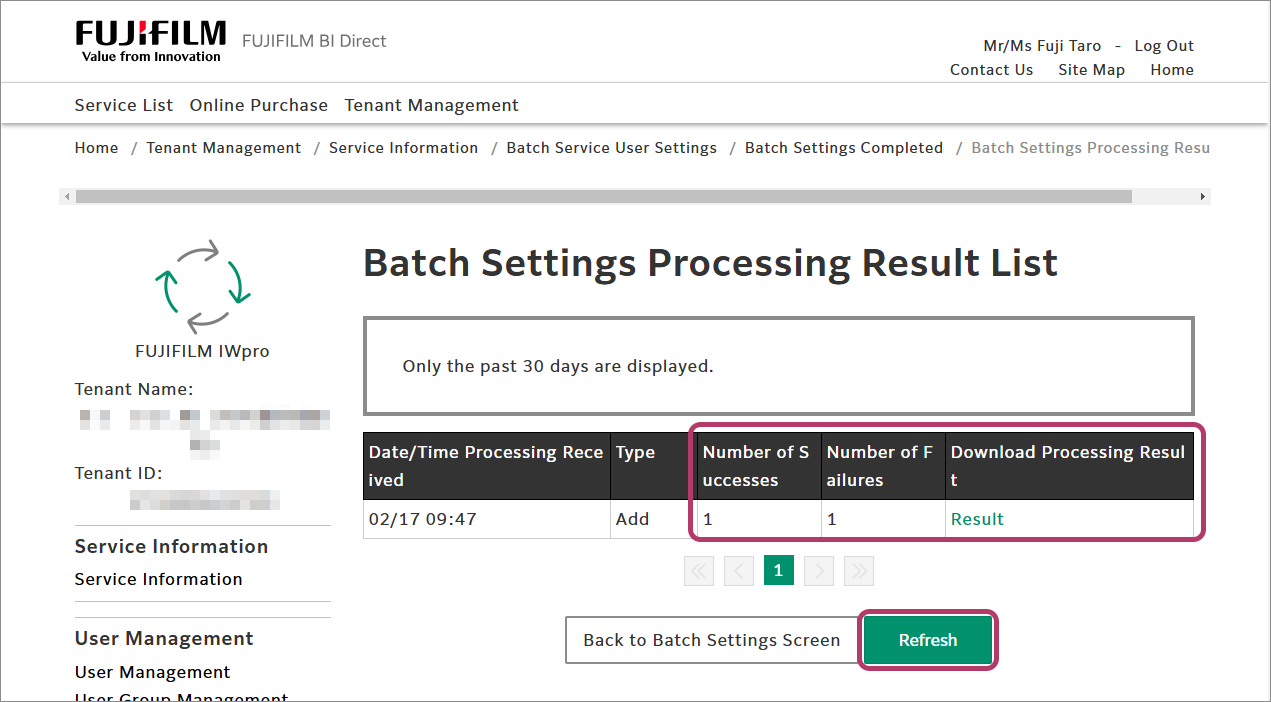 If a value other than "0" is displayed in [Number of Failures], click [Result] to download the process results.
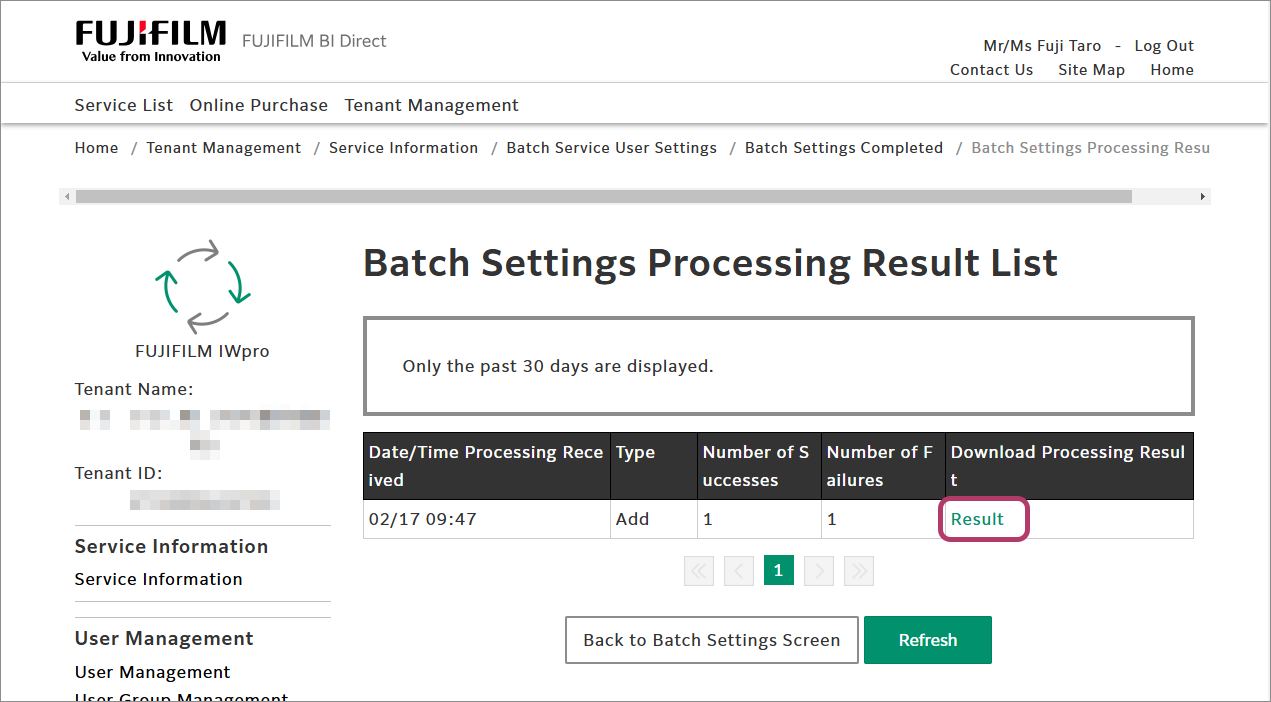 The process results are downloaded as a CSV file.
Check the error code in the [error_cd] column in the downloaded CSV file.- Lines with [NG] displayed in the [result] column are users which the batch process failed for.
- For information on error codes and their remedies, see "Handling Errors".
This completes the procedure for registering FUJIFILM IWpro users.
| 4-1 | Registering FUJIFILM IWpro Users |
|
|
| 4-2 | Checking the Authentication Settings of the Multifunction Device |
|
|
| 4-3 | Configuring the Authentication of the Multifunction Device (Optional) This step is not required if authentication is already configured in the multifunction device. This completes the initial setup.
|
|
|
| 4-4 | Registering Users (Optional) This step is only required if step 4-3 is performed. This completes the initial setup.
|
4-2 Checking the Authentication Settings of the Multifunction Device
Check the authentication settings of the multifunction device.
- On a PC, open a web browser.
- Input the IP address of the multifunction device for which to configure local authentication in the address bar of the web browser and press the <Enter> key.
- Click [Log In].
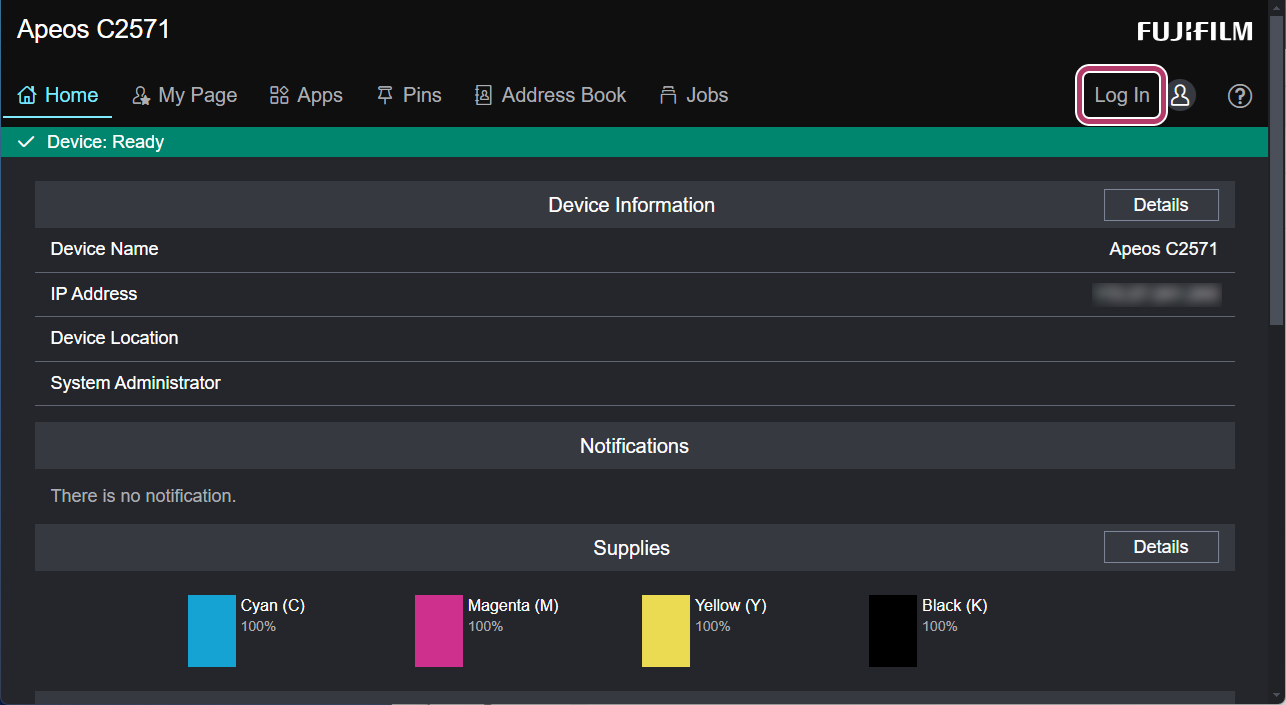
- Enter the System Administrator user ID and password, and click [Log In].
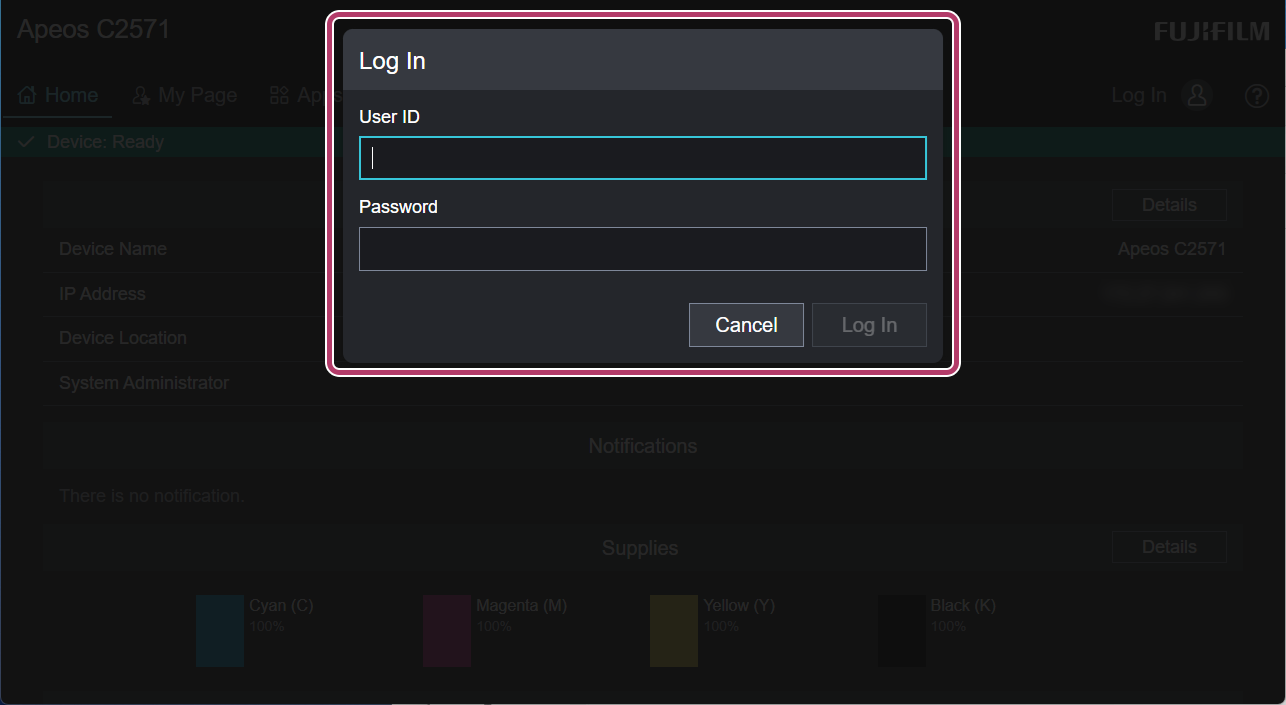
- Click [Permissions].
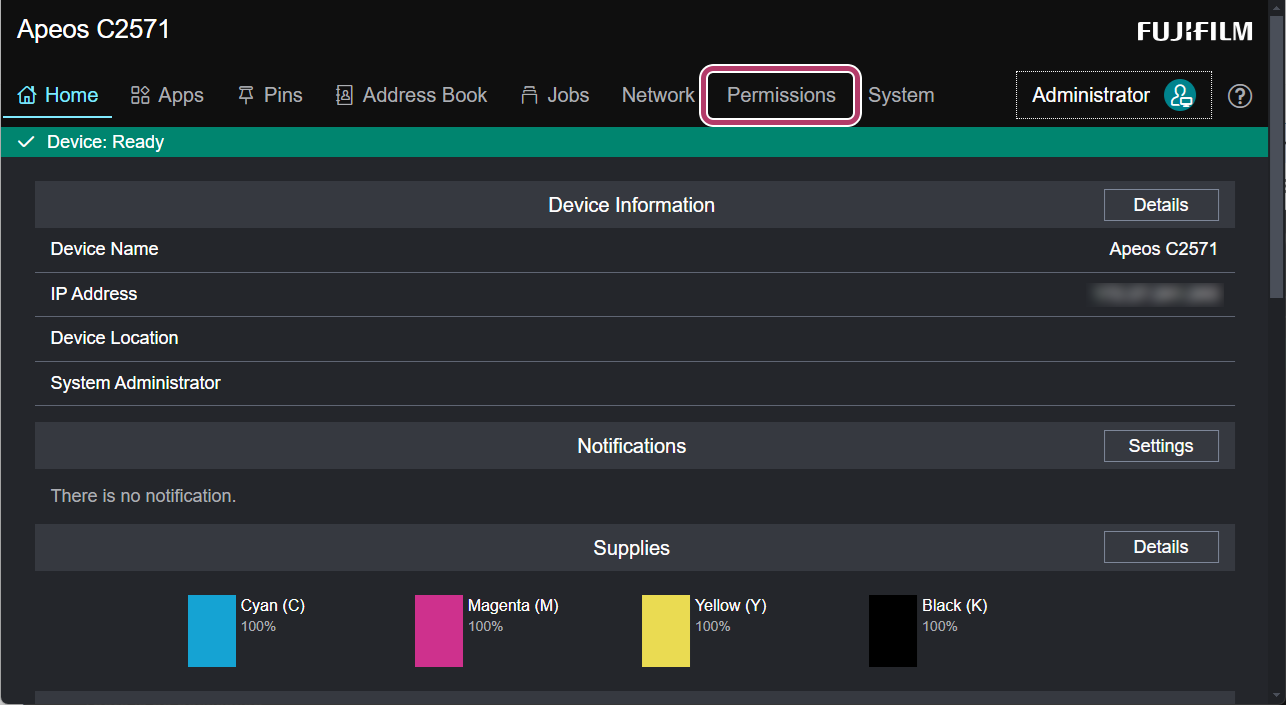
- Click [Authentication and Accounting].
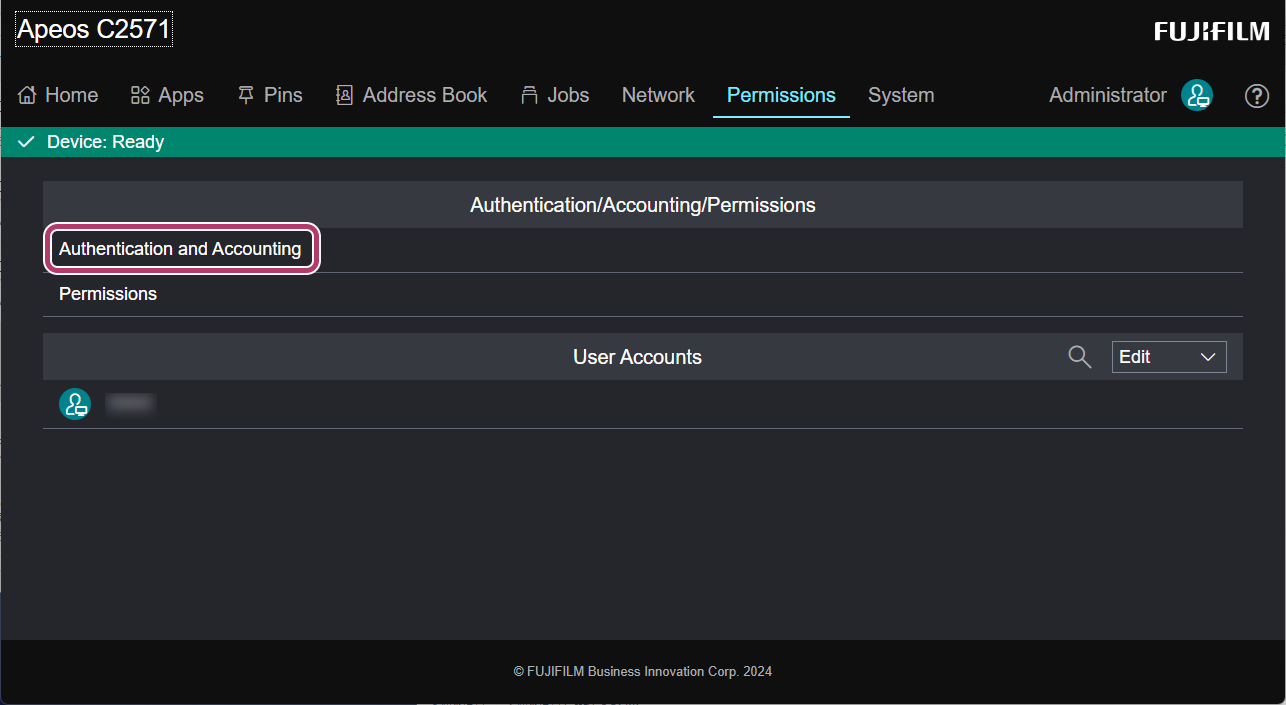
- Confirm that [Authentication/Accounting Type] is set to [Off].If it is set to [Off], proceed to "4-3 Configuring the Authentication of the Multifunction Device".If it is set to something other than [Off], this completes step 4.
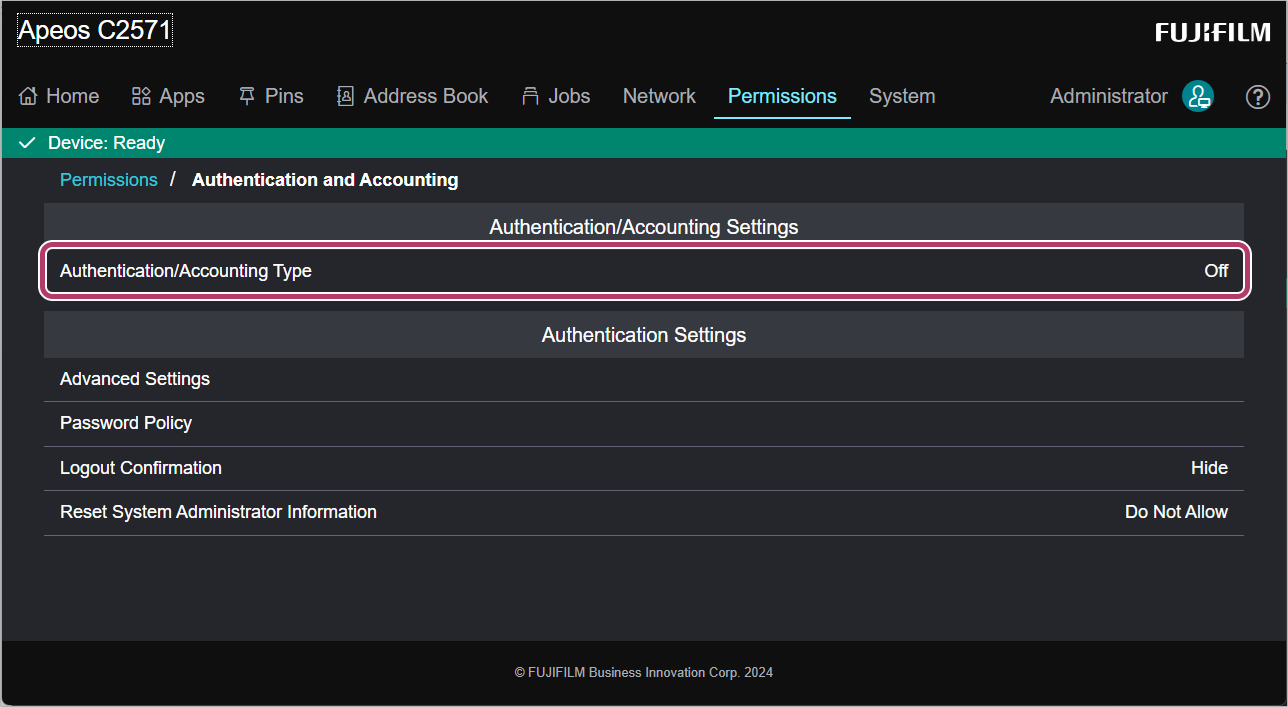
This completes the procedure for checking the authentication settings of the multifunction device.
| 4-1 | Registering FUJIFILM IWpro Users |
|
|
| 4-2 | Checking the Authentication Settings of the Multifunction Device |
|
|
| 4-3 | Configuring the Authentication of the Multifunction Device (Optional) This step is not required if authentication is already configured in the multifunction device. This completes the initial setup.
|
|
|
| 4-4 | Registering Users (Optional) This step is only required if step 4-3 is performed. This completes the initial setup.
|
4-3 Configuring the Authentication of the Multifunction Device (Optional)
- Do not configure the authentication of the multifunction device if it is already configured. This completes the initial setup.
Use the Internet service to configure multifunction device local authentication settings and to register users. During configuration, the multifunction device cannot be used.
There are two types of multifunction device authentication; local authentication and remote authentication. This explains settings for selecting a user and logging in using local authentication. For settings for other authentication methods, refer to the guides provided with your multifunction device.
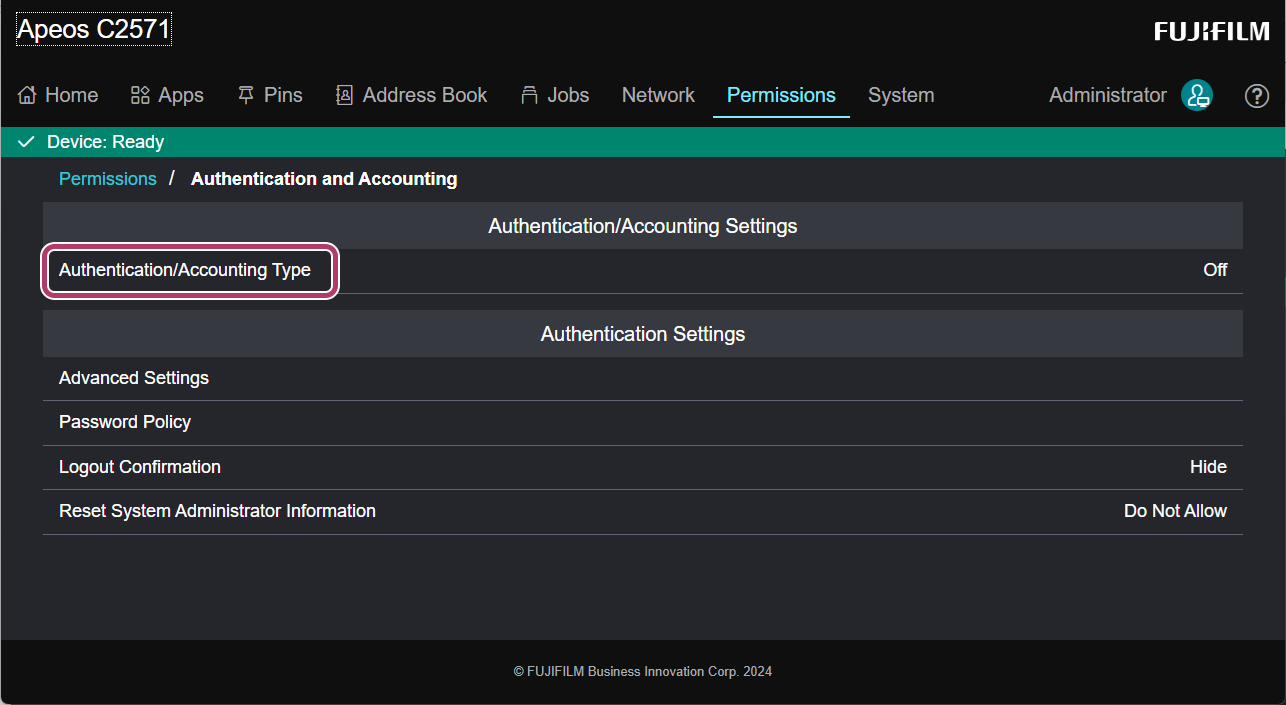
- Click [Authentication/Accounting Type].
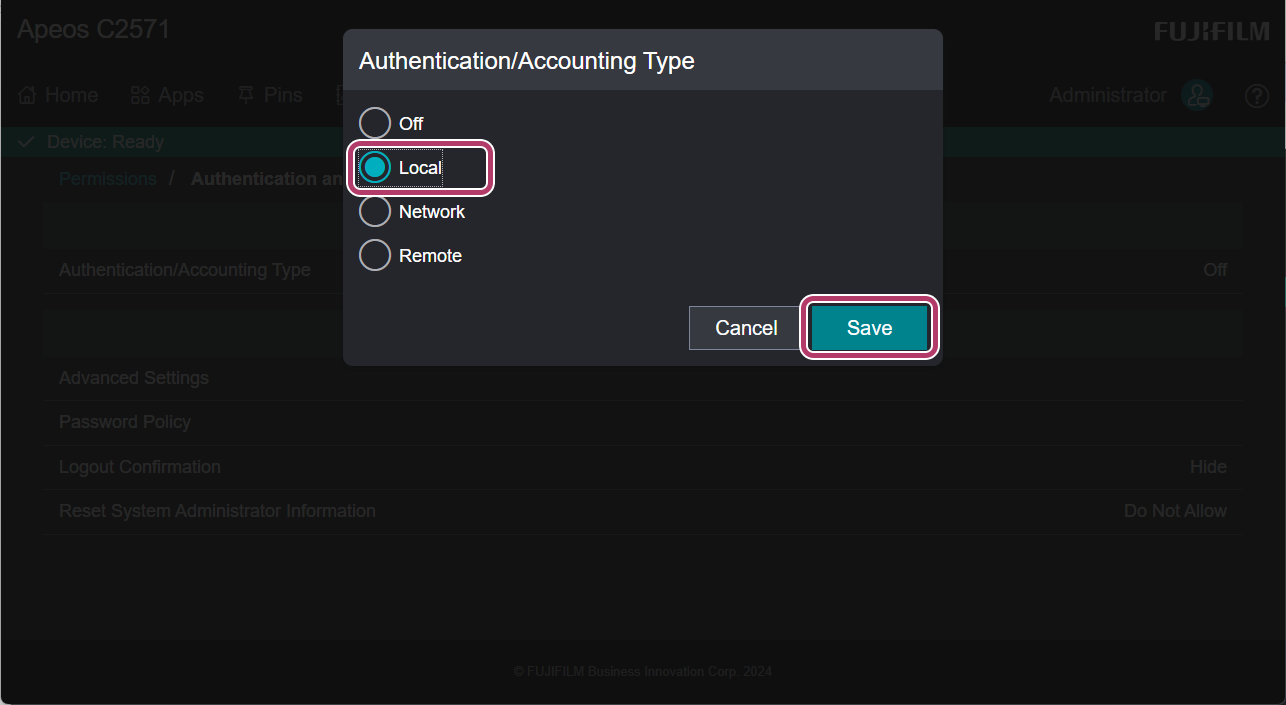
- Select [Local], and click [Save].
- In [Authentication Method], click [Keyboard].
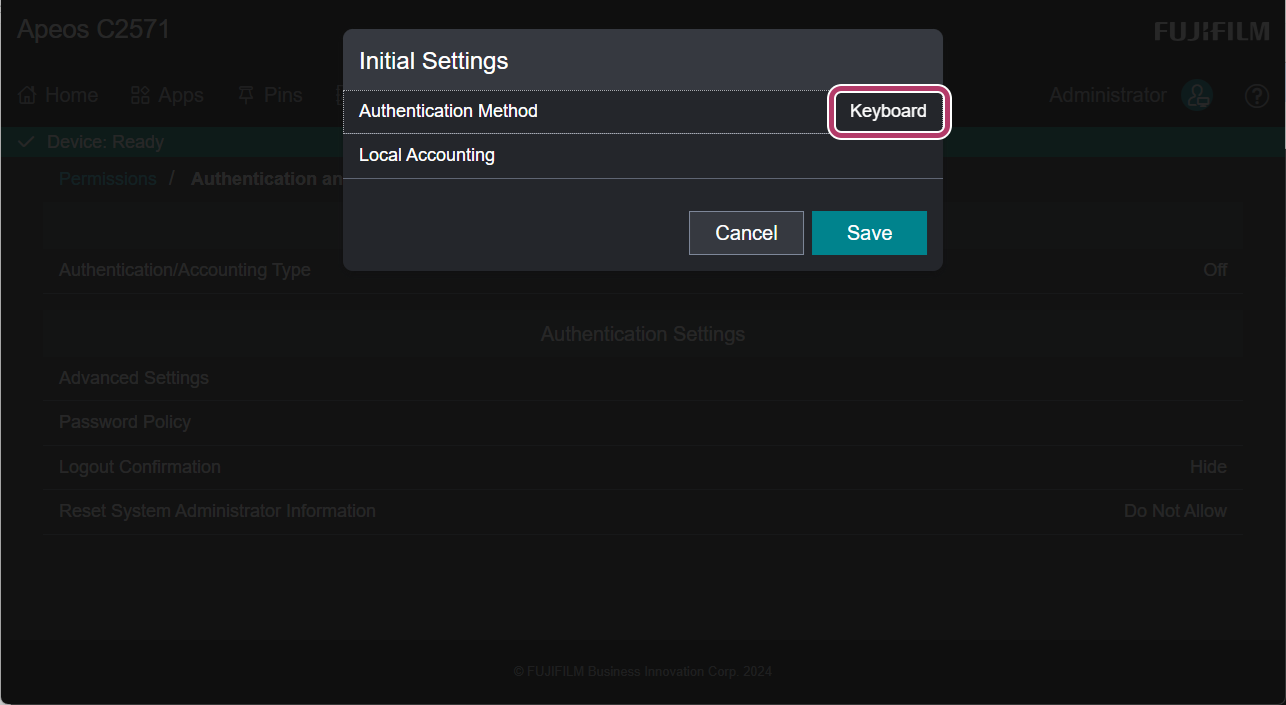
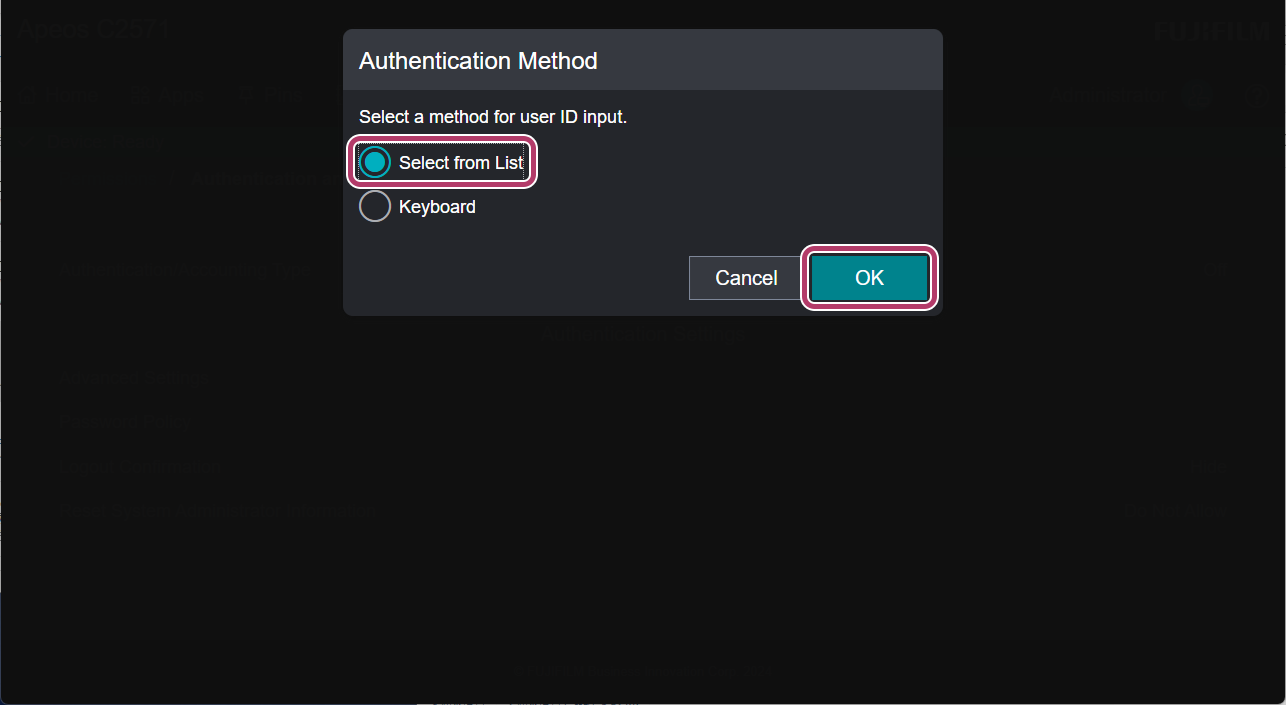
- Select [Select from List] and click [OK].
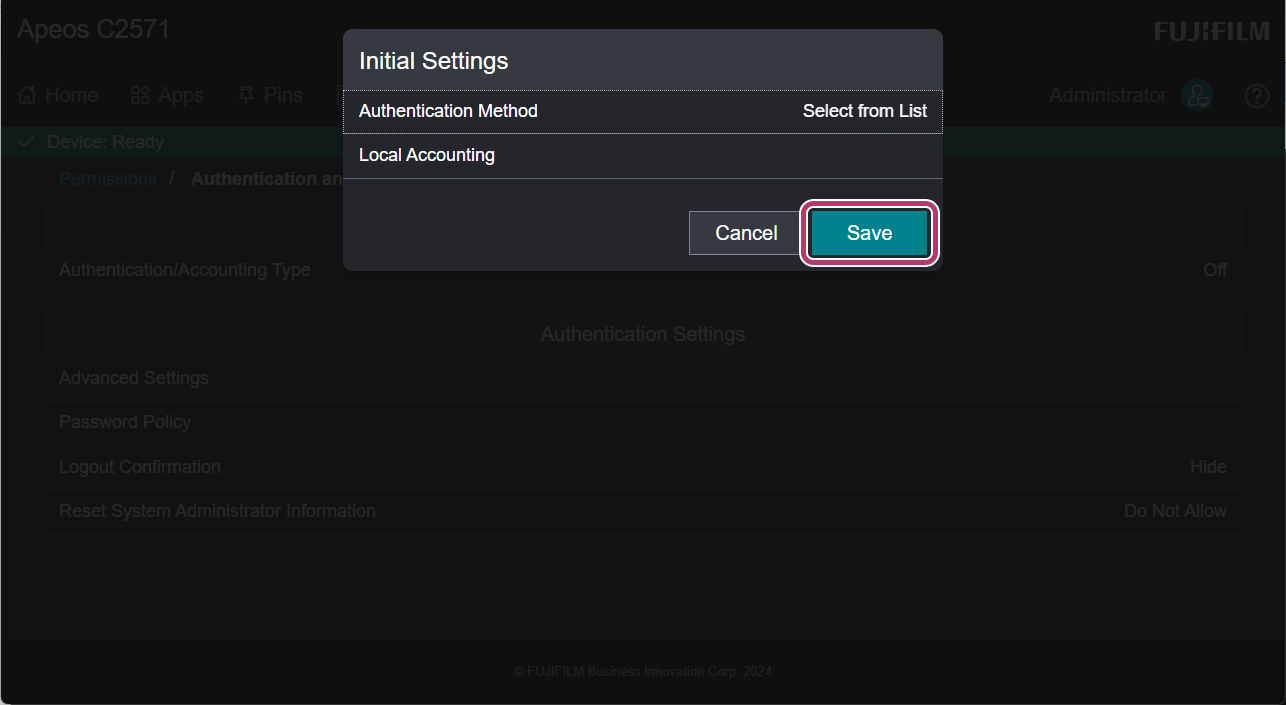
- Click [Save].
 Restart the multifunction device.
This completes the procedure for configuring authentication for the multifunction device.
| 4-1 | Registering FUJIFILM IWpro Users |
|
|
| 4-2 | Checking the Authentication Settings of the Multifunction Device |
|
|
| 4-3 | Configuring the Authentication of the Multifunction Device (Optional) This step is not required if authentication is already configured in the multifunction device. This completes the initial setup.
|
|
|
| 4-4 | Registering Users (Optional) This step is only required if step 4-3 is performed. This completes the initial setup.
|
4-4 Registering Users (Optional)
If authentication was configured in "4-3 Configuring the Authentication of the Multifunction Device (Optional)", register the users for the multifunction device.
- Click [Log In].
- Enter the System Administrator user ID and password, and click [Log In].
- Click [Permissions].
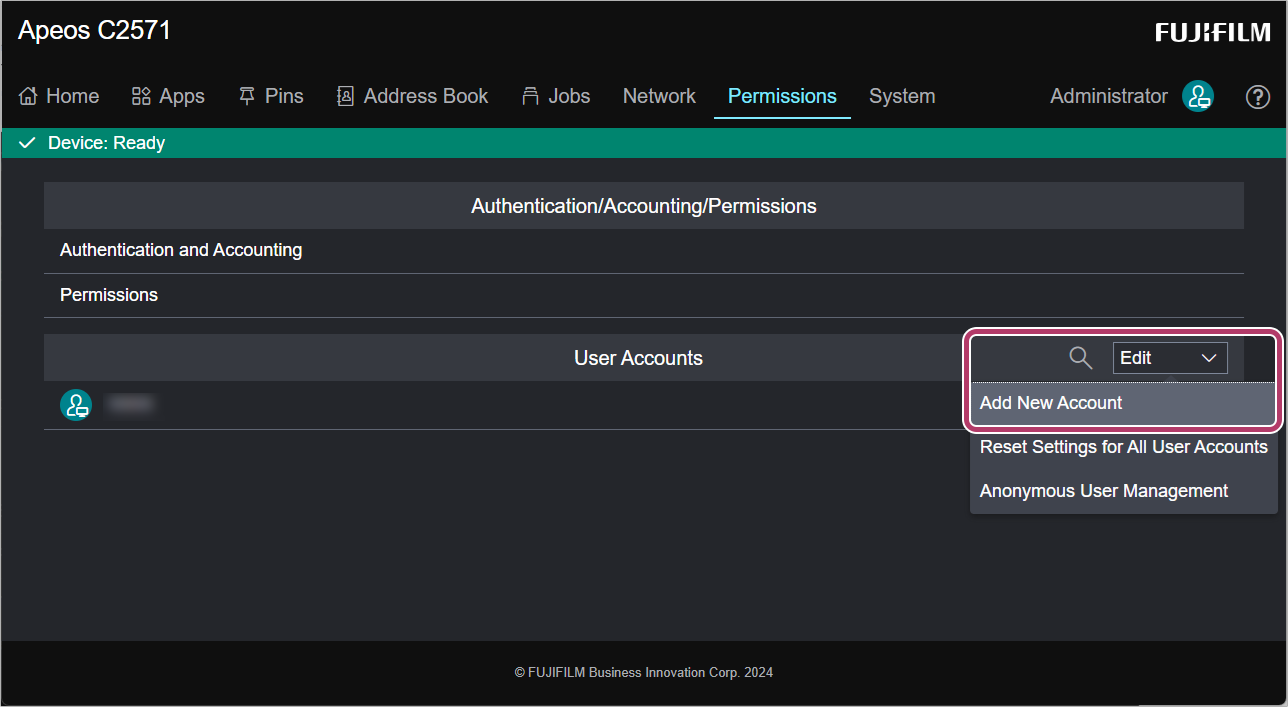
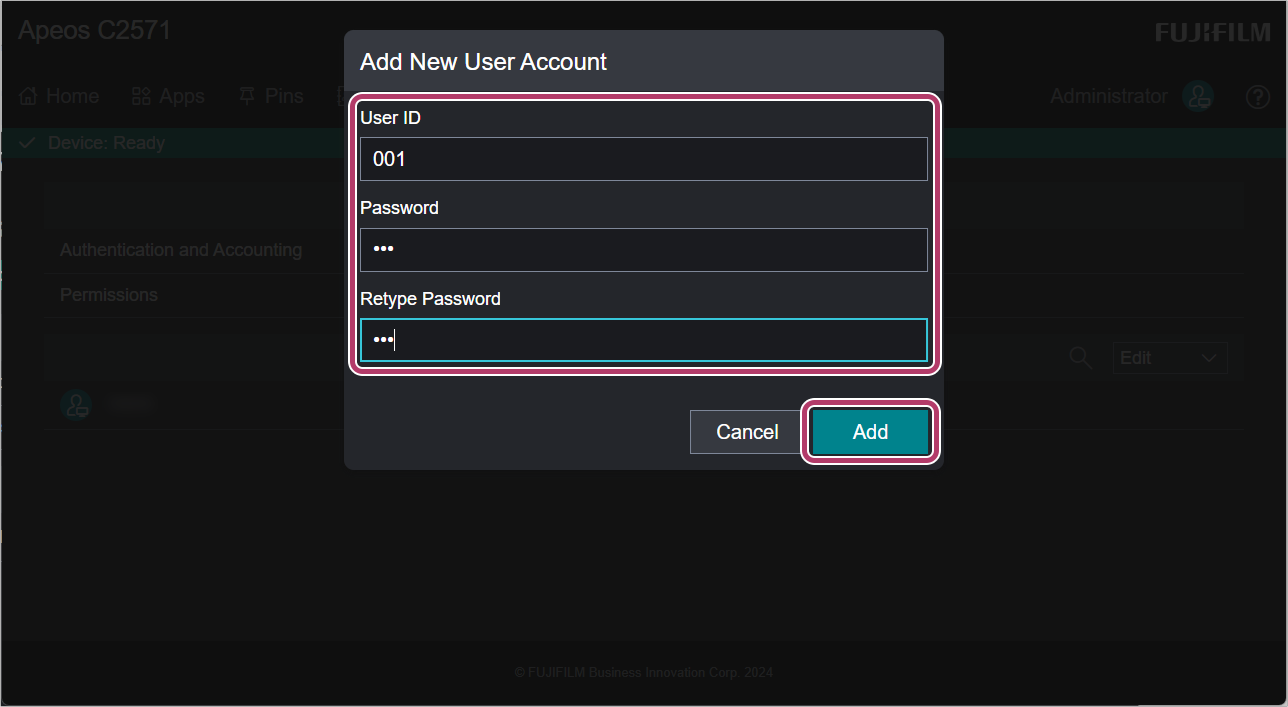
- From [User Accounts], click [Edit], and click [Add New Account].
- Enter [User ID], [Password], and [Retype Password], and click [Add].The user ID is the login ID for using the multifunction device. Enter 32 single-byte characters or less for the user ID and password. In this example, "001" is entered.
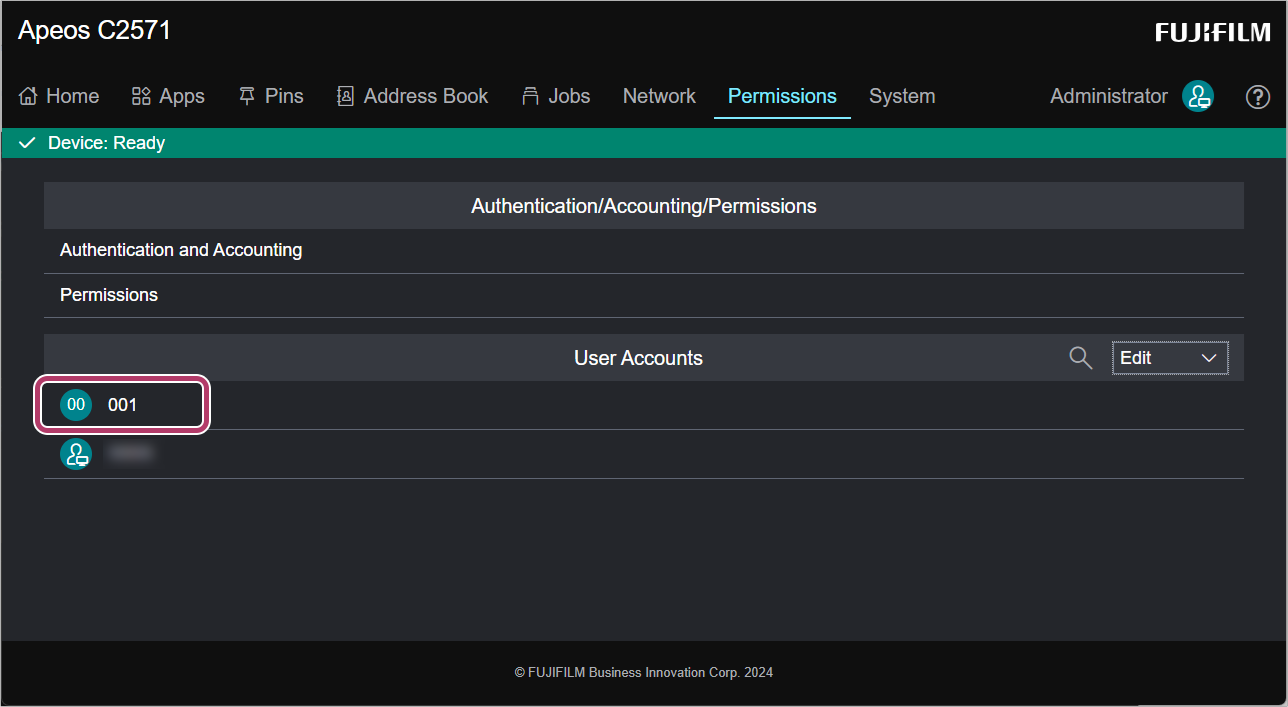
- From [User Accounts], click the user name registered in step 5 .
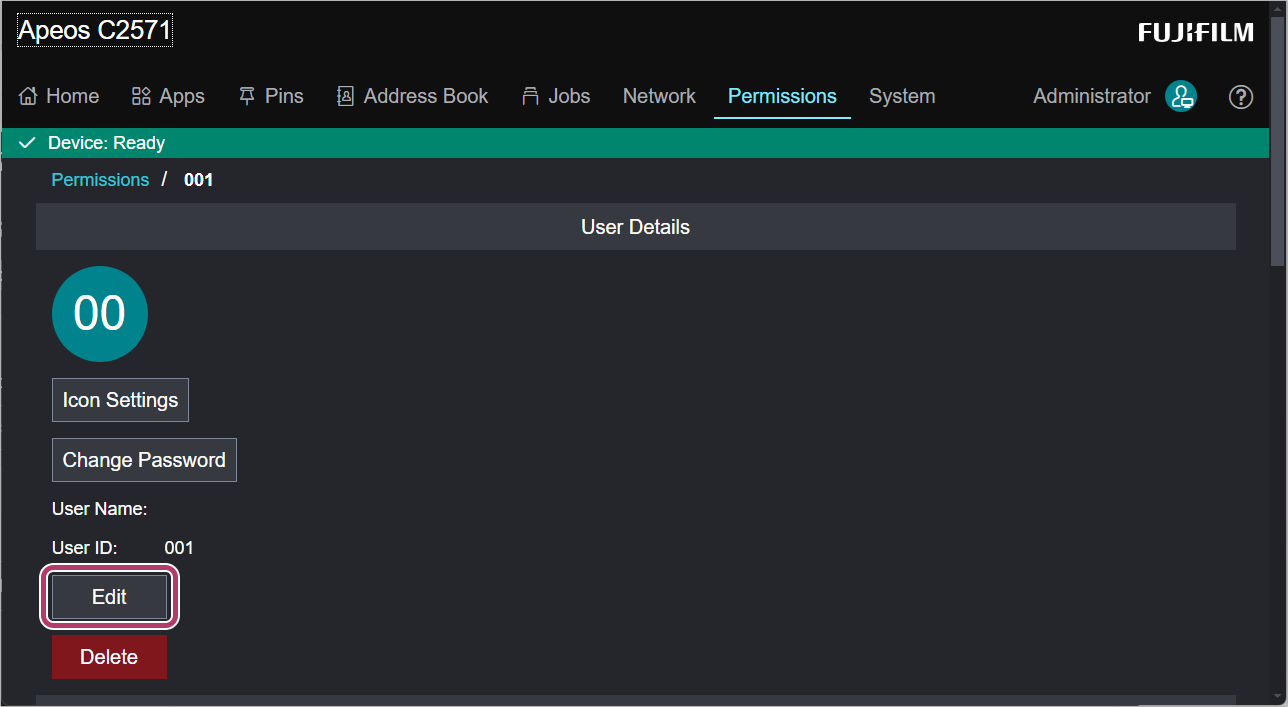
- Click [Edit].
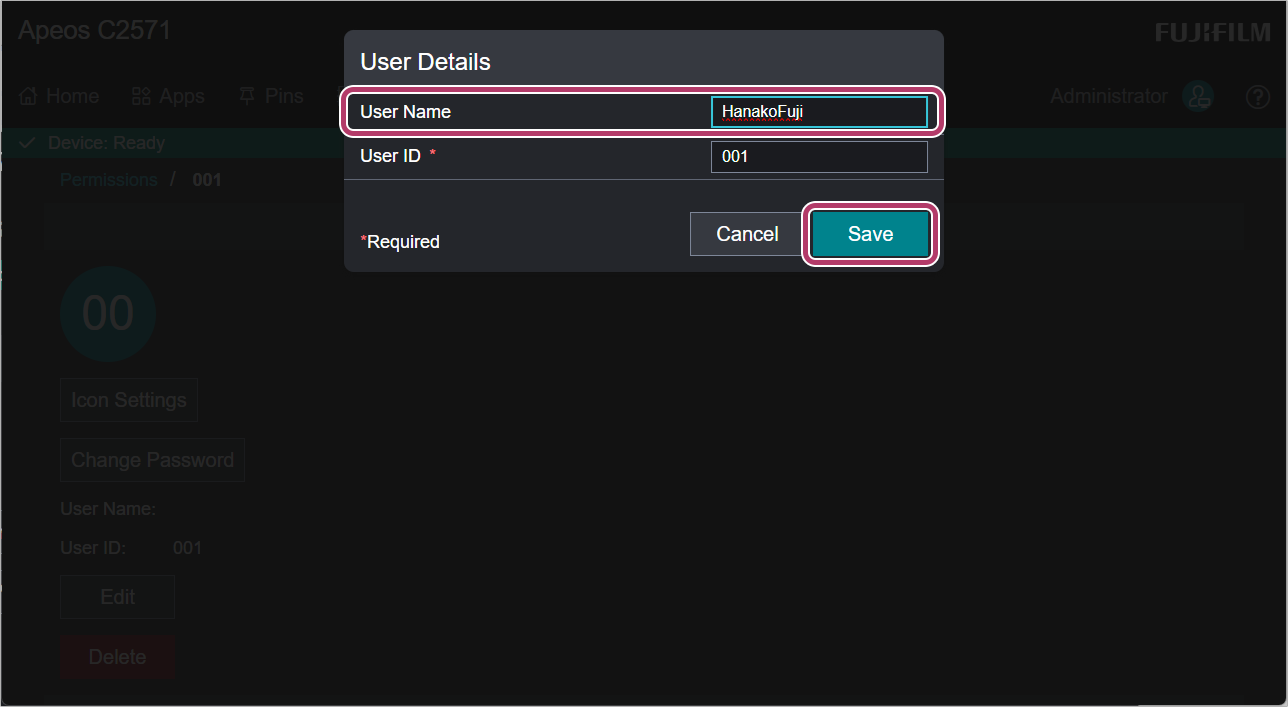
- Enter the [User Name], and click [Save].
- User name is that displayed when selecting the login ID on the multifunction device. This can be up to 32 single-byte alphanumeric characters.
- In [Email "From" Address], click [Edit].
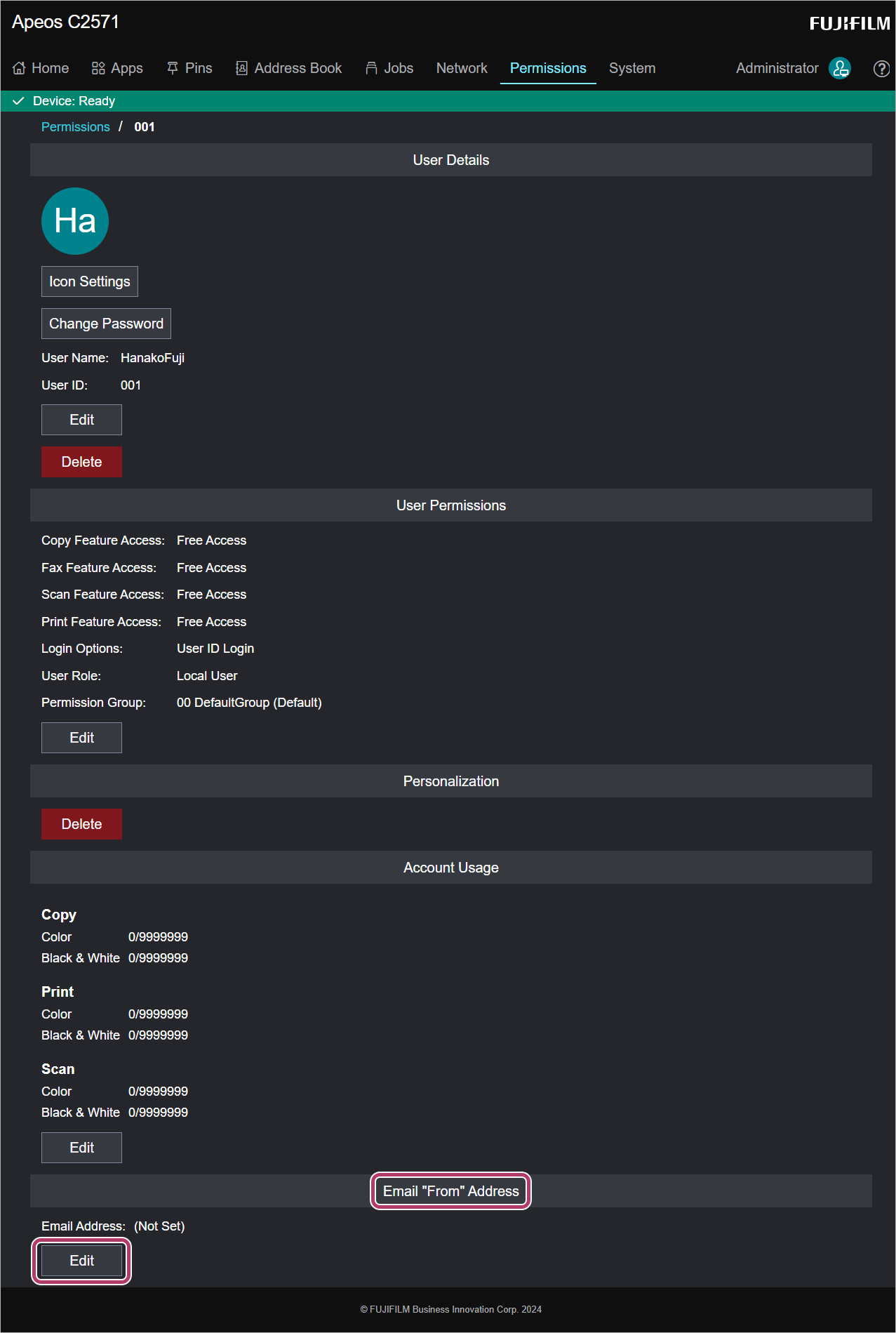
- Enter the e-mail address, and click [Save].
- Register an e-mail address to receive notifications if the multifunction device gives an error during processing.
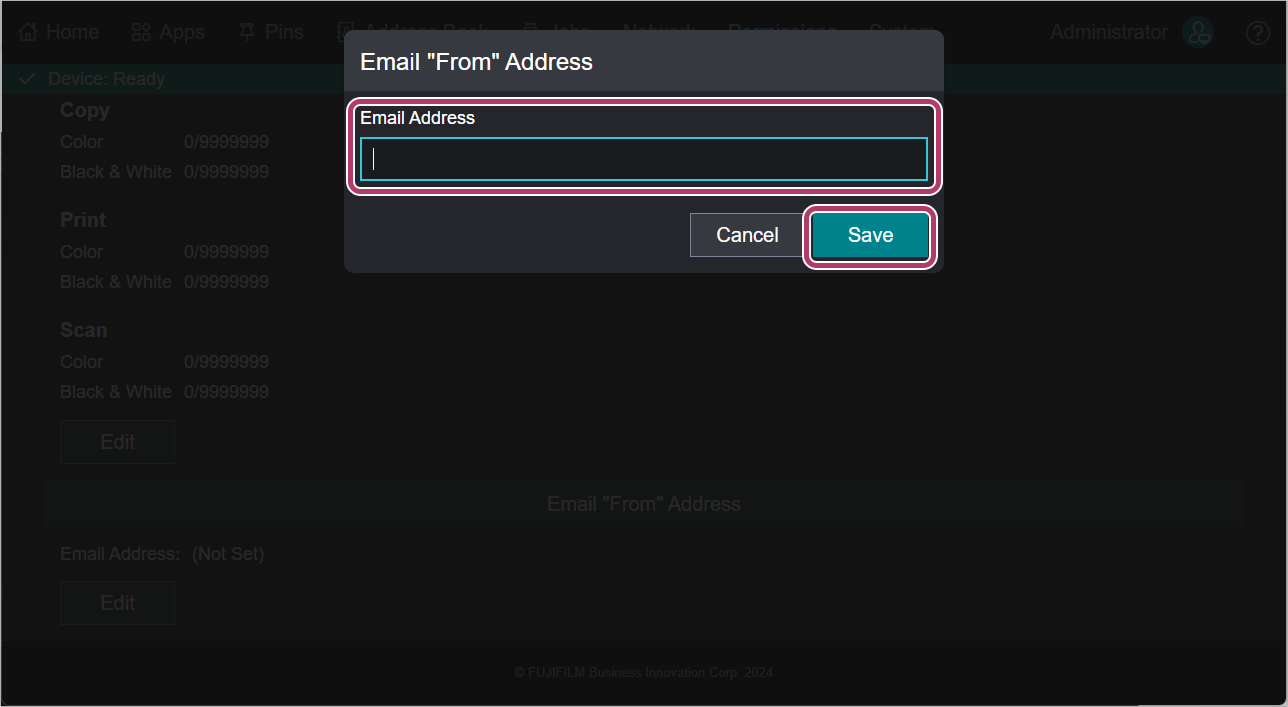
Repeat steps 4 to 10 to register users to the multifunction device.
This completes the procedure for registering users for the multifunction device.
This completes step 4.
This completes the initial setup required for FUJIFILM IWpro Scan Delivery and FUJIFILM IWpro Fax Delivery.