Searching the Log
1.
Click  in the upper left corner of the screen and click [File Management] in the Admin menu.
in the upper left corner of the screen and click [File Management] in the Admin menu.2.
From the menu, go to [Log], and click [File Management Operation].
3.
Click the [Search] tab.
[Search] Tab
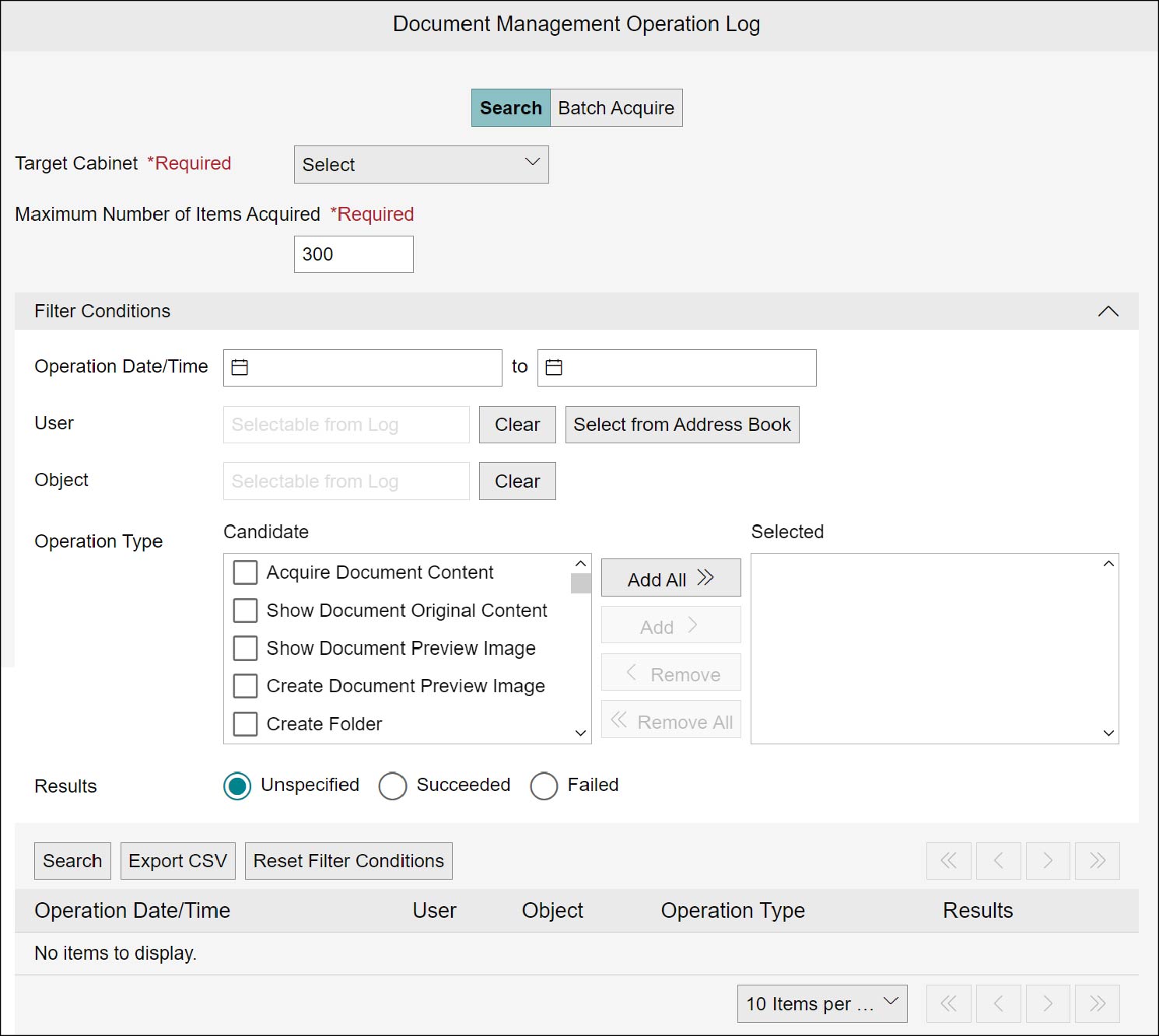
Displaying File Management Operation Log
1.
Set the search conditions including [Target Cabinet], and then click [Search].
A search result appears.
Note
- The maximum number of settings for [Maximum Number of Items Acquired] is 10,000.
- In [Operation Date/Time], in addition to setting the period, you can set either of the start date or end date only.
- In [Operation Date/Time], enter the year, month, and day in the format "yyyy/MM/dd."
- To select [User], on the [Address Book] screen, click [Select from Address Book].
- If the user has performed the [Empty Drawer] operation, the [User] column displays the name of the user who initiated the operation and [System] as the user who performed and completed the delete operation.
- In [Object], you can specify an applicable object from an arbitrary operation log.
- With [User] and [Object], clicking on [Clear] resets the search conditions that were set.
- In [Operation Type], move items from [Candidate] to [Selected] to narrow down the operation types. In [Candidate] and [Selected], select the checkbox of an item and click [Add] or [Remove] to move it. You can also click [Add All] or [Remove All] to move all the items in a batch.
- Clicking [Reset Filter Conditions] will clear the search conditions that were set.
- After displaying the search result, clicking
 to select [Specify User in Filter Conditions] can set the user shown in the search result as [User] for [Filter Conditions].
 - After displaying the search result, clicking to select [Specify Object in Filter Conditions] can set the object shown in the search result as [Object] for [Filter Conditions].
- Viewable log is the one within the retention period you have set on the [Operation Log Settings] tab on the [Cabinet Information] screen, since the date and time of operation.
2.
Click [Details] of the search result you want to check.
The [Log Details] screen appears.
3.
After checking, click [Close].
Downloading Search Results
The search result of file management operation log can be downloaded as a CSV file.
1.
Click [Export CSV].
The file management operation log is downloaded as a CSV file.
Note
- The file name becomes as follows: "operationLogs_{Cabinet Name}_{yyyyMMddHHmmss}.csv"
- For information on CSV file operation types and strings, refer to "Appendix L Operation Types and Strings".