Registering a New Device (Using the Control Panel)
By registering devices using FUJIFILM IWpro Setup, the applications and plug-ins required for each service are installed to the devices.
- Do not perform other operations on the device until the procedure on this page is complete. Also note the following.
- Do not perform operations such as printing.
- Do not receive faxes.
- Tap [FUJIFILM IWpro Setup] on the home screen of the device.
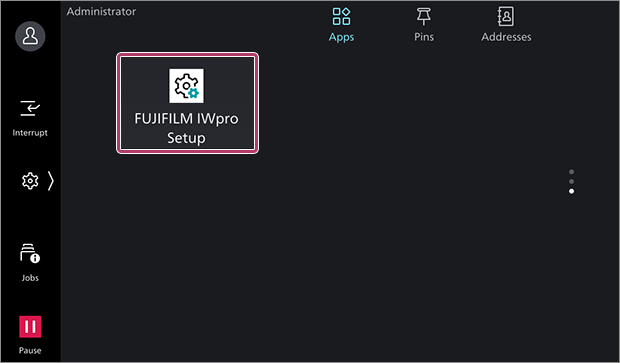
- If the FUJIFILM IWpro Setup app requires an update, a message is displayed and the device restarts. Repeat the procedure from step 1 after the device restarts.
- Enter the System Administrator information, then tap [Next].
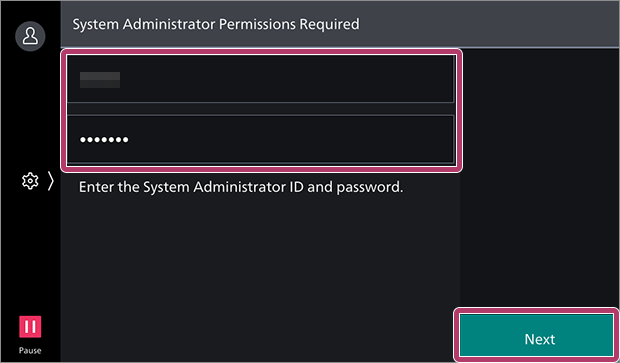
- If a message prompting you to update the app is displayed, update the app and restart the device.
- If you have logged in with the account of the system administrator once, it is not necessary to do so again.
- Select [Device Service Usage Diagnostics and Setup], then tap [Next].
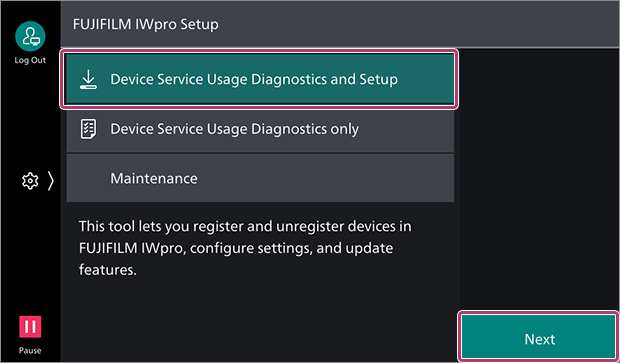
- To check whether a device supports FUJIFILM IWpro without installing functions, select [Device Service Usage Diagnostics only]. In this case, apps and plug-ins are not installed.
- Select whether to use the Device function, then tap [Start Diagnostics].
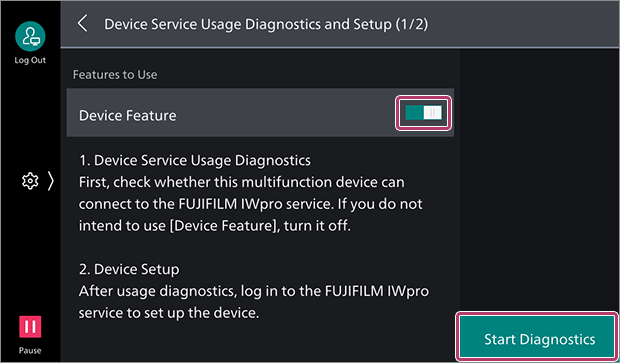 If a message confirming whether you want to change the device settings is displayedFollow the instructions on the screen to change the settings. If the device restarts, repeat the procedure from step 1.If [Diagnostics result: The following settings are required.] is displayedExit FUJIFILM IWpro Setup. Check the manual of the device to configure the device.
 - Tap [Next].
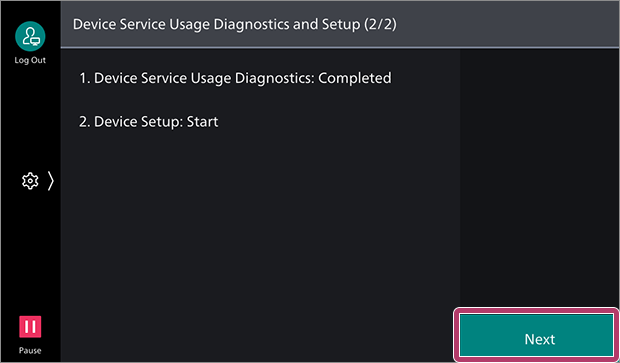
- Select [Authentication by FUJIFILM BI Direct User], then tap [Next].
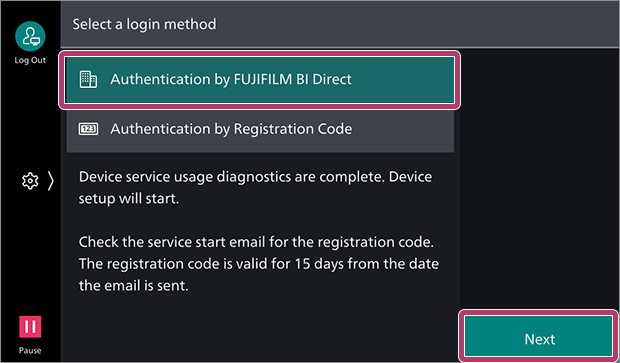
- [Authentication by Registration Code] is also available as a method for registering devices without using the user ID and password of an administrator.
Select [Authentication by Registration Code] and log in by entering the registration code included in the e-mail sent when you made a contract for FUJIFILM IWpro. - There is an expiration date for the registration code.
- [Authentication by Registration Code] is also available as a method for registering devices without using the user ID and password of an administrator.
- Enter the user ID and password for FUJIFILM IWpro, then tap [Login].
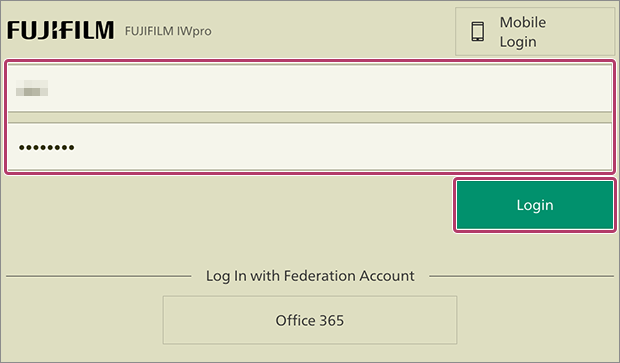
- If the screen for selecting the tenant is displayed, select the tenant to use.
- Select [Install] for the functions to install to the device, then tap [Next].
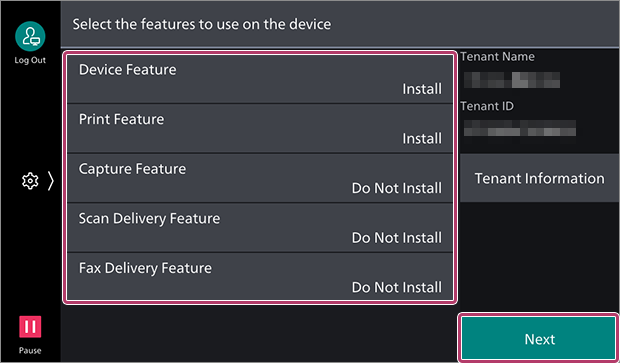
- The displayed functions differ according to the license you have a contract for, and whether the Device function is enabled when starting the device service usage analysis.
- You can tap [Tenant Information] to check the name and ID of the tenant.
- Configure the various items, then tap [Next].
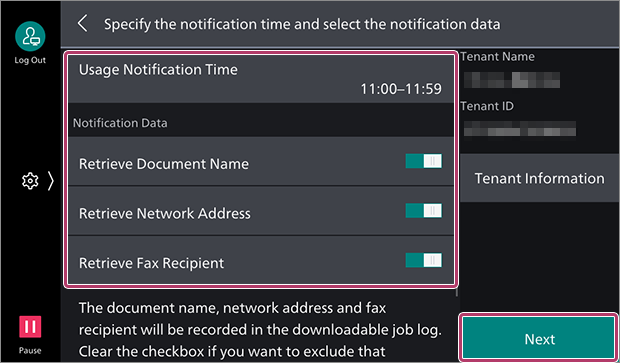
- Tap [Usage Notification Time], then configure the time that the device notifies FUJIFILM IWpro of the usage data.
- Select the data to send notification for.
Item Description [Retrieve Document Name] Selects whether to notify FUJIFILM IWpro of the document name for the print or direct fax function. [Retrieve Network Address] Selects whether to notify FUJIFILM IWpro of the address of the PC and server.
The network address is used for recording the job log file.[Retrieve Fax Recipient] Selects whether to notify FUJIFILM IWpro of the fax number and destination name.
The fax destination is used for recording the job log file and telephone charge accounting by Job Log Analyzer.
- Tap [Register].
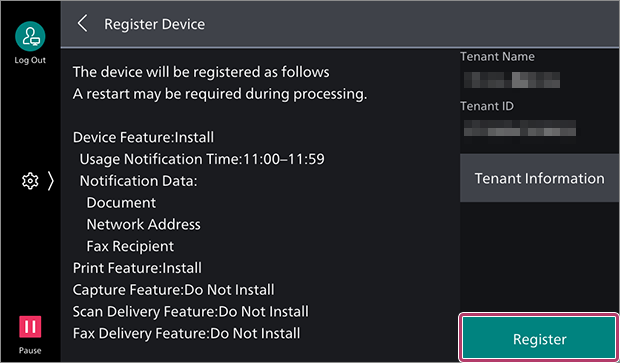 The required software is installed to the device, according to the selected function.
 - Tap [Restart Now] as required.
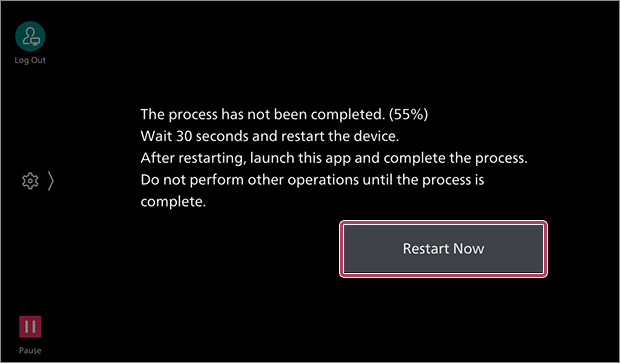
- The device may not need to be restarted, depending on the function being configured.
- Tap [FUJIFILM IWpro Setup] on the home screen of the device.
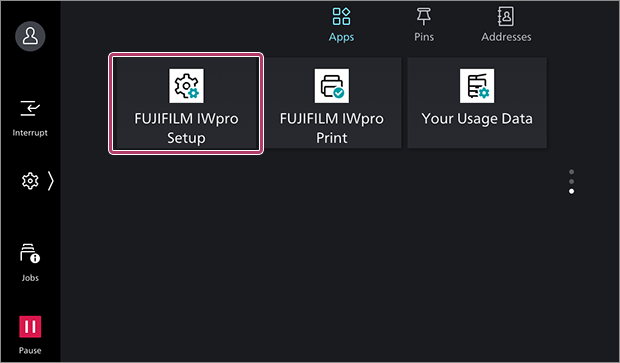 Setting processing resumes.
 - Enter the System Administrator information, then tap [Next].
- If you have logged in with the account of the system administrator once, it is not necessary to do so again.
- Tap [Exit] to exit FUJIFILM IWpro Setup.
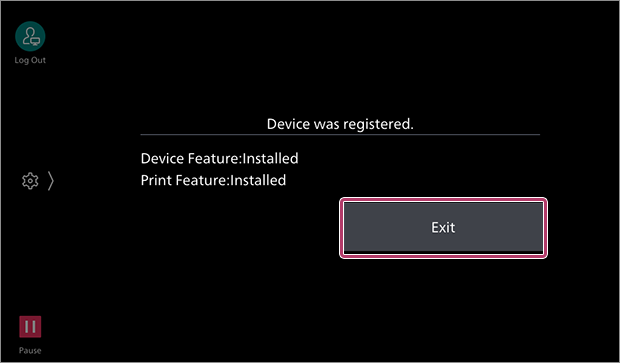
- If a message indicating that the device could not be registered is displayed, check the message.
- If automatic license assignment fails during installation due to network trouble, it is necessary to manually assign the license. In this case, see Assigning Licenses to Devices (Using a Computer).