[Import/Export Settings] Screen
Display the [Import/Export Settings] screen by the following procedure.
Important
"Capture" and "Rules" described on this page refer to the features in the old product Smart Workstream Data Entry option. These are provided in File Management as compatibility features available only to customers who have purchased the old product.
1.
Click  in the upper left corner of the screen and click [File Management] in the Admin menu.
in the upper left corner of the screen and click [File Management] in the Admin menu.2.
From the menu, go to [Capture] and click [Import/Export Settings].
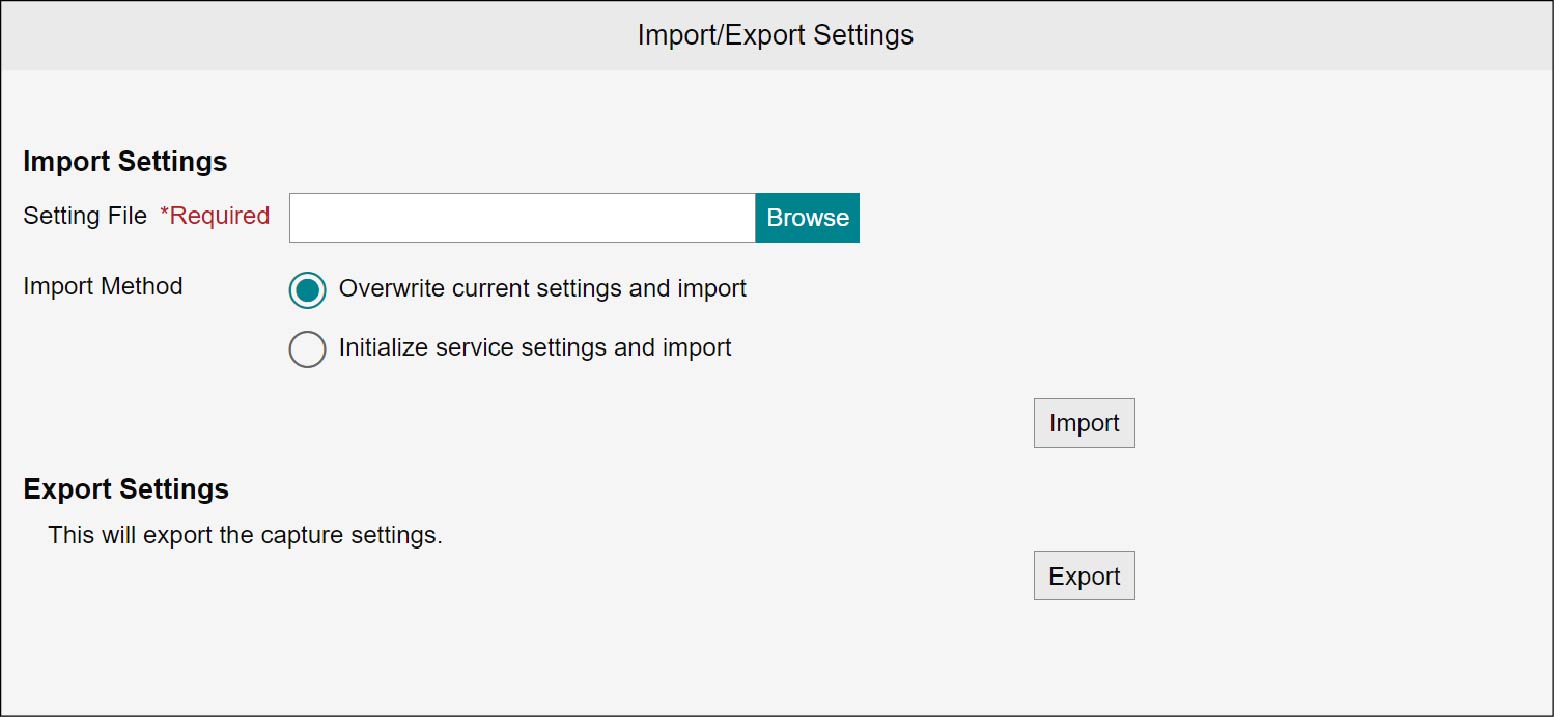
Importing
1.
Click [Select].
The file selection screen appears.
2.
Select the setting file you want to import, and then click [Open].
In [Setting File], the selected setting file name appears.
3.
Select [Import Method].
4.
Click [Import].
The setting file is imported, and the [Import Complete] screen appears.
5.
Click [Close].
Exporting
1.
Click [Export].
The setting file is downloaded.