Operation Definition Settings
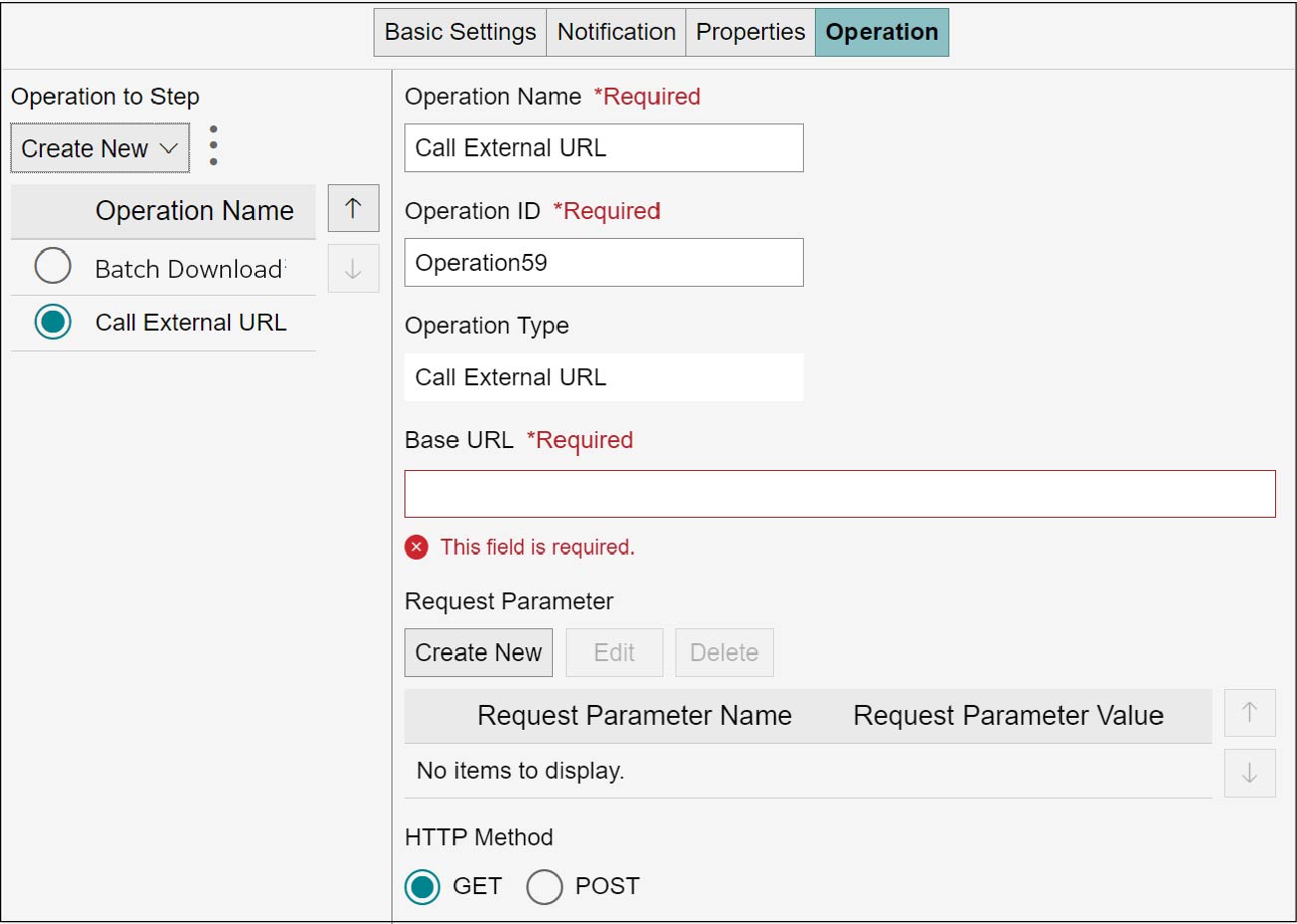
The operation definition sets the operation name, operation ID, and operation type. A new operation definition can be created. You can copy and delete the created operation definition. These operations are available in the [Operation] tab on the business item definition structure editor screen. Display the [Operation] tab by the following procedure.
1.
On the business item definition structure editor screen, select the definition of any of the business process, step, group, case data evidence, and document evidence.
2.
Click the [Operation] tab.
Note
Different setting items are displayed depending on which definition of the business process, step, step group, case data evidence, and document evidence is selected.
Setting Operation Definition
1.
From the [Additional Business Process Operation], [Operation on Case Data Evidence], [Operation on Evidence], [Operation on Step], or [Operation on Step Group] list, select the operation name you want to define.
The details of selected operation name are displayed in the right area.
Note
- If the operation name is not shown in the list or when specifying a new operation definition, create a new operation definition and add it to the list. (Creating Operation Definition)
- The operation names shown in the [Operation on Evidence] list differ depending on which definition is selected.
- When the step, step group, or case data evidence definition is being selected, the [Operation on Evidence] list will not be displayed.
- When [Call External URL] and [Request Parameter] are set, you can select [Embedded String] from [Request Parameter Value] on the [Request Parameter Settings] screen. For Embedded String, see "Appendix D Embedded String"
2.
From the [Operation on Business Process] or [Operation on Document] list, select the operation name you want to define.
The details of selected operation name are displayed in the right section.
Note
- If the operation name is not shown in the list or when specifying a new operation definition, create a new operation definition and add it to the list. (Creating Operation Definition)
- The operation names shown in the [Operation on Document] list differ depending on which definition is selected.
Creating Operation Definition
1.
In [Additional Business Process Operation], [Operation on Case Data Evidence], [Operation on Business Process], [Operation on Evidence], [Operation on Document], [Operation on Step], or [Operation on Step Group], click [Create New].
The selection menu appears.
• Additional Business Process Operation
- Add Case
• Operation on Business Process
- Call External URL
- Open Folder
- Batch Download
- Batch Acquire QR Cover Sheet
• Operation on Case Data Evidence
- Update
- Delete
- Call External URL
• Operation on Evidence
- Register
- Call External URL
- Acquire QR Cover Sheet
- Change Attributes
- Approval Request
• Operation on Document
- Check In
- Download
- Preview
- Delete
- Open
- Call External URL
• Operation on Step
- Call External URL
- Batch Download
• Operation on Step Group
- Call External URL
- Batch Download
2.
Select an appropriate item for the desired operation.
The [Create New Operation] screen appears.
Note
To [Operation Name], the item name you selected in the selection menu will be entered automatically.
3.
Enter [Operation ID], and click [OK].
To the [Additional Business Process Operation], [Operation on Case Data Evidence], [Operation on Business Process], [Operation on Evidence], [Operation on Document], [Operation on Step], or [Operation on Step Group] list, the created operation definition will be added.
Note
- Enter [Operation ID] using single-byte alphanumeric characters.
- Up to 255 characters can be entered in [Operation ID].
4.
In the [Additional Business Process Operation], [Operation on Case Data Evidence], [Operation on Business Process], [Operation on Evidence], [Operation on Document], [Operation on Step], or [Operation on Step Group] list, select the added operation definition.
The details of selected operation name are displayed in the right area.
5.
Set [Operation Type] and other items.
6.
Click [Save].
Note
When there are multiple documents stored, you can set either [First Document] or [All Documents] as the target for updating the evidence attributes.
Copying Operation Definition
1.
From the [Additional Business Process Operation], [Operation on Case Data Evidence], [Operation on Business Process], [Operation on Evidence], [Operation on Document], [Operation on Step], or [Operation on Step Group] list, select the operation name you want to copy, and click  .
.
.The selection menu appears.
2.
Select [Copy].
To the last line of the [Additional Business Process Operation], [Operation on Case Data Evidence], [Operation on Business Process], [Operation on Evidence], [Operation on Document] [Operation on Step], or [Operation on Step Group] list, the copied operation definition will be added.
Deleting Operation Definition
1.
From the [Additional Business Process Operation], [Operation on Case Data Evidence], [Operation on Business Process], [Operation on Evidence], [Operation on Document], [Operation on Step], or [Operation on Step Group] list, select the operation name you want to delete, then click and select [Delete].
and select [Delete].The [Confirm Deletion] screen appears.
2.
Click [OK].
The selected operation name will be deleted.