Basic Settings of Case Data Evidence Definition
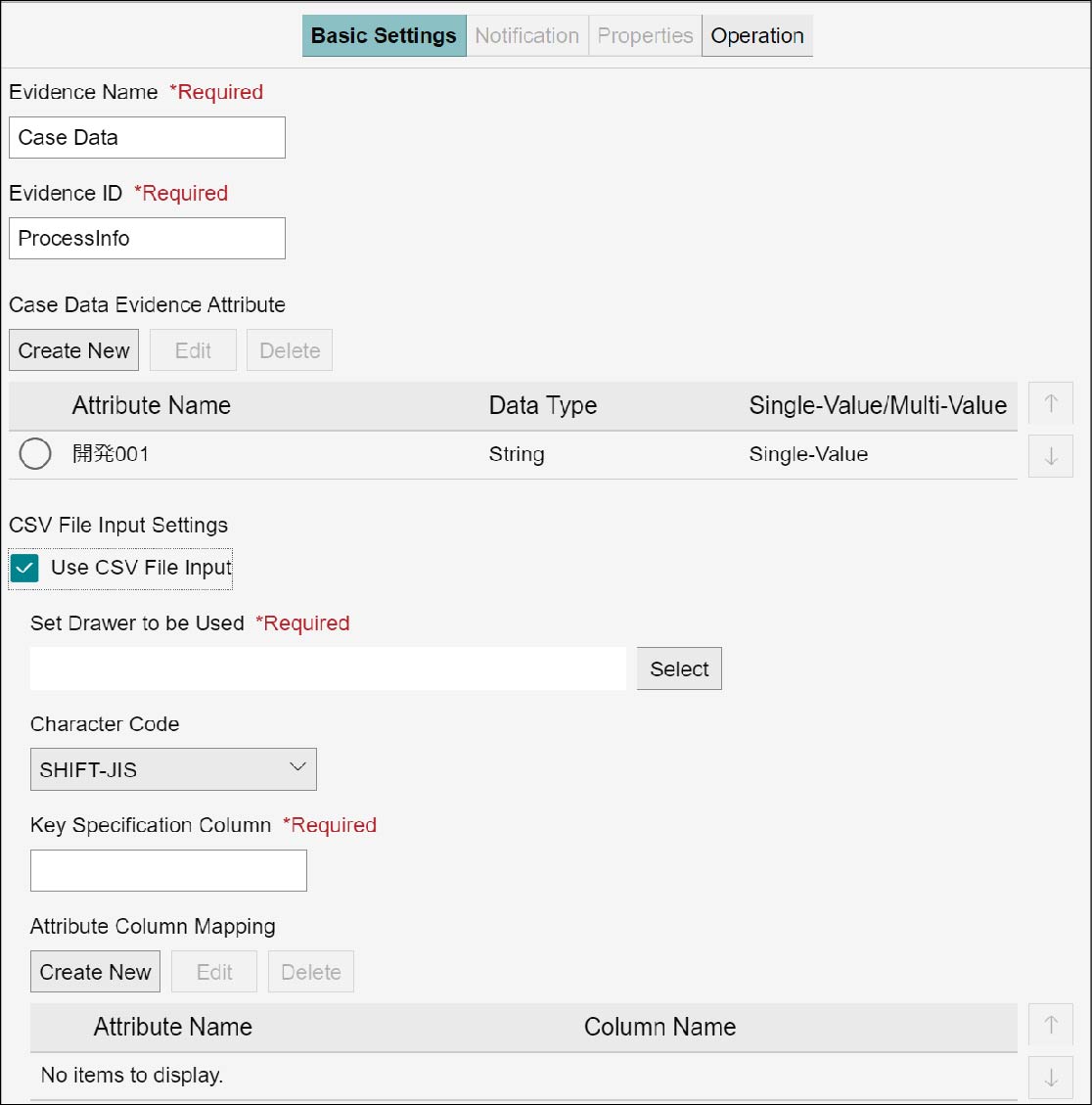
The evidence definition of case data sets the evidence name, evidence ID, and case data evidence attribute. The case data evidence attribute can be created by either of the following two methods: create new; or input from a CSV file. You can edit and delete the created case data evidence attribute. These operations are available in the [Basic Settings] tab on the business item definition structure editor screen. Display the [Basic Settings] tab by the following procedure.
1.
On the business item definition structure editor screen, go to [Business Process], and select [Evidence Definition].
2.
Click the [Basic Settings] tab.
Note
If the checkbox of [Use CSV File Input] is not selected, the setting areas of [CSV File Input Settings] will not be displayed.
Setting Case Data Evidence Definition
1.
Enter [Evidence Name] and [Evidence ID].
Note
- Enter [Evidence ID] using single-byte alphanumeric characters.
- Up to 128 characters can be entered in [Evidence Name] and up to 255 characters in [Evidence ID].
2.
Select an attribute name in [Case Data Evidence Attribute].
Note
- If [Case Data Evidence Attribute] is not shown in the attribute name list or when specifying a new attribute, create anew (Creating Case Data Evidence Attribute).
- You can also input [Case Data Evidence Attribute] using a CSV file (Inputting Case Data Evidence Attribute Using CSV File).
Creating Case Data Evidence Attribute
A new case data evidence attribute can be created. You can edit and delete the created evidence attribute.
Creating Case Data Evidence Attribute
1.
In [Case Data Evidence Attribute], click [Create New].
The [Create New Case Data Evidence Attribute] screen appears.
2.
Enter [Attribute Name] and other items, and click [OK].
To the [Case Data Evidence Attribute] list, the created attribute will be added.
Note
Up to 255 characters can be entered in [Attribute Name].
Editing Case Data Evidence Attribute
1.
From the [Case Data Evidence Attribute] list, select the attribute name you want to edit, and click [Edit].
The [Edit Case Data Evidence Attribute] screen appears.
2.
Edit [Attribute Name] and other items, and click [OK].
The edited attribute of [Case Data Evidence Attribute] list will be updated.
Deleting Case Data Evidence Attribute
1.
From the [Case Data Evidence Attribute] list, select the attribute name you want to delete, and click [Delete].
The [Confirm Deletion] screen appears.
2.
Click [OK].
The selected case data evidence attribute becomes deleted.
Inputting Case Data Evidence Attribute Using CSV File
CSV File Input
The case data evidence attribute can be input from the external system using a CSV format file. When a CSV file is stored in the predetermined drawer of file management service, the file management service notifies the process component that a document has been registered. The process component reflects the CSV file contents to the case data evidence, and updates the case information. The CSV file reflected to the case data evidence will be deleted from the storage drawer.
CSV File Format
For the character code of CSV file, specify either Shift-JIS or UTF-8. Specify "CRLF" for the line feed code.
The CSV file uses the 1st line as the header line, and on and after the 2nd line as data lines. In addition, a single data line will be used as an input for single case data evidence.
- Any line with which inconsistency exists between the header line and the number of items will be handled as an error.
- Excluding the header line, the data lines up to the 1,000th line from the beginning are considered active.
Correspondence of each data line to which case data evidence definition of business item is determined based on [Key Specification Column] specified with the CSV file input settings of case data evidence definition.
- The business item is determined as follows: the data line item value of a column whose header line item value is the same as the [Key Specification Column] value is set as the business item case name (key).
- If the item value does not exist in the header line which is the same as the value of [Key Specification Column], the whole file is handled as an error.
- If no item value exists of the data line case name, the line in question is handled as an error.
Correspondence of each data line item value to which attribute of case data evidence is determined based on [Attribute Column Mapping] specified with the CSV file input settings of case data evidence definition.
- The data line item value of a column with which the header line item value matches the column name of attribute column map is handled as the input of case data evidence attribute corresponding to the evidence attribute name of attribute column map.
- The data line item value of a column with which the header line item value does not match the column name of attribute column map will not be used for the CSV input processing.
- The input format with each evidence attribute type is as follows. Any item value in other than the specified format will become as an error, and any line containing the error in question will be handled as an error.
| Type | Input format | Remarks |
|---|---|---|
| String | - | - |
| Integer | - | Double-byte or single-byte integer can be specified.The following range can be specified.-9,007,199,254,740,991 ~ 9,007,199,254,740,991 |
| Decimal | - | The following range can be specified. 2.2250738585072014E-308 ~ 1.7976931348623157E308 -2.2250738585072014E-308 ~ -1.7976931348623157E308 Exponential notation is possible in addition to the normal decimal notation. (Example: 12e3 -> 12000.0) Double-byte numerical value cannot be used. |
| Boolean | true or false | No distinction is made between uppercase letter and lowercase letter. |
| Date | yyyy-MM-dd (Example: "2018-10-05" in case of October 5, 2018) |
Delimiter "-" can be substituted by "/." |
| Date/time | yyyy-MM-ddThh:mm:ssZ (designation by UTC) or yyyy-MMddThh:mm:ss±hh:mm (designation by timezones other than UTC) (Example: "2018-10-05T12:30:15Z" in case with October 5, 2018 at 12:30:15 in UTC time; "2018-10-05T21:30:15+09:00" in case with October 5, 2018 at 12:30:15 of UTC time in Japan time) |
Delimiter "-" can be substituted by "/." The value in the date type format can also be interpreted. However, 00:00:00 JST (Japan standard time) will be set to the clock information. |
| User/Group | User ID (e-mail address format) or user group ID format (sd_user:XXX or sd_group:XXX) | If non-existing user or group is specified, it is handled as an input whose attribute value is empty. |
When inputting multiple values into the multivalue evidence attribute, with a use of "|" as delimiter, multiple values can be specified to a single item value.
- When "|" is contained in the multivalue attribute value, with all items of applicable line, the character in question is enclosed with double-quotation marks (") so that a distinction can be made from the delimiter "|."
- When double-quotation (") is contained in the multivalue attribute value, with all items of applicable line, the character in question is enclosed with double-quotation marks (") and the double-quotation mark will be made a duplicated character.
- When a comma or line feed code is contained in the single-value or multivalue attribute value, the character in question is enclosed with double-quotation marks (").
Inputting Case Data Evidence Attribute Using CSV File
1.
Select the checkbox for [Use CSV File Input] of [CSV File Input Settings].
In the lower section of [CSV File Input Settings], setting areas are displayed.
2.
In [Set Drawer to be Used], click [Select].
The [Select Drawer/Cabinet] screen appears.
3.
Click  of cabinet name, select the drawer you want to use from the displayed drawer list, and then click [Select].
of cabinet name, select the drawer you want to use from the displayed drawer list, and then click [Select].The selected drawer name is displayed in [Set Drawer to be Used].
4.
Set [Character Code] and [Key Specification Column].
Note
- Up to 255 characters can be entered in [Key Specification Column].
- If no reference destination exists with the input key specification column, strike-through is displayed.
5.
Select an attribute name in [Attribute Column Mapping].
Note
If [Attribute Column Mapping] is not shown in the attribute name list or when specifying a new attribute, create anew (Creating Attribute of Attribute Column Mapping).
Creating Attribute of Attribute Column Mapping
A new attribute of attribute column mapping can be created. You can edit and delete the created attribute.
Creating Attribute of Attribute Column Mapping
1.
In [Attribute Column Mapping], click [Create New].
The [Create New Attribute Column Map] screen appears.
2.
Click [Select].
The [Select Evidence Attribute] screen appears.
3.
Select the checkbox of the evidence attribute you want to set, and click [Select].
On the [Create New Attribute Column Map] screen, [Attribute Name] shows the selected evidence attribute.
4.
Enter [Column Name], and click [OK].
To the [Attribute Column Mapping] list, the created attribute will be added.
Editing Attribute of Attribute Column Mapping
1.
From the [Attribute Column Mapping] list, select the attribute name you want to edit, and click [Edit].
The [Edit Attribute Column Map] screen appears.
2.
Click [Select].
The [Select Evidence Attribute] screen appears.
3.
Select the checkbox of the evidence attribute you want to edit, and click [Select].
On the [Edit Attribute Column Map] screen, [Attribute Name] shows the selected evidence attribute.
4.
Enter [Column Name], and click [OK].
In the [Attribute Column Mapping] list, the edited attribute will be updated.
Deleting Attribute of Attribute Column Mapping
1.
From the [Attribute Column Mapping] list, select the attribute name you want to delete, and click [Delete].
The [Confirm Deletion] screen appears.
2.
Click [OK].
The selected attribute of attribute column mapping will be deleted.