Business Item Definition Structure Editor Screen
The editor screen is split into left and right, the left being the structure screen and the right the setting screen. Coordination is achieved between the left and right screens, and the setting screen contents are displayed corresponding to the items selected in the structure screen. Display the business item definition structure editor screen by the following procedure.
1.
On the [Business Item List] screen, click the business item name of the business item definition you want to edit.
2.
Click the [Manage Business Item Definition] tab.
3.
Select the business item definition to edit.
The radio button for the selected business item definition becomes marked.
4.
Click [Edit], and from the menu, click [Edit Structure].
The [Edit Business Item Definition] screen appears.
5.
Click [OK].
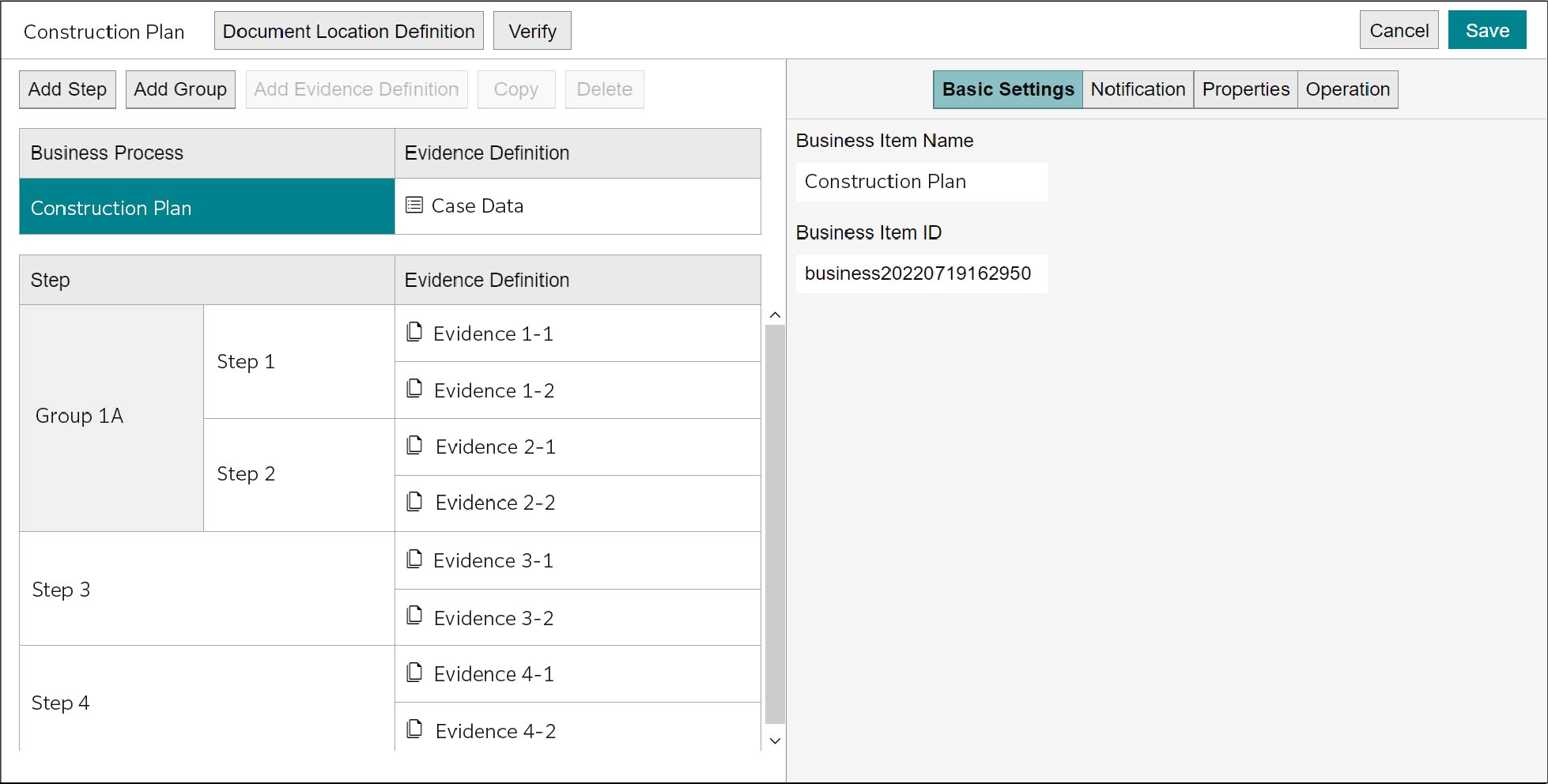
Structure Screen
This is the screen for creating the business item structure. Use [Add Step], [Add Group], [Add Evidence Definition], [Copy], and [Delete] to set the case definition, step definition, and step group definition that make up the business item structure.
[Business Process]
It is equivalent to the case definition for business item structure. (Editing Process (Case Definition))
[Evidence Definition] of Process
It is equivalent to the case data evidence definition for business item structure. (Basic Settings of Case Data Evidence Definition)
[Step]
It is equivalent to the step definition or step group definition for business item structure. (Editing Step (Step Definition))
[Evidence Definition] of Step
It is equivalent to the document evidence definition for business item structure. (Basic Settings of Document Evidence Definition)
Setting Screen
On the setting screen, set the details of case definition, step definition, and step group definition that you have set on the structure screen.
[Basic Settings] Tab
For the elements of business item structure selected on the structure screen, set the name, ID, and other items. When evidence is selected, you can newly create, edit, and delete the case data evidence definition or document evidence definition.
[Notifications] Tab
You can set the notification condition and notification method and so on for the notification of updating business items or steps, etc.
E-mails are sent once an hour. All notifications are collected to one E-mail before sending.
[Properties] Tab
Properties include system properties, and custom properties created for each business.
Note
- For details of system properties, refer to "Appendix G System Property".
- For details of properties, refer to "Appendix H5 Process".
• System Property
Three attributes: "Progress", "Run Status", and "Status" are defined in the business process, step, and step group. Those definitions cannot be deleted. For the business process, "Key storage property" (case name) is predefined. "Key storage property" also cannot be deleted. For other system attributes, add them as necessary.
Three attributes: "Progress", "Run Status", and "Status" are defined in the business process, step, and step group. Those definitions cannot be deleted. For the business process, "Key storage property" (case name) is predefined. "Key storage property" also cannot be deleted. For other system attributes, add them as necessary.
• Custom Property
You can create properties such as "Estimated Amount" or "Project Name."
You can create properties such as "Estimated Amount" or "Project Name."
Note
- When the cases registered in [Process] is updated, [Property] also will be updated.
The cases are updated in the following timing:
- Case data evidence is updated or deleted in [Process]
- Documents are registered, checked in, or deleted in [Process]
- Case data is registered or updated by CSV file
- Period-specific evidences are collected
- Automatic update is performed at night (during 0:00 to 6:00) - When the period-specific evidences are collected, the searched documents are associated with the cases. Only the document associated with cases will be updated.
- The period-specific evidences are collected only when no document evidence is registered.
- An automatic update at night is performed when the run status of case is [Running].
Refer
For details of [Process], refer to <User Guide>.
[Operation] Tab
It is equivalent to the operation definition for business item structure. (Operation Definition Settings)