Setting the Display of Thumbnails or Preview
1.
Click  in the upper left corner of the screen and click [File Management] in the Admin menu.
in the upper left corner of the screen and click [File Management] in the Admin menu.2.
Click [General] from the menu.
3.
Click the [Thumbnail/Preview] tab.
[Thumbnail/Preview] Tab
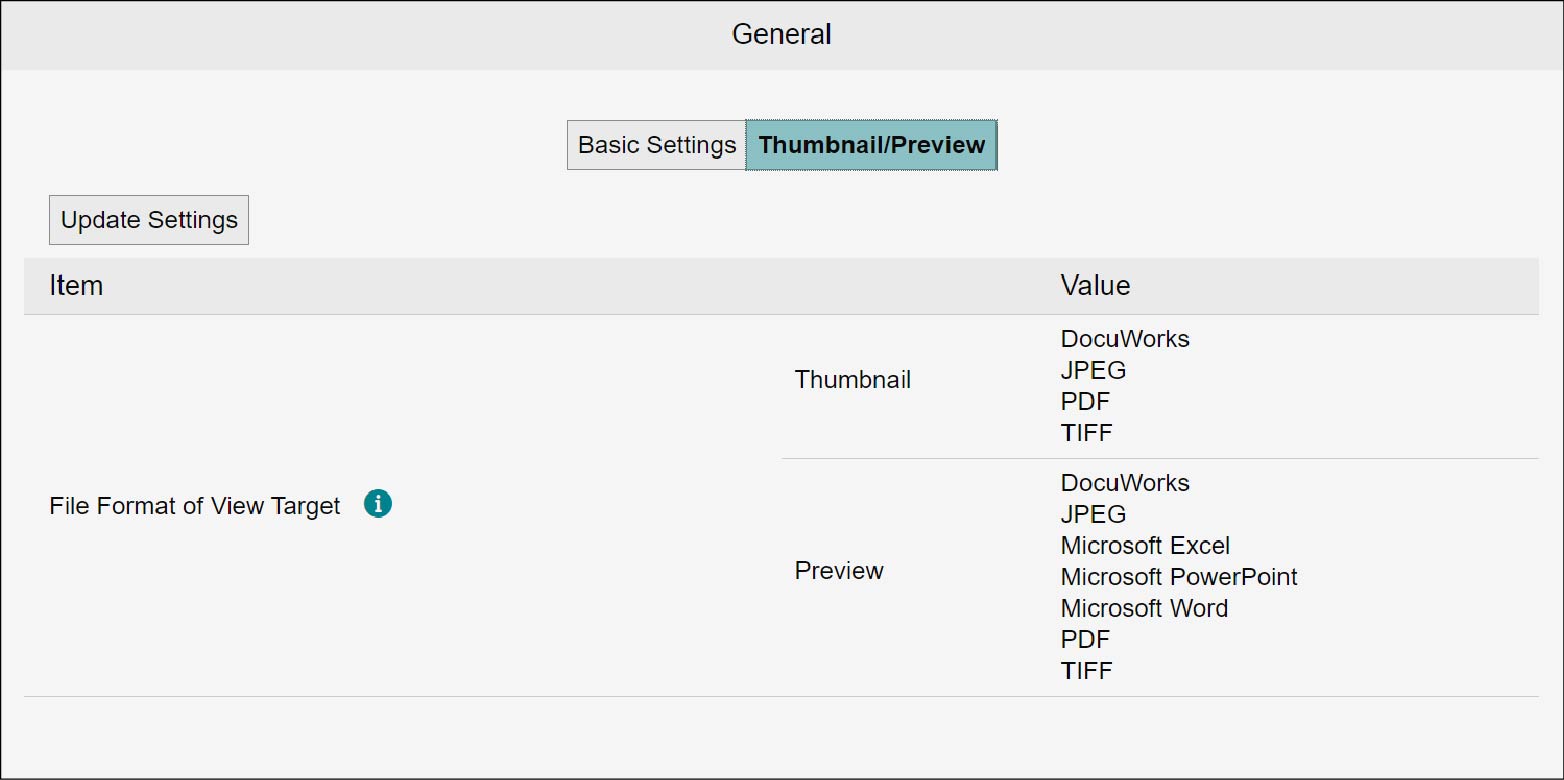
Changing the Settings
1.
Click [Update Settings].
The [Update Thumbnail/Preview Settings] screen appears.
2.
In [Thumbnail] or [Preview] select the target file formats for viewing, and click [Update].
This changes the file format in which thumbnail or preview is displayed in the drawer.
Note
In [Candidate] and [Selected], select the checkbox of an attribute and click [Add] or [Remove] to move it. You can also click [Add All] or [Remove All] to move all the attributes in a batch.