Acquiring the Log Containing Detailed Information in a Batch
1.
Click  in the upper left corner of the screen and click [File Management] in the Admin menu.
in the upper left corner of the screen and click [File Management] in the Admin menu.2.
From the menu, click [File Management Operation] in [Log].
3.
Click the [Batch Acquire] tab.
[Batch Acquire] Tab
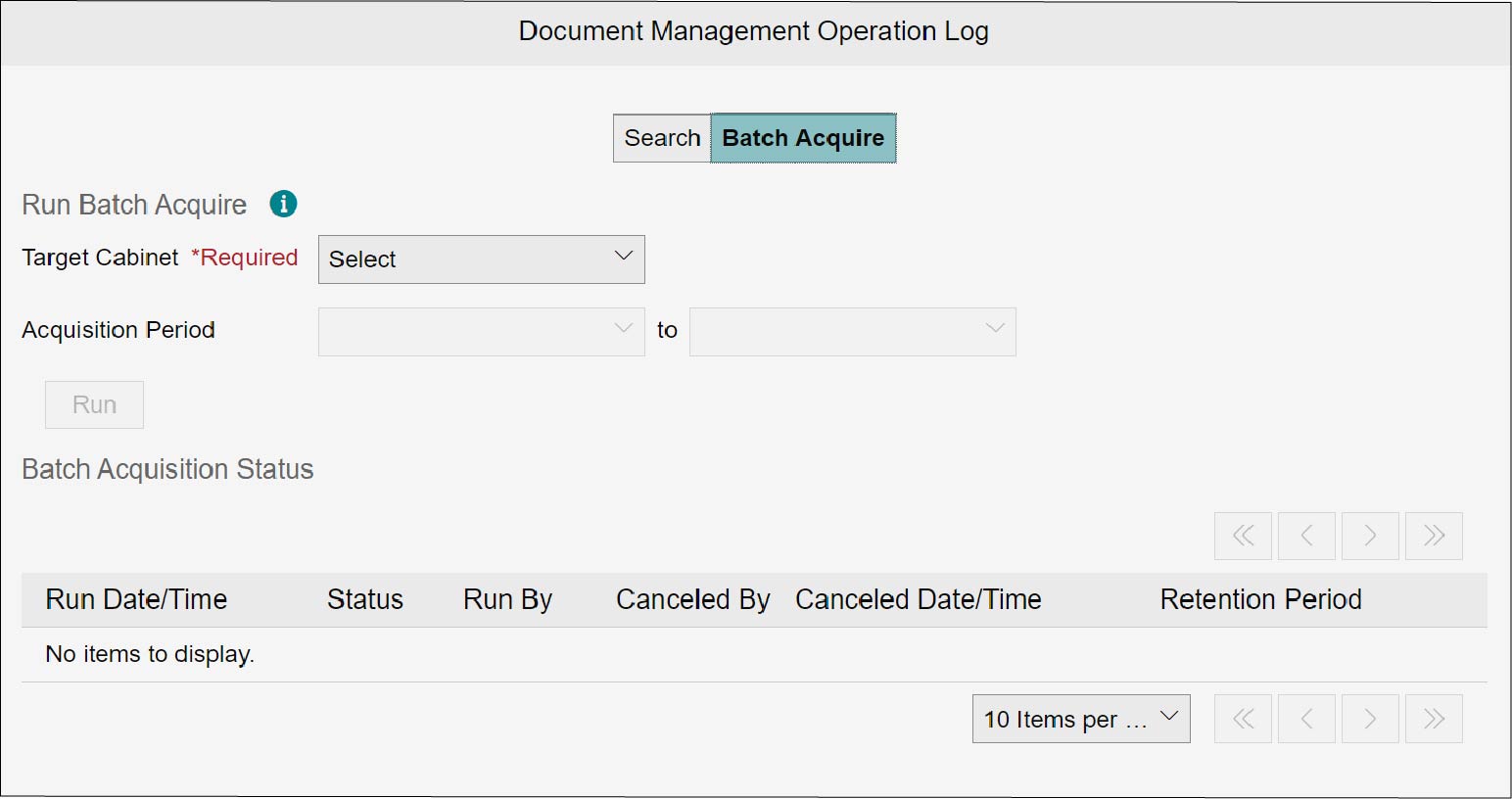
Acquiring the Log in a Batch
1.
Specify [Target Cabinet] and [Acquisition Period, and click [Run].
The [Confirm] screen appears.
2.
Click [OK].
This initiates acquisition of the file management operation log. The progress status is displayed in [Batch Acquisition Status].
Downloading the Acquired Log
1.
In [Batch Acquisition Status], click [Details] for the item whose log you want to download.
The [Batch Acquire Details] screen appears.
2.
Click [File Name] in [Acquired Data].
The selected file is downloaded.
Canceling Execution
1.
In [Batch Acquisition Status], click [Cancel] for the item you want to cancel.
The [Confirm] screen appears.
2.
Click [OK].
Execution of the selected batch acquisition is canceled.
Note
Cancellation can be done only for items whose status is [Running] or [Waiting to run].
Deleting the Execution Results
1.
In [Batch Acquisition Status], click [Delete for the item you want to delete.
The [Confirm] screen appears.
2.
Click [OK].
The selected items are deleted from the list.
Note
Only items whose status is [Complete], [Canceled] or [Failure] can be deleted.