Setting DocuSign Link in Your Office
By linking with the cloud-based electronic signatures service DocuSign, you can register a signed document as a document evidence of the process.
- Envelope signature completed event can be registered as a trigger.
- Each document in the envelope can be registered as a separate evidence.
- Together with registration, the values of DocuSign custom fields can be inherited to the evidence attributes.
On the [Office Information] screen, display the [Service Link] tab by the following procedure.
Important
Note the following points when setting up DocuSign Link.
- To update the settings, use an account with tenant administrator and office administrator permissions for the office.
- The tenant administrator can update the settings from the FUJIFILM BI Direct Tenant Administration screen.
1.
Click  in the upper left corner of the screen and click [File Management] in the Admin menu.
in the upper left corner of the screen and click [File Management] in the Admin menu.2.
From the menu, click [Office].
3.
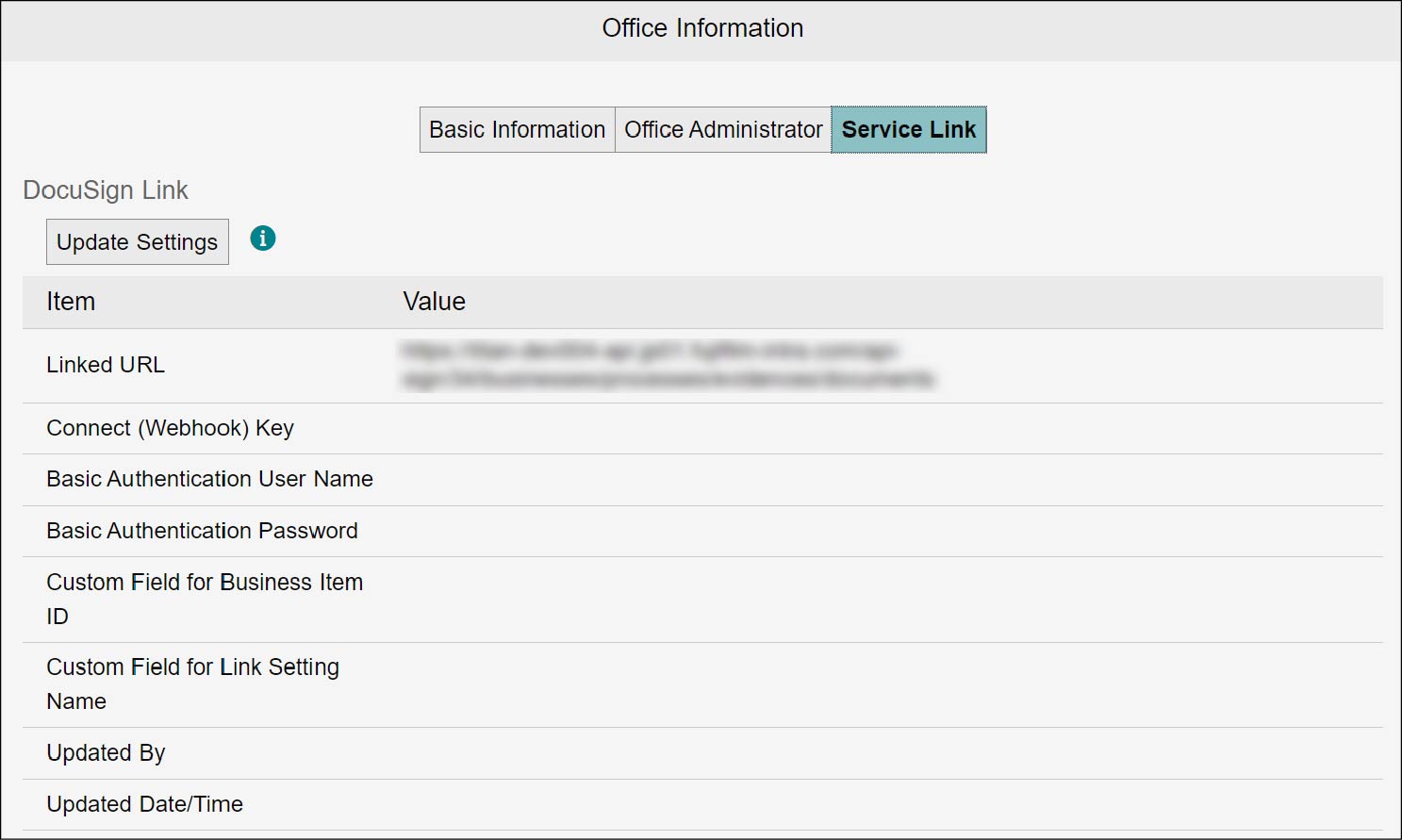
Click the [Service Link] tab.
[Service Link] Tab
Updating the DocuSign Link Settings
1.
Click [Update Settings] under [DocuSign Link].
2.
On the DocuSign Admin screen, select [Custom] under [Integrations] > [Connect] > [Add Configuration].
The [Add Custom Configuration] screen appears.
3.
Set any name in [Name].
4.
Set the URL displayed in [Linked URL] in FUJIFILM IWpro File Management to the [URL to Publish] field in DocuSign.
5.
In DocuSign, set [Include Data] to [Document PDFs] and [Trigger Events] to [Envelope Signed/Completed]. Also, under [Integration and Security Settings], select [Include HMAC Signature] and click [Add Configuration].
The settings are added.
6.
In DocuSign, click [Connect Keys] and [Add Secret Key] to issue an HMAC key.
7.
Set the issued HMAC key to [Connect (Webhook) Key] in FUJIFILM IWpro File Management.
8.
In DocuSign, go to [Integrations] > [Connect], select the link you created, and select [Include Basic Authentication Header] under [Integration and Security Settings].
The [User Name] and [Password] fields appear.
9.
Click [Issue] of [Basic Authentication Password] in FUJIFILM IWpro File Management.
Important
You cannot retrieve the issued password after leaving the current screen. Be sure to write it down.
10.
Set the values you issued to the DocuSign [User Name] and [Password] and click [Save].
The settings are saved.
11.
In DocuSign, go to [Signing and Sending] > [Envelope Custom Fields], select the appropriate envelope or document custom field name, and set it to [Custom Field for Business Item ID] and [Custom Field for Link Setting Name] in FUJIFILM IWpro File Management.
12.
Click [Update].