What System Administrator Can Do
With the file management application, you can set items that are necessary to use FUJIFILM IWpro File Management.
Performing Basic Settings
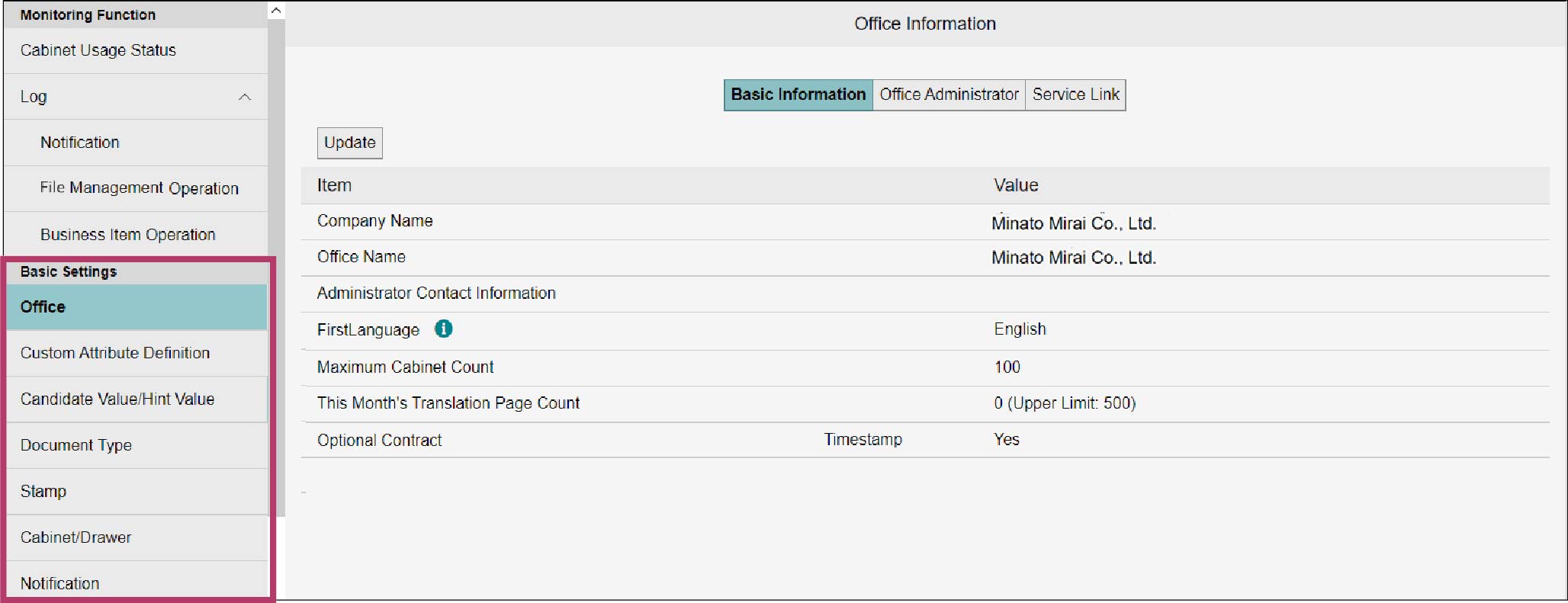
Set the items that are necessary to use FUJIFILM IWpro File Management, such as basic settings of office and creation of cabinets and drawers.
Setting Office
You can update the office information such as office name, and set the administrator. (2.1 Setting Office)
Setting Custom Attribute Definitions
You can set the attribute definitions of document and information. (2.2 Setting Custom Attribute Definitions)
Creating Cabinet
You can create a cabinet in the office. With the created cabinet, you can set the cabinet administrator, members, items related to access permission to cabinet, and set/edit/delete items such as cabinet name. (2.6 Setting Cabinet)
Creating Drawer
You can create drawers in a cabinet. With the created drawer, you can set items related to access permissions, and set/edit/delete items such as drawer name. (2.7 Setting Drawer)
Setting E-mail Notification
You can perform basic settings of e-mail notification and configure the mail template. (2.8 Setting Notification)
Checking Usage Status and Logs
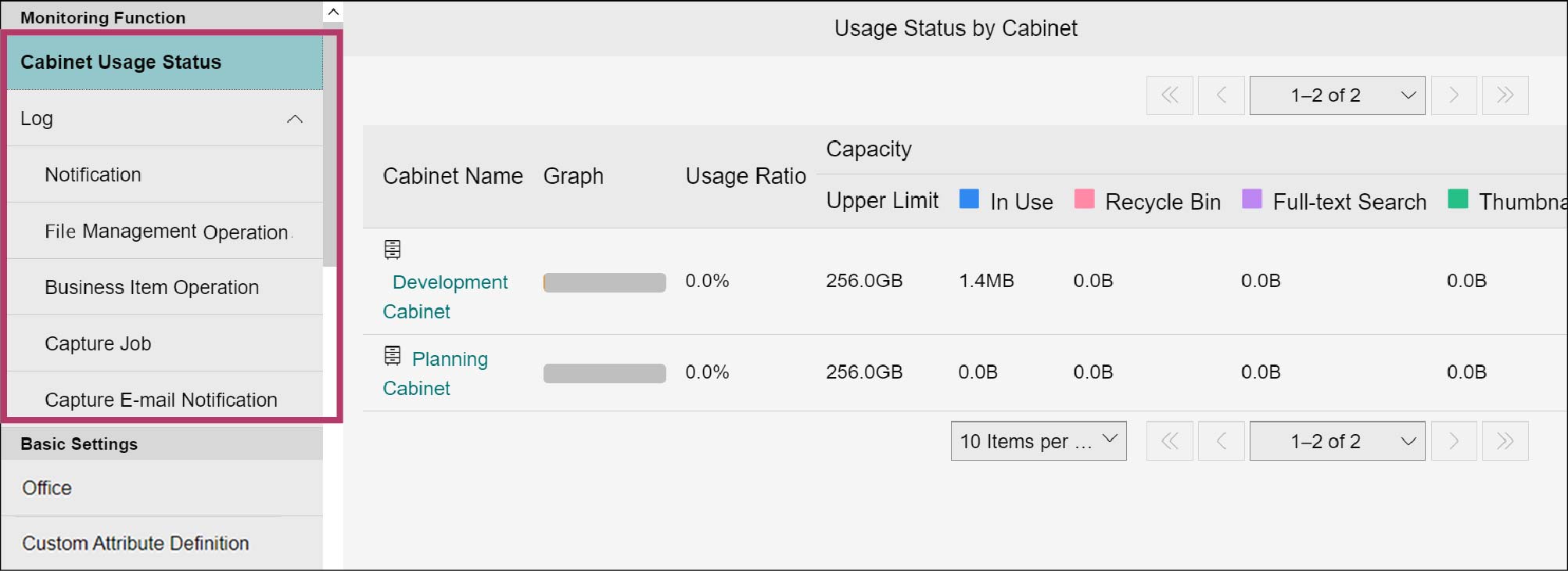
You can check the usage statuses of cabinet and drawer as well as various logs.
Finding Out Usage Status of Cabinet and Drawer
Select [Monitoring Feature] > [Cabinet Usage Status] to check the usage of capacity allocated to the cabinet. (Displaying Cabinet Usage Status)
On the [Cabinet Usage Status] screen, you can check the usage status of capacity allocated to drawer by clicking on a cabinet name that contains the drawer you want to check. (Displaying Drawer Usage Status)
Checking Notification Log
You can confirm the notification log of e-mails sent to user by the notification function. (Displaying Notification Log)
Checking File Management Operation Log
You can confirm the file management operation log contained in cabinet. (Displaying File Management Operation Log)
Checking Business Item Operation Log
You can confirm the business item operation log. (Displaying Business Item Operation Log)
Checking Capture Job Log
You can confirm the job log of user who registers the document. (3.5 Capture Job)
Important
"Capture" and "Rules" described on this page refer to the features in the old product Smart Workstream Data Entry option. These are provided in File Management as compatibility features available only to customers who have purchased the old product.
Checking Capture E-mail Notification Log
You can confirm the e-mail transmission log generated at an occurrence of capture error. (3.6 Capture E-mail Notification)
Important
"Capture" and "Rules" described on this page refer to the features in the old product Smart Workstream Data Entry option. These are provided in File Management as compatibility features available only to customers who have purchased the old product.
Setting Document
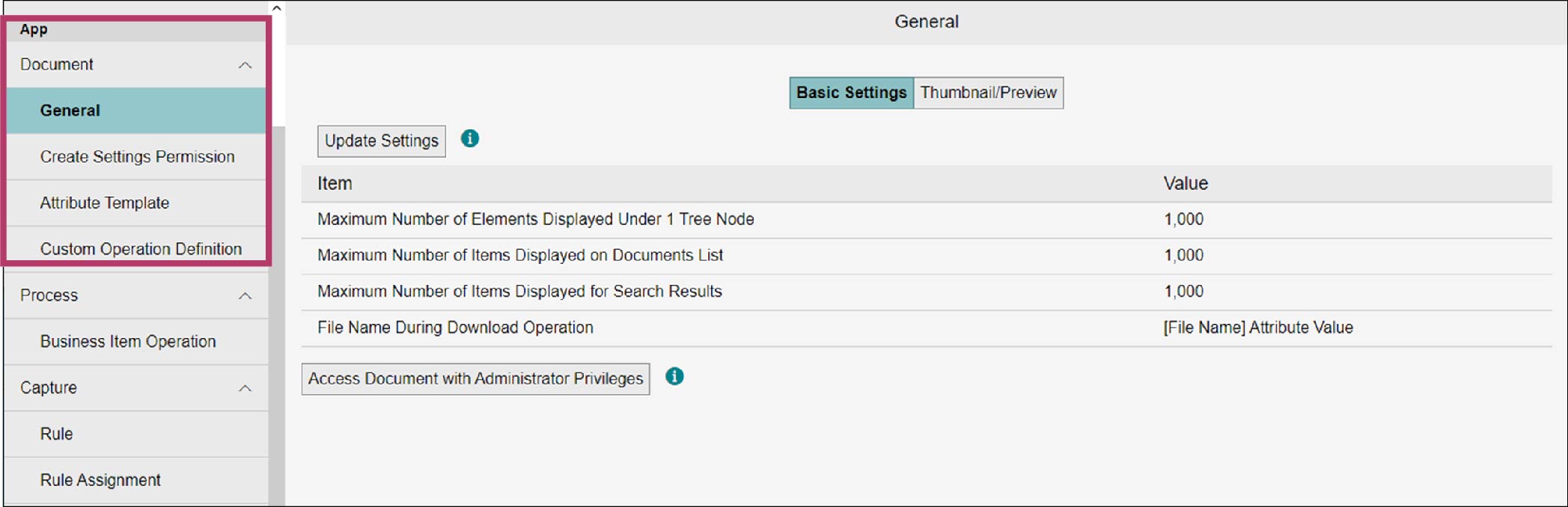
You can perform basic settings including file management screen display and settings related to file management.
Performing Basic Settings
You can set the display method of the [File Management] screen, the file name of the file for download, or whether to allow administrator privileges to access folders and documents contained in the cabinet. (Setting Basic Information)
Setting User Who Can Set Layouts and Search Conditions
You can set user permissions, layouts, and search conditions. (4.2 Create Settings Permission)
Setting Attribute Templates
You can create new, edit, delete, and so on. (4.3 Attribute Templates)
Setting Operation Definition
You can create new, edit, delete, and so on. (4.4 Custom Operation Definitions)
Setting Process
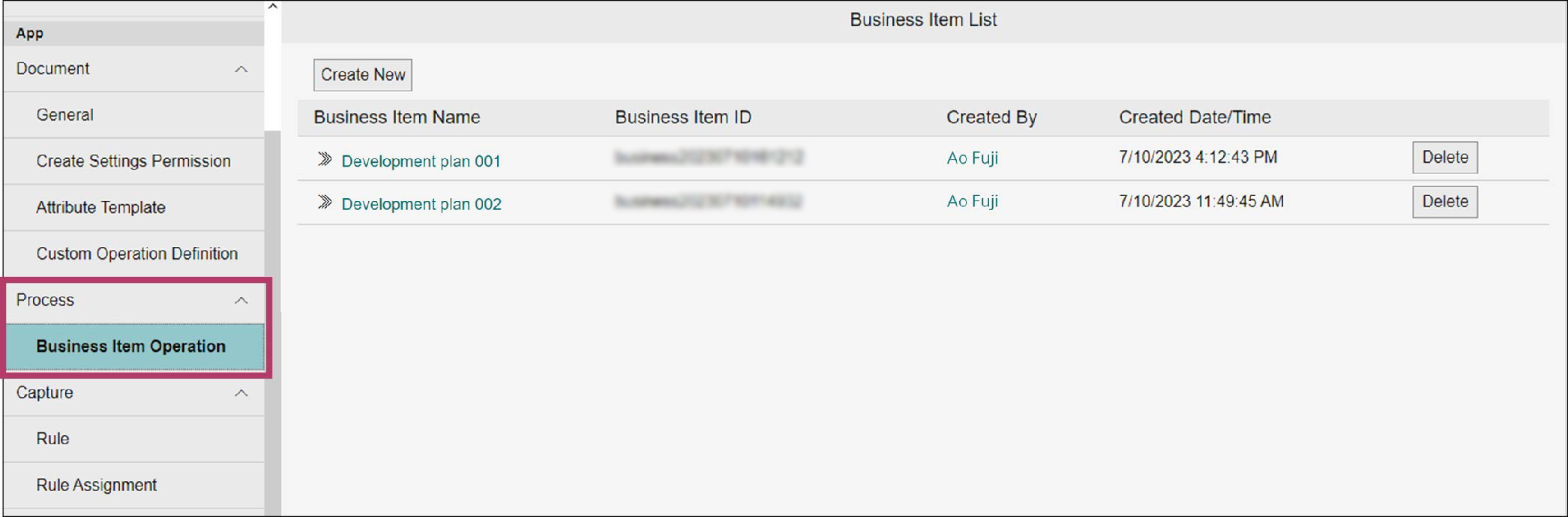
You can perform settings for displaying of process, which comprise the business item management system, and create and manage the business items.
Setting Business Item
You can create, delete, and manage the process business item. (Creating Business Item)
Setting Business Item User and Business Item Administrator
You can add/delete business item user and business item administrator. (5.3 Managing User and Business Item Administrator (Office Administrator))
Setting Business Item Definition
You can create, edit, delete, and publish a business item definition. (5.4 Creation and Management of Business Item Definition (Business Item Administrator))
Managing Case
You can delete/collect case information. (Managing Case)
Displaying Business Item Definition Editor Screen
On the [Business Item List] screen, display the business item definition editor screen by clicking a business item name of the business item definition you want to edit. ([Business Item Definition Structure Editor Screen])
Editing Process (Case Definition)
On the business item definition editor screen, use the [Basic Settings] tab to edit the process. (Editing Process (Case Definition))
Editing Step (Step Definition)
On the business item definition editor screen, use the [Basic Settings] tab to edit and add the step. (Editing Step (Step Definition)), (Adding Step)
Editing Step Group (Step Group Definition)
On the business item definition editor screen, use the [Basic Settings] tab to edit and add the step group. (Editing Step Group (Step Group Definition)), (Adding Step Group)
Setting Document Evidence Definition
On the business item definition editor screen, use the [Basic Settings] tab to add, copy, delete, and perform other actions on the document evidence definitions for step definition and step group definition. (Adding Document Evidence Definition)
Setting Document Location Definition
For the document location definition, on the business item definition editor screen, use the [Document Location Definition] tab to perform settings for the drawer you want to use, and set/delete the user. (Setting Document Location Definition)
Verifying Business Item Structure
On the business item definition editor screen, click [Verify] to verify the business item structure. (Verifying Business Item Structure)
Setting Case Data Evidence Definition
You can set a case data evidence definition on the [Basic Settings] tab of [Evidence Definition]. The evidence definition settings, evidence attribute creation, and attribute creation of attribute column mapping are also available. (Basic Settings of Case Data Evidence Definition)
Setting Document Evidence Definition
Regarding the document evidence definition, on the business item definition editor screen, selecting the evidence definition for step or step group allows you to perform settings, create effective conditions, add evidence attribute, and other actions. (Basic Settings of Document Evidence Definition)
Setting Operation Definition
Regarding the operation definition, on the business item definition editor screen, selecting the definition for which you want to set an operation definition allows you to create, copy, delete, and perform other actions. (Operation Definition Settings)
Setting View Definition
Regarding the view definition, on the [Business Item List] screen, the [Manage Business Item Definition] tab allows you to perform actions including create, edit, delete, view settings, and search settings. (5.6 Creation and Management of View Definition (Business Item Administrator))
Setting Capture
You can set and assign capture document registration rules, set the error notification, set the document administrator, and perform other actions.
Important
"Capture" and "Rules" described on this page refer to the features in the old product Smart Workstream Data Entry option. These are provided in File Management as compatibility features available only to customers who have purchased the old product.
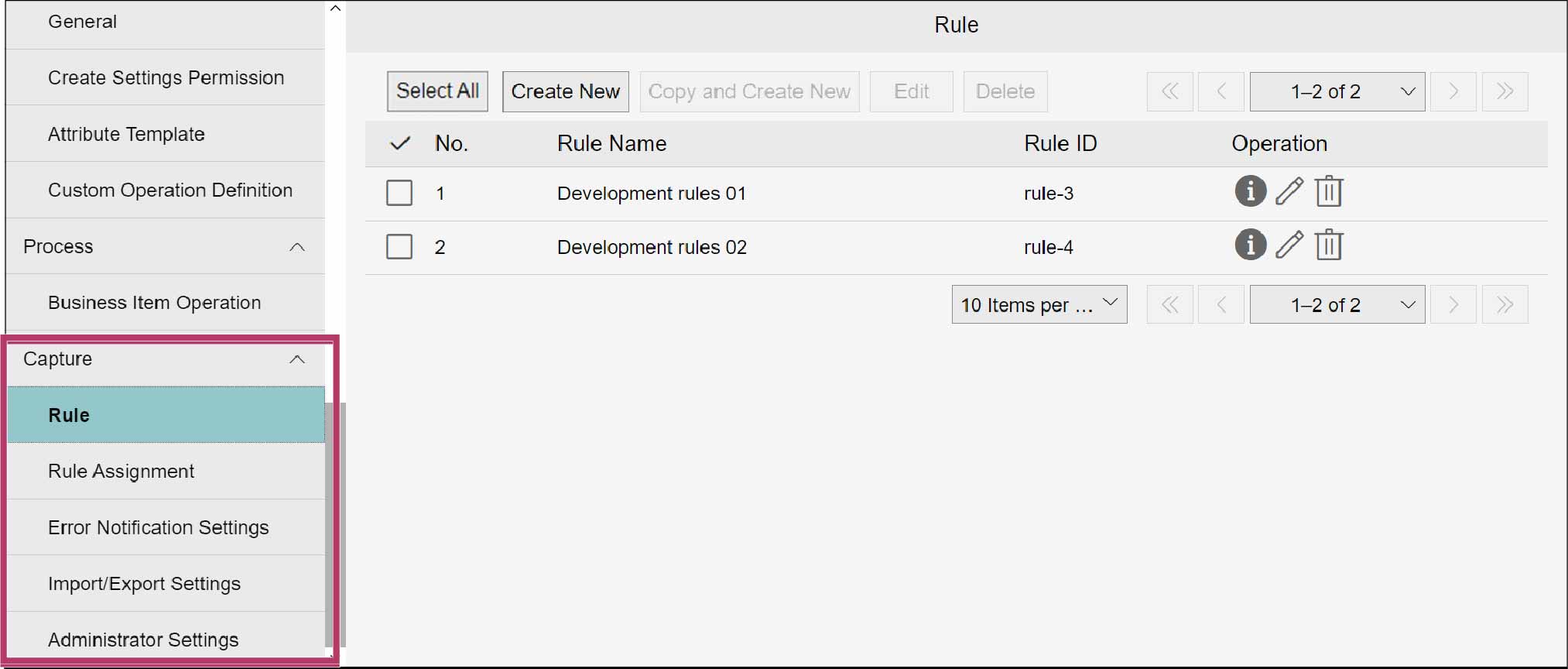
Changing Rules
You can create new, edit, and delete. (6.1 Rule Settings)
Important
"Capture" and "Rules" described on this page refer to the features in the old product Smart Workstream Data Entry option. These are provided in File Management as compatibility features available only to customers who have purchased the old product.
Assigning Set Rule
You can edit/delete the assigned rules. (6.2 Rule Assignment)
Important
"Capture" and "Rules" described on this page refer to the features in the old product Smart Workstream Data Entry option. These are provided in File Management as compatibility features available only to customers who have purchased the old product.
Setting Error Notification
You can set the error notification in [Error Notification Settings] of [Capture]. (6.3 Error Notification Settings)
Important
"Capture" and "Rules" described on this page refer to the features in the old product Smart Workstream Data Entry option. These are provided in File Management as compatibility features available only to customers who have purchased the old product.
Importing or Exporting Settings
You can import/export capture administration settings in [Import/Export Settings] of [Capture]. (6.4 Importing/Exporting Settings)
Important
"Capture" and "Rules" described on this page refer to the features in the old product Smart Workstream Data Entry option. These are provided in File Management as compatibility features available only to customers who have purchased the old product.
Setting Administrator
Select [Capture] > [Administrator Settings] to add and delete the capture administrator.(6.5 Administrator Settings)
Important
"Capture" and "Rules" described on this page refer to the features in the old product Smart Workstream Data Entry option. These are provided in File Management as compatibility features available only to customers who have purchased the old product.