Step 3: Exporting a CA Certificate
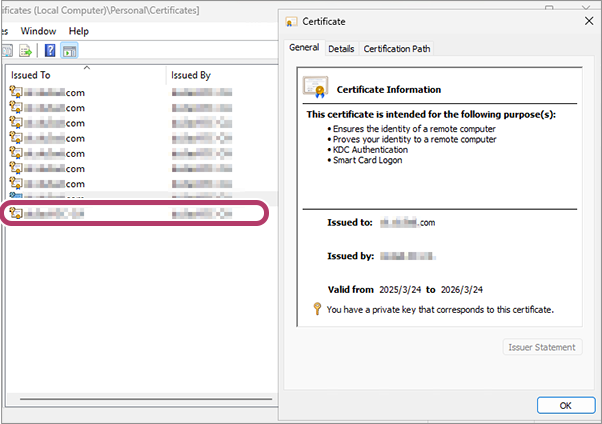
- Double-click the registered server certificate.
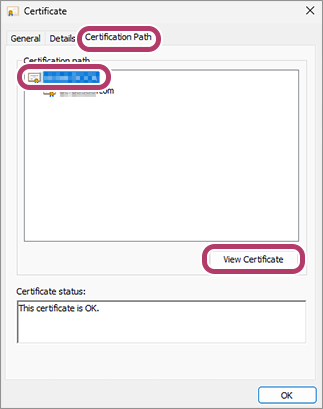
- Click the [Certification Path] tab, select the top CA certificate ("{arbitrary string}-CA") displayed in [Certification Path], then click [View Certificate].
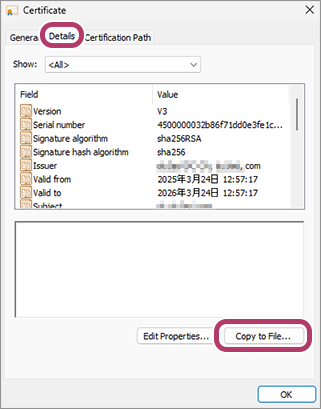
- Select the [Details] tab, then click [Copy to File].
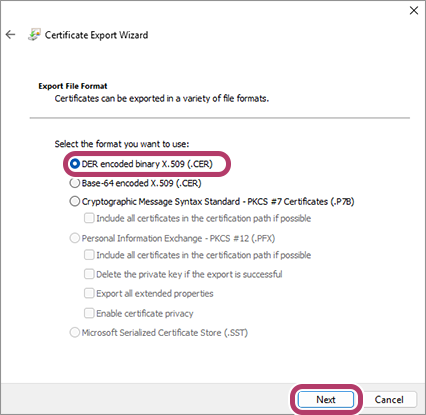
- Select [DER encoded binary X.509], then click [Next].
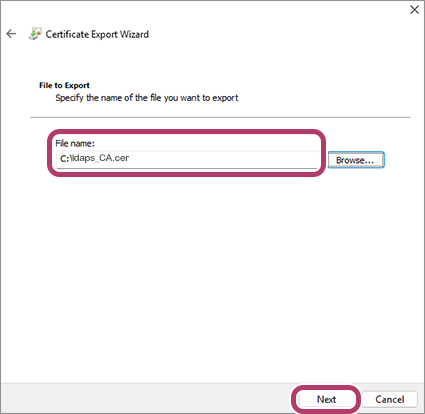
- Enter the name of the file to export, then click [Next].In this example, "C:\ldaps_CA.cer" is entered.
- Click [Finish].
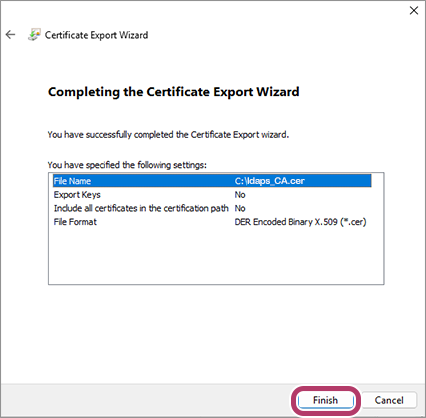 The CA certificate is saved.