Step 1: Creating a Certificate Template
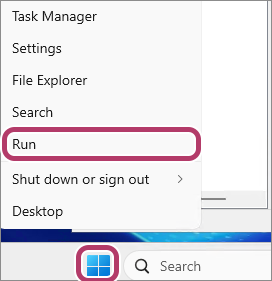
- Right-click the [Start] button in Windows, then click [Run].
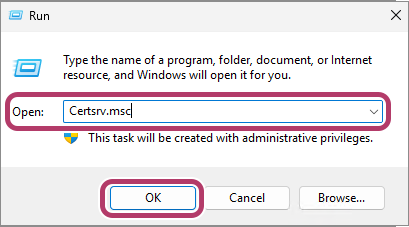
- Enter "Certsrv.msc" in [Open], then click [OK].
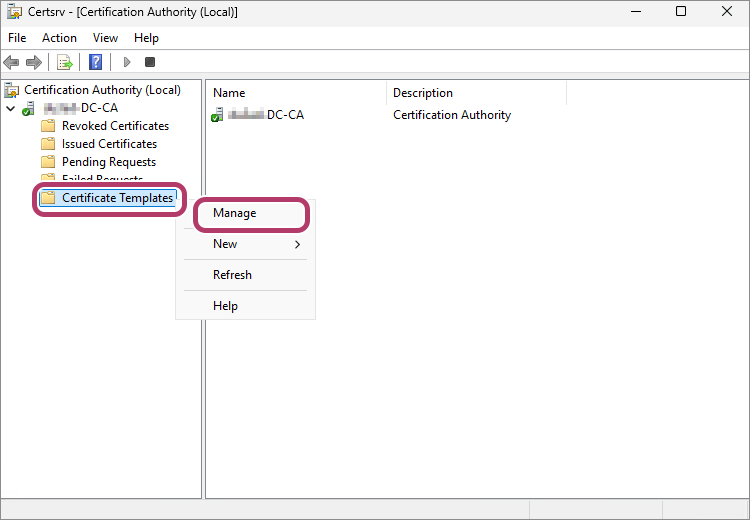
- In the [Certification Authority (Local)] menu on the certificate authority (Certsrv) screen, right-click [Certificate Templates] for the server, then click [Manage].
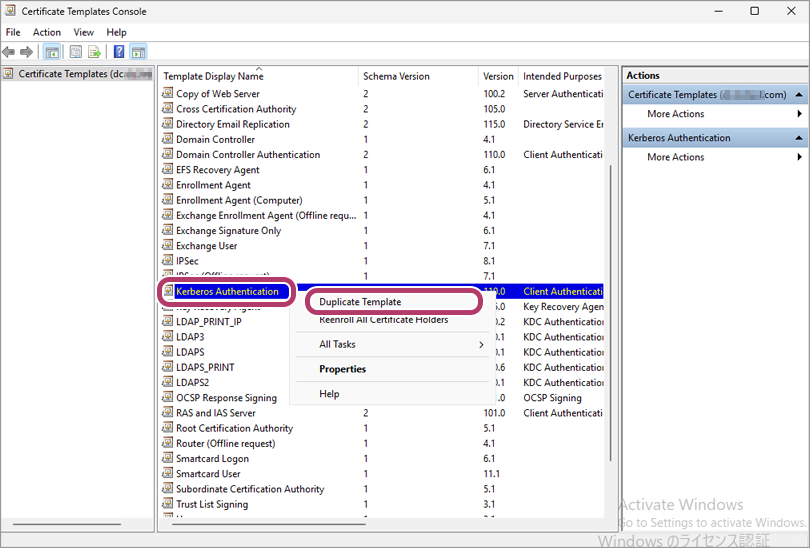
- Right-click [Kerberos Authentication] in the displayed list of templates, then click [Duplicate Template].
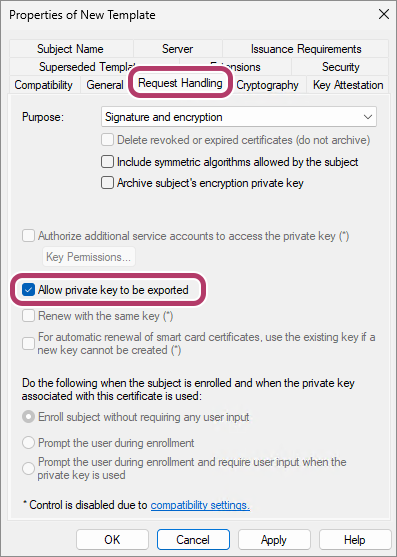
- Click the [Request Handling] tab, then select the [Allow private key to be exported] check box.
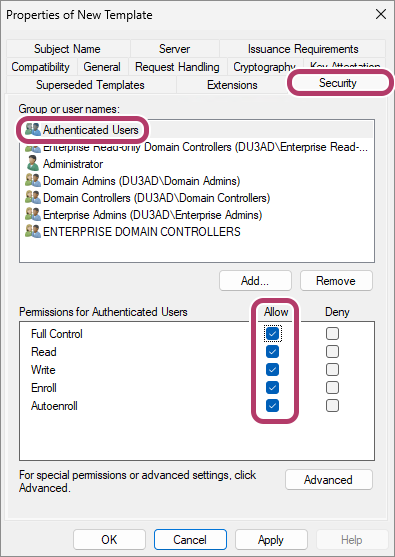
- Click the [Security] tab, select [Authenticated Users], then select the [Allow] check box for all the items displayed in [Permissions for Authenticated Users].
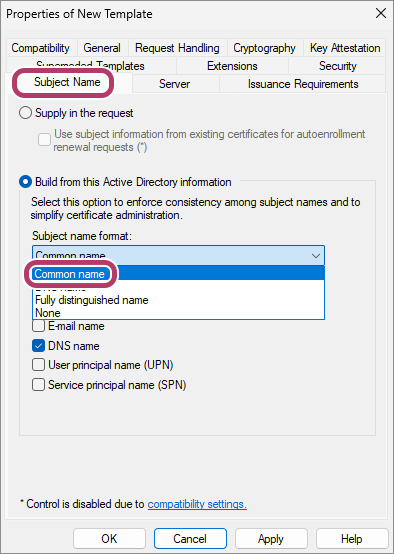
- Click the [Subject Name] tab, then select [Common name] in [Subject name format].
- Click the [General] tab, then perform the following operations.
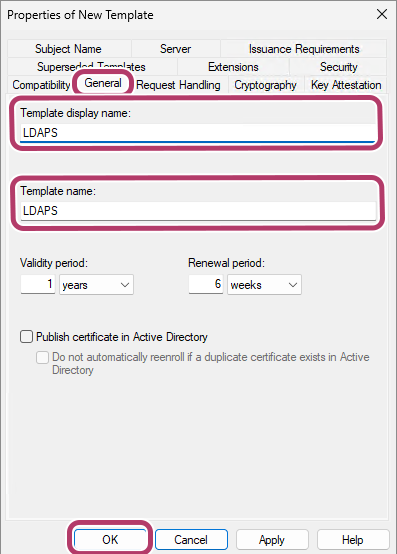
- Enter strings of your choice in [Template display name] and [Template name].In this example, "LDAPS" is entered.
- Change [Validity period] as required.
- Before the certificate expires, create a new certificate (reissue the certificate) and register it to the multifunction device.
- Using a certificate that is valid for an extended period of time may adversely affect security.
- Decide on a well-balanced expiration date for the certificate, according to the needs of your environment.
- Click [OK].
- Enter strings of your choice in [Template display name] and [Template name].
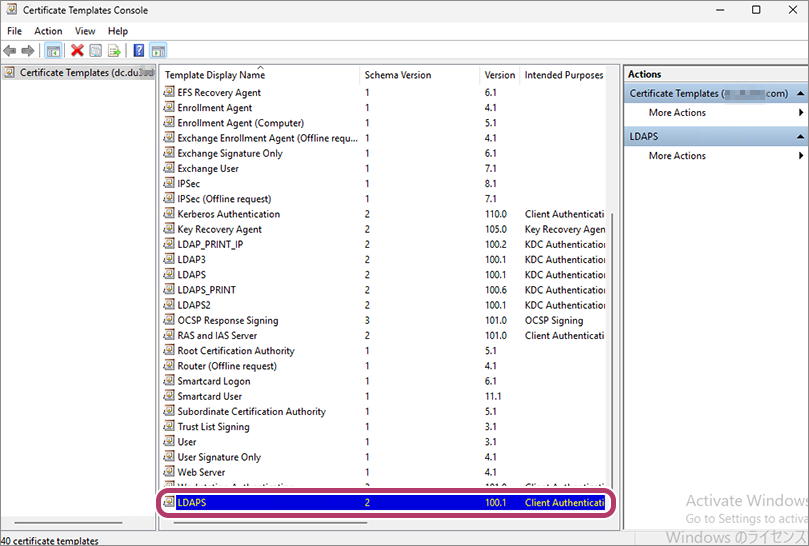
- Confirm that the template you created is displayed in the list of certificate templates.
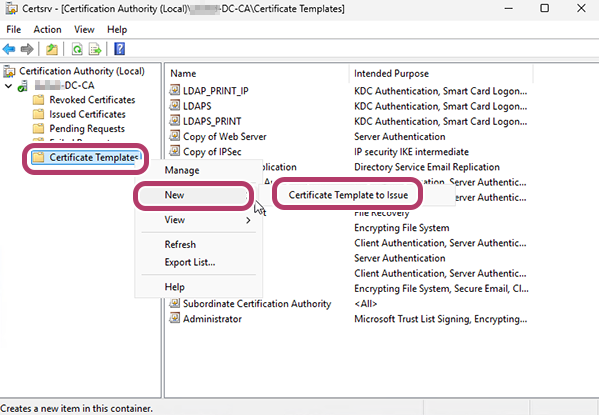
- Right-click [Certificate Templates] in the [Certification Authority (Local)] menu, then click [New] > [Certificate Template to Issue] in the displayed menu.
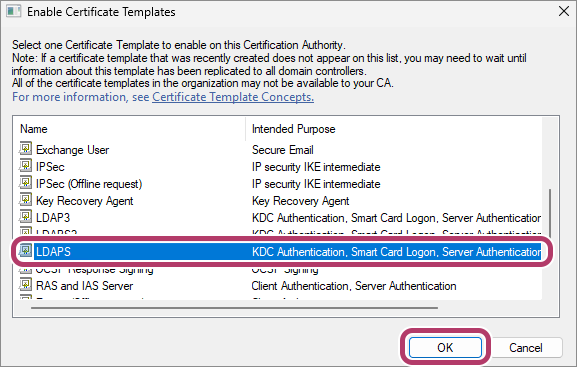
- Select the certificate template created in step 8, then click [OK].In this example, "LDAPS" is selected.
- The certificate template you created may not be displayed in the list of certificate templates. On that case, check again after waiting for a while.
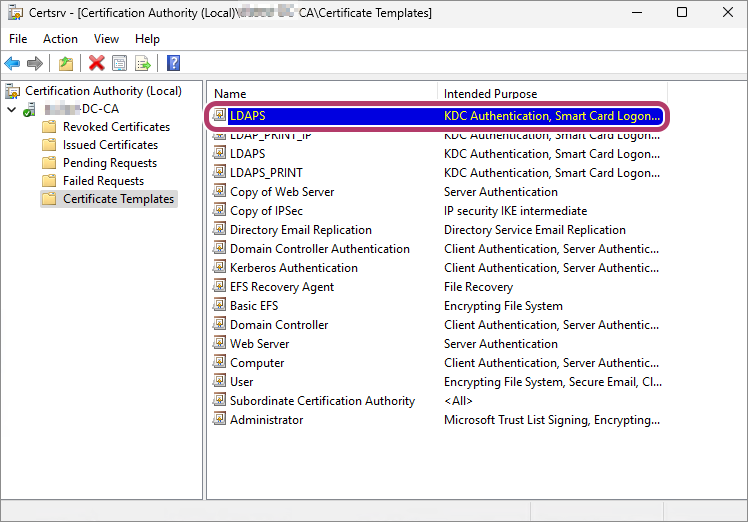
- Confirm that the certificate template you created is displayed in the list in [Certificate Templates].In this example, "LDAPS" is displayed.