View Modes of the Window
This topic describes the view modes of Viewer and how to switch among them.
Viewer provides 6 view modes as follows:
Document view
This is the standard Viewer format. This view is used to view the page content and to edit pages with annotations.
You can select either "Display Thickness" which displays pages stacked or "Continuous Page" which displays pages lined up.
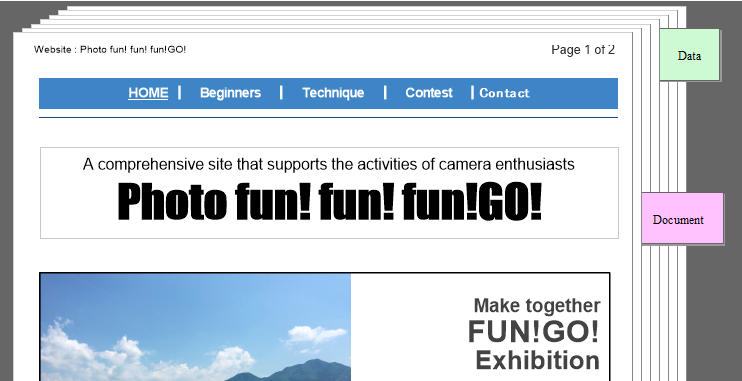
You can select either "Display Thickness" which displays pages stacked or "Continuous Page" which displays pages lined up.
Note
In "Display Thickness" view, when a page other than the top page is displayed, the top page appears shaded, and "1" appears at the upper right of the top page.
Page sorter view
This view displays thumbnail of all pages starting from the first page.
This is used to rearrange or to add pages.

This is used to rearrange or to add pages.
For binders, the separator line appears for each document.
Original data view
This view displays the original data as an icon.
This view is used when you want to copy, import, or extract the original data.

This view is used when you want to copy, import, or extract the original data.
Page sorter and document view
In this view, the window is split into two panes (upper and lower or right and left) for the page sorter view and the document view. This allows you to edit while looking at the overall design.
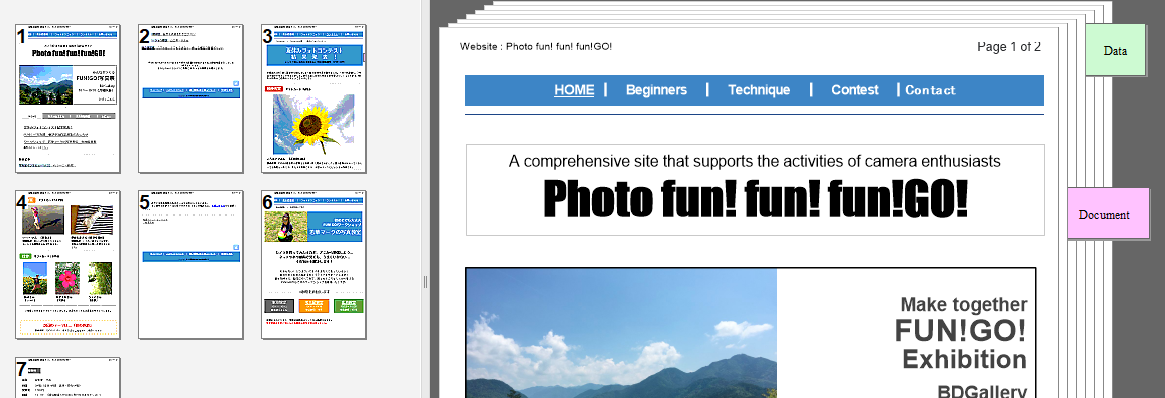
- Each display area that is formed by splitting a window is called a "view". The upper or left view shows a page sorter view, while the lower or right view shows a document view. In these views, you can perform the same operations as in the page sorter view mode and in the document view mode, respectively.
- The border line between views is called a "split bar". You can drag the split bar up and down or from side to side to change the boundary of views.
Full screen view
In this view, a document page appears enlarged in full screen.
Any screen area outside of the page image is filled with a black background color. This view can be used for presentations.
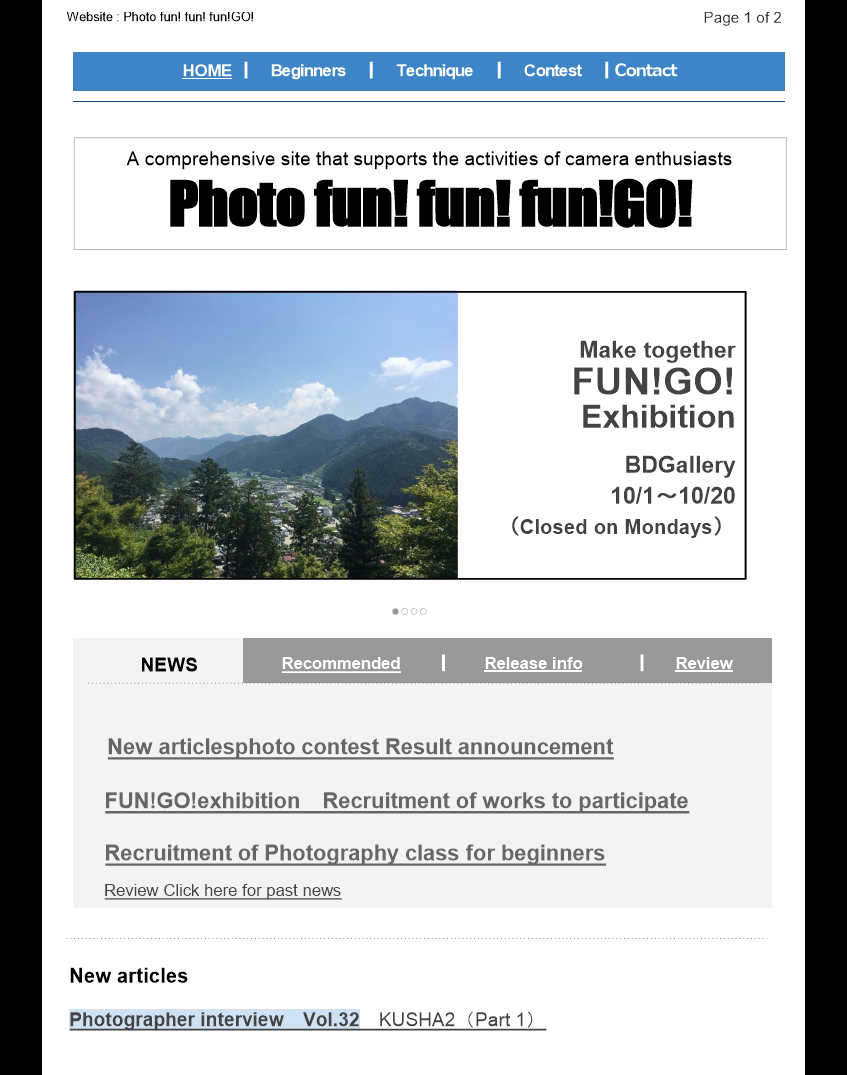
Since no menu bar or tool bar appears in the full screen view, use the control panel or the pop-up menu for any operation.
You can display the control panel by selecting [Control Panel] from the pop-up menu. You can also display the control panel by clicking the button that appears as you move the cursor to the lower left of the screen.
Any screen area outside of the page image is filled with a black background color. This view can be used for presentations.
Since no menu bar or tool bar appears in the full screen view, use the control panel or the pop-up menu for any operation.
You can display the control panel by selecting [Control Panel] from the pop-up menu. You can also display the control panel by clicking the button that appears as you move the cursor to the lower left of the screen.
Split document view
In this view, the window is split into two panes (upper and lower or right and left) to display both pages in Document view. Use this when you edit other pages while referring to a specific part in the same document.
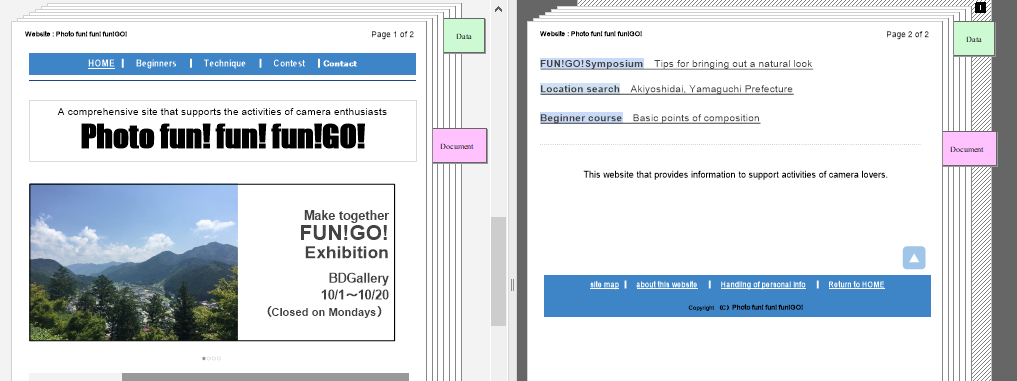
- Each display area that is formed by splitting a window is called a "view". Both views show a document view. You can turn or edit pages in each view.
- The border line between views is called a "split bar". You can drag the split bar up and down or from side to side to change the boundary of views.