Turning a Page
This topic describes how to turn a document page when in document view and full screen view.
Note
For documents in a binder, flipping works serially across documents.
Turning pages by using menu items, keys, toolbar buttons, or mouse in document view
Menu
Select [Page Up/Down] from the [View] menu.
Key
Use the <PageUp> and <PageDown> keys to flip pages. Use the <Home> key to go to the first page, or the <End> key to the last page.
<Ctrl>+<J> keys allow you to jump to a particular page you specify.
<Ctrl>+<J> keys allow you to jump to a particular page you specify.
Toolbar
Click an icon on the [Page Up/Down] toolbar.
Enter a desired page number and press the <Enter> key to go directly to that page.
Enter a desired page number and press the <Enter> key to go directly to that page.
Mouse
You can also turn a page with a wheel mouse.
- Turn to the previous page: Turn the mouse wheel up while pressing the <Shift> key
- Turn to the next page: Turn the mouse wheel down while pressing the <Shift> key
Turn & Scroll
When [View] > [Page Up/Down] > [Turn & Scroll] is selected, while flipping through pages in the "Display Thickness" view, the view automatically scrolls to show the top part of the next page and the bottom part of the previous page.
You can also switch the scrolling setting using the following keys:
- If you want to turn pages without scrolling when page scrolling is enabled, press the <Shift> + <PageUp> keys or the <Shift> + <PageDown> keys to turn to the previous page and to the next page respectively.
- If you want to turn and scroll pages when page scrolling is disabled, press the <Shift> + <PageUp> keys or the <Shift> + <PageDown> keys to turn to the previous page and to the next page respectively.
Turning pages by using menu items, keys, or the mouse in full screen view
Menu
Flip pages using the right-click menu.
Key
Use the <PageUp> key, or the <Shift>+<Enter> keys to go to the previous page; use the <PageDown> or <Enter> key to go to the next page.
Use the <Home> key to go to the first page, or the <End> key to the last page.
Use the <Home> key to go to the first page, or the <End> key to the last page.
Mouse
Use <Shift>+left click to go to the previous page, or left click to go to the next page.
Displaying thumbnail
Thumbnails are displayed while you press the <ALT> key. Press the left or right arrow key while pressing the <ALT> key to move through the thumbnails.
Releasing the <ALT> key displays the page for the thumbnail you selected at the time.
Releasing the <ALT> key displays the page for the thumbnail you selected at the time.
Turning pages by clicking a page number
The procedure below can be used in "Display Thickness" view.
Procedure
1.
Move the cursor to an overlapping part of pages, and click the page number shown.
The clicked page appears at the top.
When the first page is not at the top of overlapped pages, it appears grayed and the number "1" is shown at the top right indicating that it is the first page.
You can also turn pages by clicking a notepad protruding from the page.
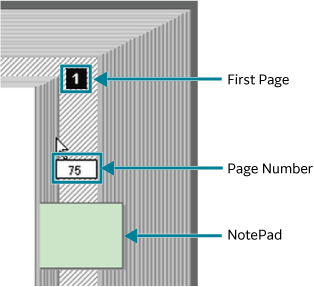
When the first page is not at the top of overlapped pages, it appears grayed and the number "1" is shown at the top right indicating that it is the first page.
You can also turn pages by clicking a notepad protruding from the page.
Turning pages while displaying and checking thumbnails
In "Display Thickness" view, you can display the thumbnails and check the content while flipping through the pages in the following manner.
Procedure
1.
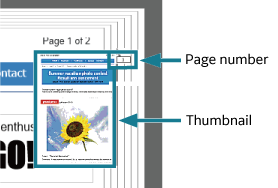
Press the <Shift> key on the page number shown when you move the cursor over the page layer.
The thumbnail for that page is displayed.
2.
Check the page information on the thumbnail and then click it.
The clicked page appears at the top.
When the first page is not at the top of overlapped pages, it appears grayed and the number "1" is shown at the top right indicating that it is the first page.
You can also turn pages by clicking a notepad protruding from the page.
When the first page is not at the top of overlapped pages, it appears grayed and the number "1" is shown at the top right indicating that it is the first page.
You can also turn pages by clicking a notepad protruding from the page.
Displaying Previously Displayed Pages
Selecting [Page History] from the [View] menu allows you to display pages by tracking the history of pages you previously displayed.
Select [Back] to view the page displayed immediately before.
Select [Forward] to view the page displayed before you selected [Back].
Pages from the history are displayed one by one each time you select the menu option.
Select [Back] to view the page displayed immediately before.
Select [Forward] to view the page displayed before you selected [Back].
Pages from the history are displayed one by one each time you select the menu option.
The following restrictions apply to the page history of Viewer:
- Page history is retained only for a single DocuWorks file that is open in a single Viewer window. If you open another DocuWorks file in the Viewer window, the page history so far is deleted.
- If you use the page history after adding, deleting, reordering pages, the current page corresponding to the page in history is displayed. In this case, pages will not be displayed according to the history.