Using Shapes Annotations
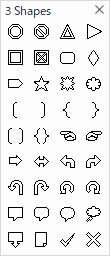
This topic describes how to paste shapes annotations to a page or workspace. You can paste each basic shapes, block arrows, and callouts.
Pasting shapes annotations
Procedure
1.
Select a shapes annotation you want to paste from the [Tool] menu or from one of the annotation toolbars of Viewer.
For Instance, select [Donut] of [3 Shapes].
For Instance, select [Donut] of [3 Shapes].
The cursor changes to the shape of cross.
2.
When [Decide shape when pasting] is selected, drag the cursor across the page or workspace to specify the size of the shapes annotation.
To paste the annotation with the registered shape, click on a desired position in the page or workspace.
To paste the annotation with the registered shape, click on a desired position in the page or workspace.
Changing the properties
Using the [Annotation Properties] dialog box or the property toolbar, you can change the color and width of the line and the fill settings of a shapes after pasting it.
Changing diagram shape using a control point
Depending on the type of the shapes annotation, a control point (yellow circle) appears when you select a shapes annotation.
You can change a style (such as a radius of rounded corner for a rounded rectangle and width of a donut) without changing the size of the shapes annotation by dragging the control point.
You can change a style (such as a radius of rounded corner for a rounded rectangle and width of a donut) without changing the size of the shapes annotation by dragging the control point.