Unstacking a Document
This topic describes how to unstack a multi-page document into individual pages to create multiple single-page documents. Perform this operation while the thumbnails are displayed.
This topic describes the following operations:
Unstacking a document to single-page documents
You can unstack documents either by selecting a menu command or double-clicking the paper-clip.
Unstacking a document by selecting a menu command
Procedure
1.
Select the document you want to unstack, then select [Unstack] from the [Document] menu.
2.
In the document unstacking dialog box, select the unstacking destination folder and click [Execute].
Unstacking a document by double-clicking the paper-clip
Procedure
1.
Double-click the paper-clip displayed on the document.
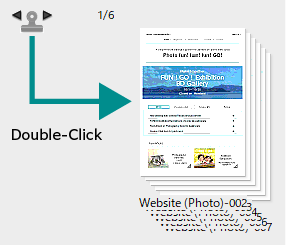
2.
In the document unstacking dialog box, select the unstacking destination folder and click [Execute].
Note
If you select a binder and select [Unstack] from the [Edit] menu, all the documents contained in the binder are extracted to the workspace.
The unstacked documents are handled as follows:
For DocuWorks documents
- When [Unstack in this folder] is selected in the document unstacking dialog box, documents are displayed as follows.
- In thumbnail view, unstacked documents are cascaded in sequential order with the first page displayed at the top where the original file was located.
- In grid view, unstacked documents are displayed in page order from where the original file was located.
- When you select [Create a subfolder and unstack] in the document unstacking dialog box, a new subfolder named as follows is created, containing the unstacked documents.
yyyymmdd-HHMMSS_original file name (yyyymmdd indicates year-month-day format, and HHMMSS indicates hour-minute-second format) - Names of all the unstacked documents are the name of the original document followed by a delimiter and numbers. As for the numbers used in the document names, you can specify the number of digits that can be used in [Document Operation] under [DocuWorks Desk Options] in the [Preferences] dialog box.
- The original data is attached to the page specified in [Document Operation] under [DocuWorks Desk Options] in the [Preferences] dialog box.
- You can specify whether or not to highlight the unstacked documents in [Document Operation] under [DocuWorks Desk Options] in the [Preferences] dialog box.
- The show / hide annotation and the header and footer settings of the original document are inherited to all unstacked documents.
For PDF document
- When [Unstack in this folder] is selected in the document unstacking dialog box, documents are displayed as follows.
- In thumbnail view, unstacked documents are cascaded in sequential order with the first page displayed at the top where the original file was located.
- In grid view, unstacked documents are displayed in page order from where the original file was located.
- When you select [Create a subfolder and unstack] in the document unstacking dialog box, a new subfolder named as follows is created, containing the unstacked documents.
yyyymmdd-HHMMSS_original file name (yyyymmdd indicates year-month-day format, and HHMMSS indicates hour-minute-second format) - Names of all the unstacked documents are the name of the original document followed by a delimiter and numbers. As for the numbers used in the document names, you can specify the number of digits that can be used in [Document Operation] under [DocuWorks Desk Options] in the [Preferences] dialog box.
- You can specify whether or not to highlight the unstacked documents in [Document Operation] under [DocuWorks Desk Options] in the [Preferences] dialog box.
- General document property information of the original PDF document becomes that of all the unstacked PDF documents.
- Only the first page of an attached file remains attached after being unstacked.
Unstacked pages retain files attached as annotations.
The thumbnails of PDF documents with attached files have a icon in the lower-right.
Extracting the front page into a separate document
You can extract the front page (the page displayed) from a multi-page document and create a separate document. This page will be deleted from the original document.
Procedure
1.
Select a document, then select [Extract Front Page] from the [Page] menu.
The front page is extracted and cascaded to the lower right of the original document.
The name of the extracted page is created by appending a delimiter and a number to the name of the original document. The type of delimiter and the number of digits to append can be set in [Document Operation] under [DocuWorks Desk Options] in the [Preferences] dialog box.
Original data attached to the original document are not attached to the extracted page.
The name of the extracted page is created by appending a delimiter and a number to the name of the original document. The type of delimiter and the number of digits to append can be set in [Document Operation] under [DocuWorks Desk Options] in the [Preferences] dialog box.
Original data attached to the original document are not attached to the extracted page.
Splitting a document at the front page into 2 stacks
You can split a document at the front page and create 2 documents.
Procedure
1.
Select a document, then select [Split Displayed Page] from the [Page] menu.
The original document is split into 2 documents, one document consisting of pages up to the front (displayed) page and the other consisting of pages after the front page (including the front page).
The pages after the displayed page cascaded to the lower right of the original document.
The name of the pages after the displayed page is created by appending a delimiter and a number to the name of the original document. The type of delimiter and the number of digits to append can be set in [Document Operation] under [DocuWorks Desk Options] in the [Preferences] dialog box.
Original data attached to the original document are not attached to the pages after the displayed page.
The pages after the displayed page cascaded to the lower right of the original document.
The name of the pages after the displayed page is created by appending a delimiter and a number to the name of the original document. The type of delimiter and the number of digits to append can be set in [Document Operation] under [DocuWorks Desk Options] in the [Preferences] dialog box.
Original data attached to the original document are not attached to the pages after the displayed page.
Precautions for unstacking the document
You cannot select multiple documents to unstack.
The unstacking function cannot be used for the following types of documents:
- DocuWorks containers
- DocuWorks protected documents
- DocuWorks signed documents
- Secured PDF files
- Signed PDF files
- Files other than DocuWorks documents, DocuWorks binders, and PDF documents
however, [Extract Front Page] and [Split Displayed Page] for DocuWorks binders.
The attributes of the duplicated PDF documents are as follows:
- The file attribute (summary information) of the original document is inherited by the pages of the divided document.
- The attachment file is inherited by each divided document.
- If you split a PDF document that has been optimized for Fast Web View, the split PDF document is no longer optimized for Fast Web View.
- The first half of the split PDF documents carries the same bookmark information as the original PDF document, however the other half does not.
- If processing takes more than an hour, processing is timed out and canceled.