Stacking Documents
You can stack multiple documents into a single document with the thumbnails displayed.
This topic describes the following operations:
Stacking documents by using a menu command
Procedure
1.
Select the documents you want to stack, then select [Stack] from the [Document] menu.
The [Stacking Settings] dialog box appears.
2.
Select [Convert to DocuWorks documents and stack] or [Convert to PDF documents and stack] and click [OK].
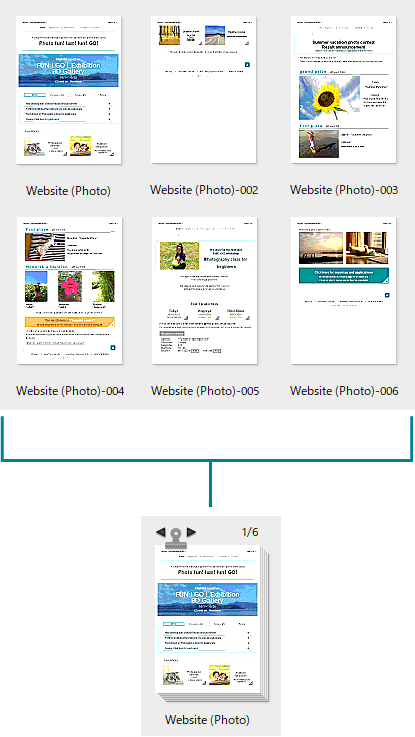
Document pages are stacked in the order they were selected, with the leading page of the document that was selected first becoming the front page.
Note
In the following cases, the [Stacking Settings] dialog box does not appear and documents are stacked in the same format as the selected documents.
- Stacking only DocuWorks documents
- Stacking only PDF documents
Stacking documents by dragging-and-dropping
Procedure
1.
Drag-and-drop a document onto another document to stack them into one document.
The [Stacking Settings] dialog box appears.
2.
Select [Convert to DocuWorks documents and stack] or [Convert to PDF documents and stack] and click [OK].
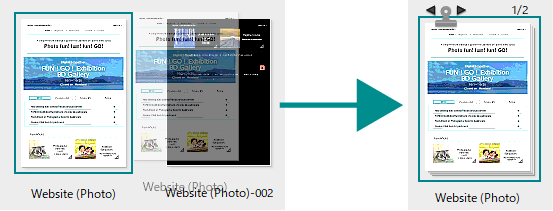
The dropped document is inserted before the front page of the destination document.
Note
In the following cases, the [Stacking Settings] dialog box does not appear and documents are stacked in the same format as the selected documents.
- Stacking only DocuWorks documents
- Stacking only PDF documents
Precautions for stacking the document
- The stacking function cannot be used for the following types of documents:
- DocuWorks binders and DocuWorks containers
- DocuWorks protected documents
- DocuWorks signed documents
- Secured PDF files
- Signed PDF files
- Note that the order of file selection and that of layering may not be returned to the original status even if you select [Undo] from the [Edit] menu.
When you stack DocuWorks documents or documents converted to DocuWorks documents, the documents stacked are handled as follows:
- The original data attached to the original documents is also attached to the stacked documents.
- The following settings specified on the first page of the stacked documents are applied to the entire stacked documents.
- Document name
- Showing/hiding annotations
- Header and footer
- Properties in the [General] tab and the [Custom] tab of the [Document Properties] dialog box.
Note
To apply the header and footer settings to the document, select [Update Header/Footer] in Viewer.
When you stack PDF documents or documents converted to PDF documents, the stacked documents are handled as follows:
- All files attached to the original document maintain their relationship with the stacked document.
The thumbnails of PDF documents with attached files have a icon in the lower-right.
 - The name of the stacked documents is the name of the original PDF document that is stacked on the top.
- The document attributes of the original PDF document that is stacked on the top are inherited to the entire stacked documents.
- The bookmarks of the original documents are inherited to the stacked documents as they are.
- Bundling documents that have been optimized for web display will cause them to become unoptimized for web display.
- If processing takes more than an hour, processing is timed out and canceled.